The job page, crew and equipment
Everything recorded against a job, and changing who and what is going.
Click a job anywhere to open it. The office sees the job in tabs, and each tab has its own address, so a link can open the one you need. The crew see the whole job on one page on their phones.
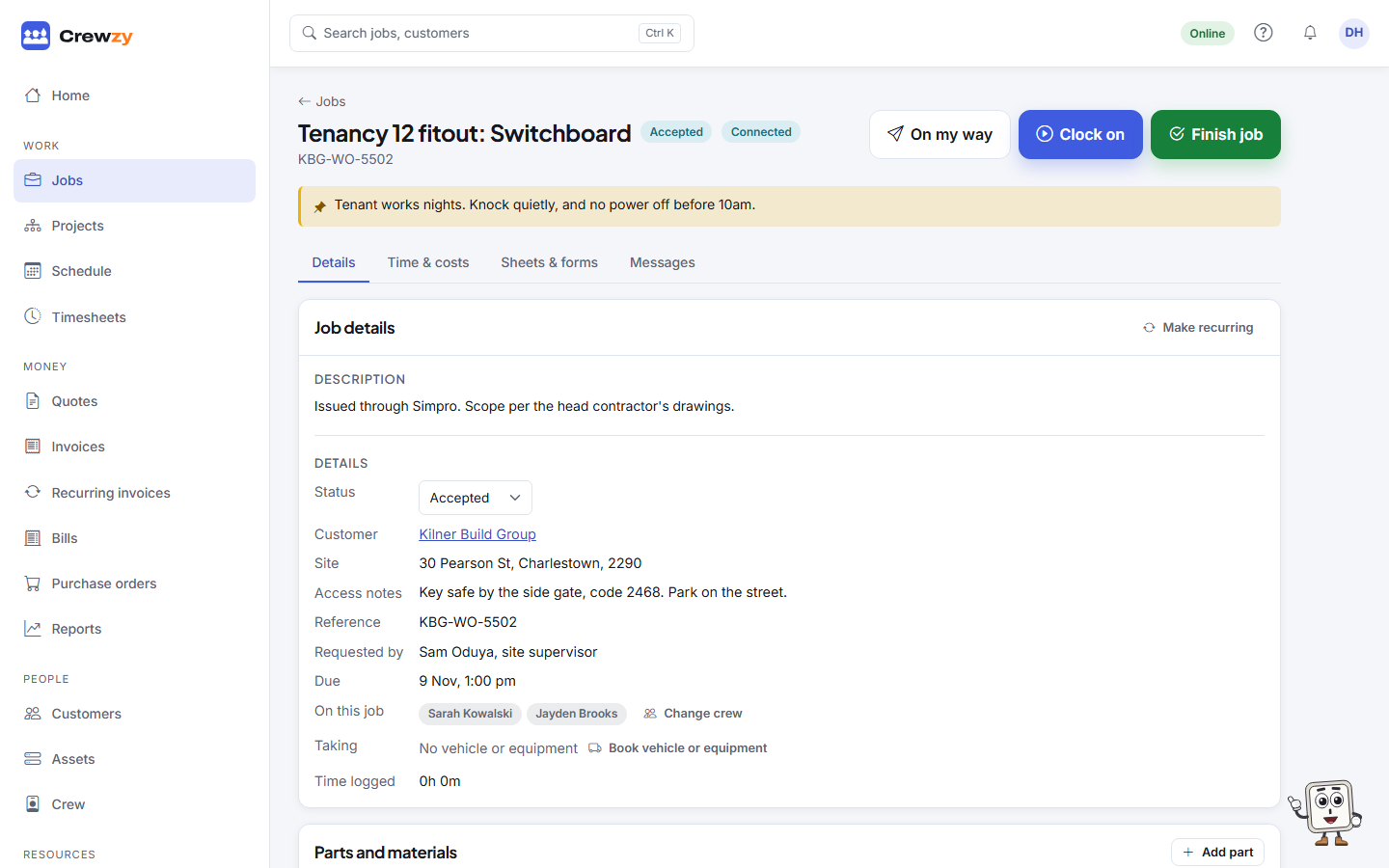
Above the tabs are the job's title, status and priority, the buttons for where it is up to (such as Clock on, Finish job or Invoice this job), and any pinned notes: the job's own, and the customer's marked Customer.
What you see
- Details: the Job details card (the status, the customer, site and its access notes, reference, who asked for it, when it is due, who is on it, what vehicles or equipment are booked and the time logged), the parts and materials used, any hire costs, the job's Notes box, and the sign-off once it is finished. See Notes and follow-ups.
- Time & costs: every clock on and clock off, with who and how long, and the Costing card: what the job has cost against what it has been invoiced, with supplier bills (costs for office and owners only). See Job costing and profit by job.
- Sheets & forms: job sheets, forms, the evidence pack, and photos, plans and paperwork on the job. See Files, photos and signatures. A number on the tab counts the forms still to do, in amber when one is overdue or must be done before the job can be finished.
- Messages: every text sent to the customer about this job, changes made through the assistant, and updates to a head contractor's system. It shows once there is something in it.
- Variations: on a job for a project, the variations raised on it. A number counts those still to be decided.
Edit the job
Press Edit in the job details to change the customer, site, title, reference, priority, due date, who asked for it or the description. Empty a box and save to clear it. A job from a head contractor is changed in their system, so it has no Edit button.
To move a job along or cancel it, see What each job status means.
Parts and materials
Press Add part under Parts and materials. Choose one From the price list, or type the part in, then set the quantity. The office also sees the Price each, which starts at the price list's sell price, and for a typed-in part a Cost each so the job's profit counts it. Press the pencil on a line to change it or Remove from job.
The crew can add parts from their phones too. See Finish a job on your phone.
Change the crew
Press Add crew or Change crew next to On this job, tick who is going and press Save crew. Choose Nobody to take everyone off.
Book a vehicle or equipment
Press Book vehicle or equipment, choose one, and set the day and times. Click a booking to change or remove it. A booking on a day the vehicle is marked unavailable is refused.
Booked hire is costed to the job, using the vehicle's cost per day: a day for each full 24 hours, and the rest worked out over an eight-hour day.
Add or correct time
On the Time & costs tab, anyone in the office can press Add time to put in time someone forgot to clock, or click an entry to correct it. Typed and corrected entries are marked as such on the timesheets.
Make a job repeat
Press Make recurring to turn a one-off job into a repeating one. This job becomes the first visit. See Repeating jobs.