Create a job
Add a job with its customer, site and due date, then put the crew on it.
Press New job on Work, Jobs. You can also press New job on a customer's page, which fills in the customer for you, or turn an accepted quote into a job.
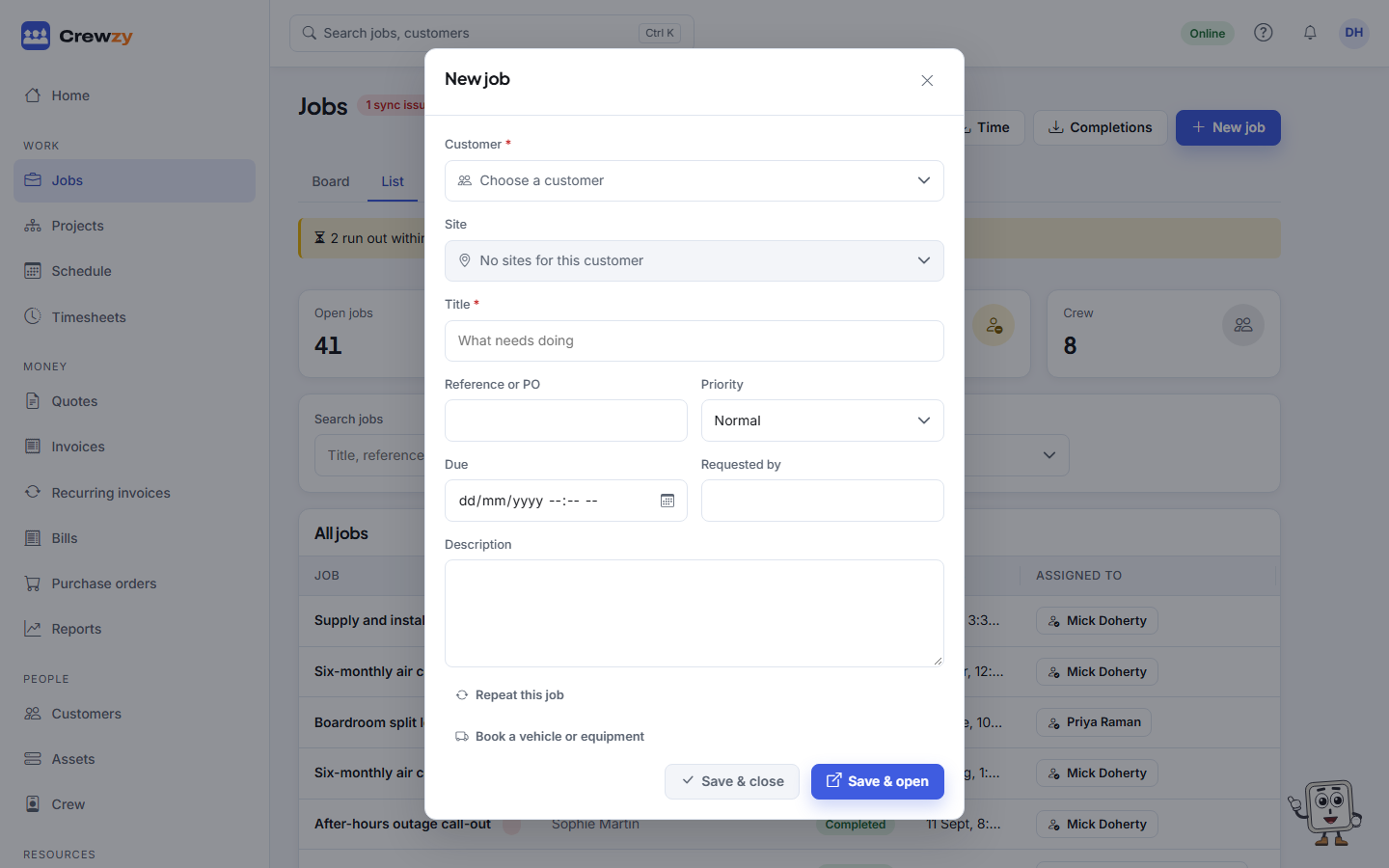
The details
| Field | What to put |
|---|---|
| Customer | Who the work is for. Needed |
| Site | Which of their addresses to go to. Add sites on the customer's page |
| Title | What needs doing, in a few words. This is what the crew see first |
| Description | Anything else the crew need to know |
| Due | When it needs doing by |
| Priority | Normal, or low, high or urgent. High and urgent show a coloured tag |
| Reference or PO | The customer's order number. It goes on the invoice |
| Requested by | Who asked for the work |
The crew go on once the job is made: press Assign on its card on the board, or Add crew on the job page, or drag it onto someone on the schedule. See The job page, crew and equipment.
Book a vehicle or equipment
If you keep a register of vehicles and equipment, press Book a vehicle or equipment, pick one and set the day and times. A vehicle that is off the road at that time is refused.
Make it repeat
For work that comes round regularly, such as a monthly test, press Repeat this job and set how often. See Repeating jobs.
Save
- Save & close adds the job and keeps you where you were, ready for the next one.
- Save & open adds the job and opens it.