Files, photos and signatures on a job
Keep photos, plans and paperwork with the job, and get the customer's sign-off.
Add files and photos
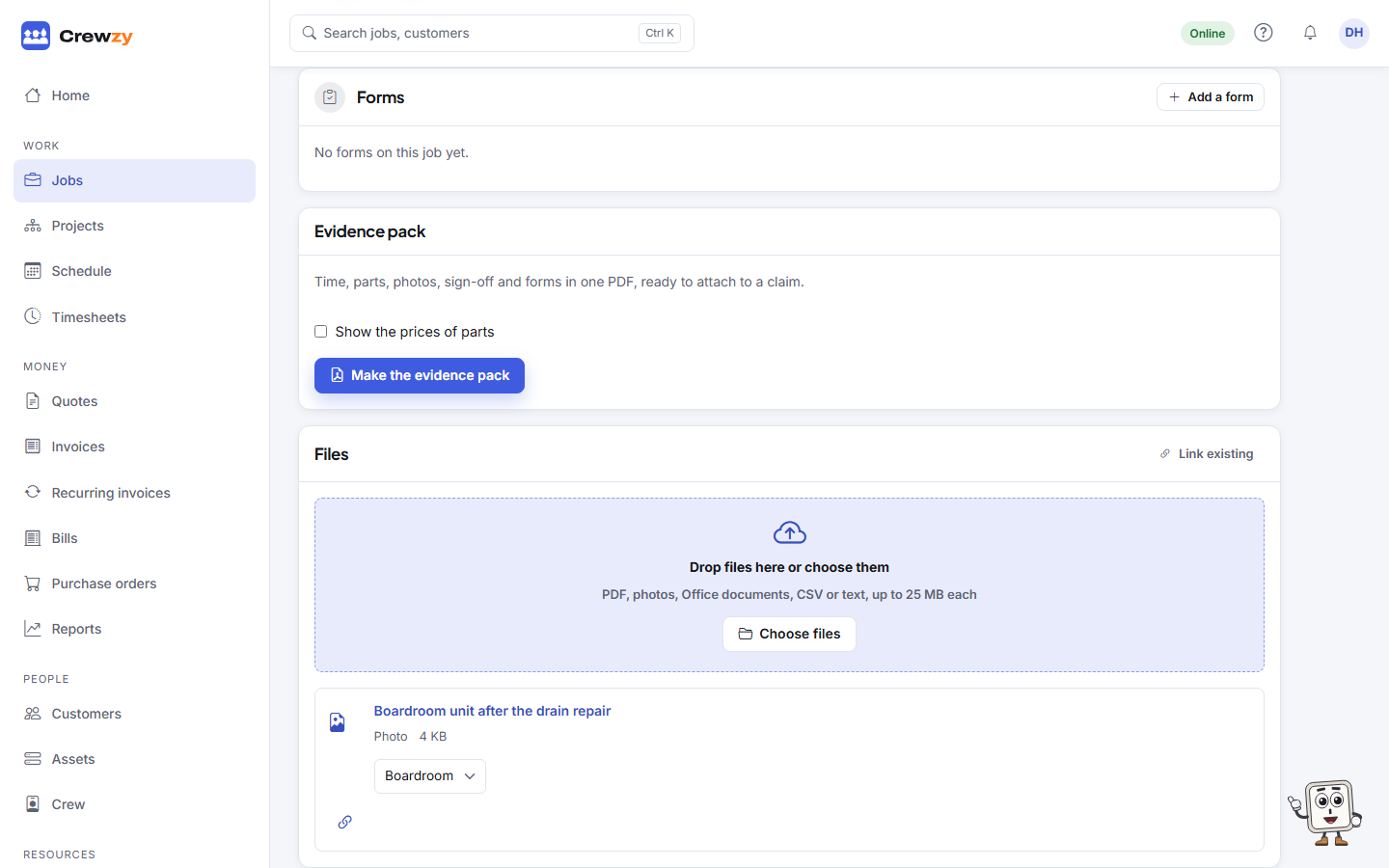
Every job has a Files card, on the job's Sheets & forms tab. Drag files onto it, or press Choose files. On a phone the card has Take a photo as well, and the crew can also tap Add, then Add a photo or file.
- PDFs, photos, Office documents, CSV and text files, up to 25 MB each.
- Workers can add files to their own jobs. The office can add, file and remove files on any job.
- A file uploaded twice is recognised and not stored again.
Files on a job are part of the business's documents, so the same file can also be linked to the customer or the site. See Documents and expiry dates.
Show files to the customer
On an invoice, the office can choose documents to show the customer on the pay page, such as a compliance certificate, and can choose to show the job's timesheet (who worked and the hours, never rates or costs).
The customer's signature
When a worker finishes a job, they are asked for the customer's name and signature on the phone before marking it complete. Both are kept with the job. See Finish a job on your phone.
They can also add Notes, such as how the job was left. The name, signature and notes show on the Sign-off card on the job's Details tab. If the job is reopened later, the card stays but is headed Earlier sign-off, with a note that the job was reopened after it.