Finish a job on your phone
Get the customer's sign-off and mark the job complete.
When the work is done:
- Add any parts you used (see below).
- Add photos of the finished work: tap Add, then Add a photo or file, and take the photo or choose it.
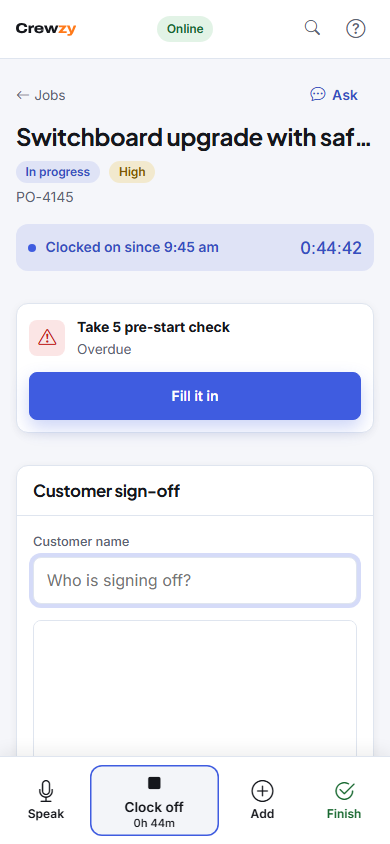
- Tap Finish, at the right of the bar along the bottom (Finish job at the top of the job on a bigger screen).
- Under Customer sign-off, type the Customer name of whoever is signing off, and have them sign with their finger in the box. Add any Notes, such as how the job was left.
- Tap Mark complete.
The job moves to Done on your phone and to Finished on the office's board, ready to invoice. If your clock is still running, it stops. The bar along the bottom goes, and My Jobs and My Details are back.
Tap Not yet to close the sign-off without finishing. What you typed is kept for when you come back to it.
If a form must be done before the job can be finished, you are told which one. Fill it in first. See Fill a form on site.
Add parts you used
Tap Add, then Add a part (on a bigger screen, Add part under Parts and materials). Choose one from the price list, or type it in, set how many and tap Add part. You do not set prices: the office does. You can change or remove a part until the job is finished; after that, ask the office.
With no signal, a part is saved on the phone and sent when you are back in signal, like clocking on.
Finishing with no signal
The completion is saved on the phone and sent when you are back in signal, signature and all. See Working without signal.