Notes and follow-ups
Keep notes on jobs, customers, quotes and invoices, pin the important ones, and set a day to follow up.
Notes are what your team writes down about a job, a customer, a quote or an invoice: a phone call, an email, a site visit, or just something to remember. Each note says who wrote it and when.
Where notes are
- Jobs: the Notes box on the job's Details tab. Job notes are shared with the crew booked on the job, who can read them and add their own from their phone.
- Customers: Notes and activity on the customer's Overview, alongside the quotes sent, invoices paid and jobs finished. Notes on that customer's quotes and invoices show here too, saying which one they are on.
- Quotes and invoices: the Office notes box beside the document.
Customer, quote and invoice notes are for the office only. The crew never sees them, and no note of any kind is ever printed on a document, put in an email or shown in the customer portal. The Notes on an invoice or quote's details, which the customer does read, are a different thing.
Add a note
Press Add note on the box. The form opens in place: type the note, and choose:
- Kind: a note, a call, an email or a visit.
- Follow up on: a day to come back to it, such as "Call back on the 20th".
- Pin it to the top: for something everyone should read first.
Press Save note. The newest notes are first, with pinned ones on top. Each note shows who wrote it and when, and a tag for a follow-up that is due or overdue.
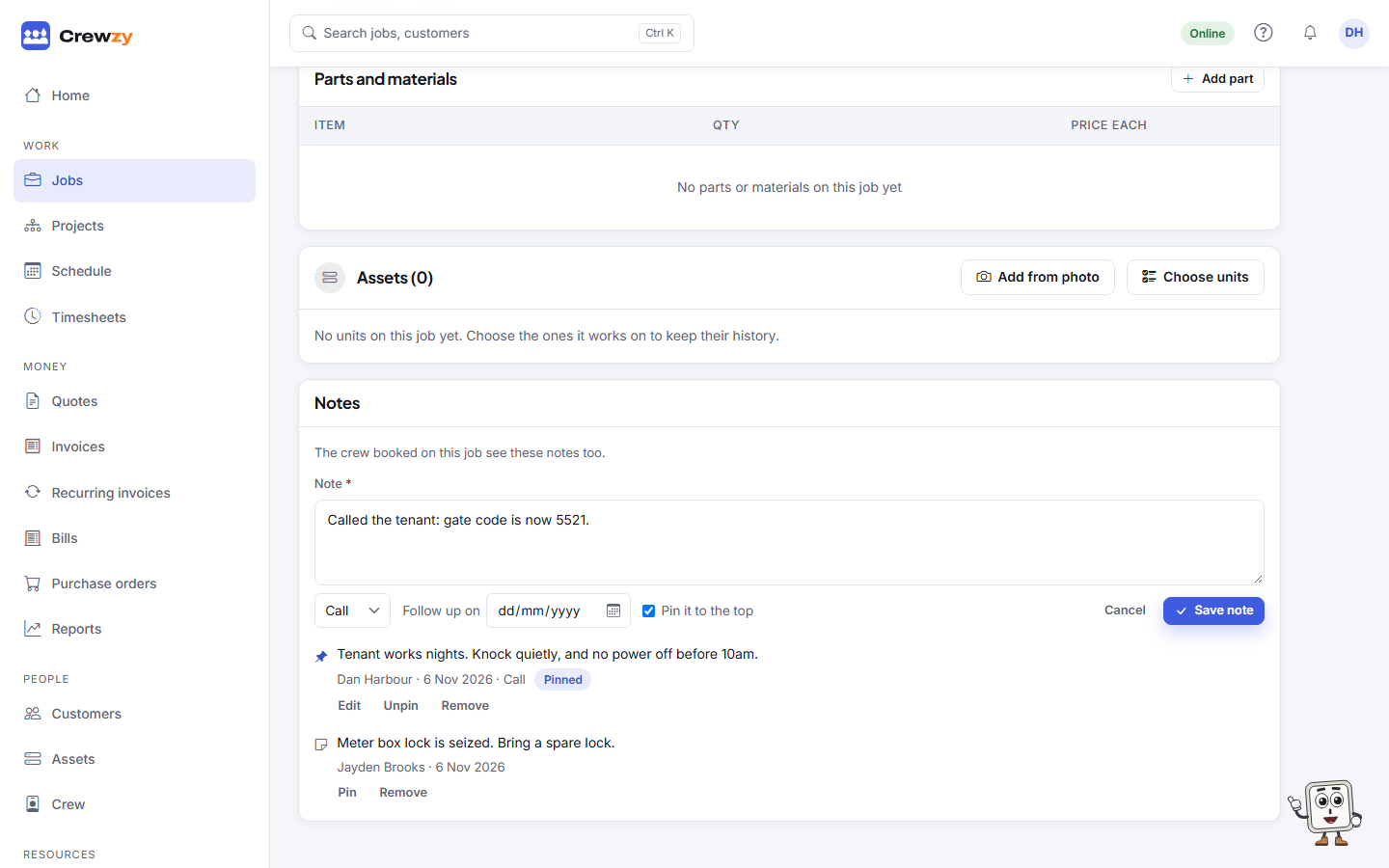
The crew add notes to their jobs from their phones the same way, without the kind, follow-up or pin. See Notes on a job.
Pinned notes
A pinned customer note shows in the customer's header, and at the top of every job for that customer for the office (never for the crew). A pinned job note shows at the top of the job for everyone who can open it, crew included. Press Pin on a note to pin it later, and Unpin to take it down.
Follow-ups
On the day a follow-up is due, whoever wrote the note is told in the bell. If they have left the business, the owner is told instead. You can have them by email or on your phone too: turn on Follow-up due in Your notifications.
The Follow-ups widget on Home lists every follow-up due today or overdue across the business, oldest first, marked "yours" where you set it. Press Done once it is dealt with; Done on the note itself does the same.
Changing and removing notes
Only the person who wrote a note can change its words. They can remove it too, and so can the owner. Anyone in the office can pin a note or mark its follow-up done.
Ask the assistant
The assistant reads the notes on a record when you ask about it, and can add a note for you, with a follow-up day, once you press Confirm.