The schedule
Book jobs onto people and vehicles by the day or by the hour.
Go to Work, Schedule. It shows who is booked on what, with a row for each person and, underneath, a row for each vehicle and piece of equipment.
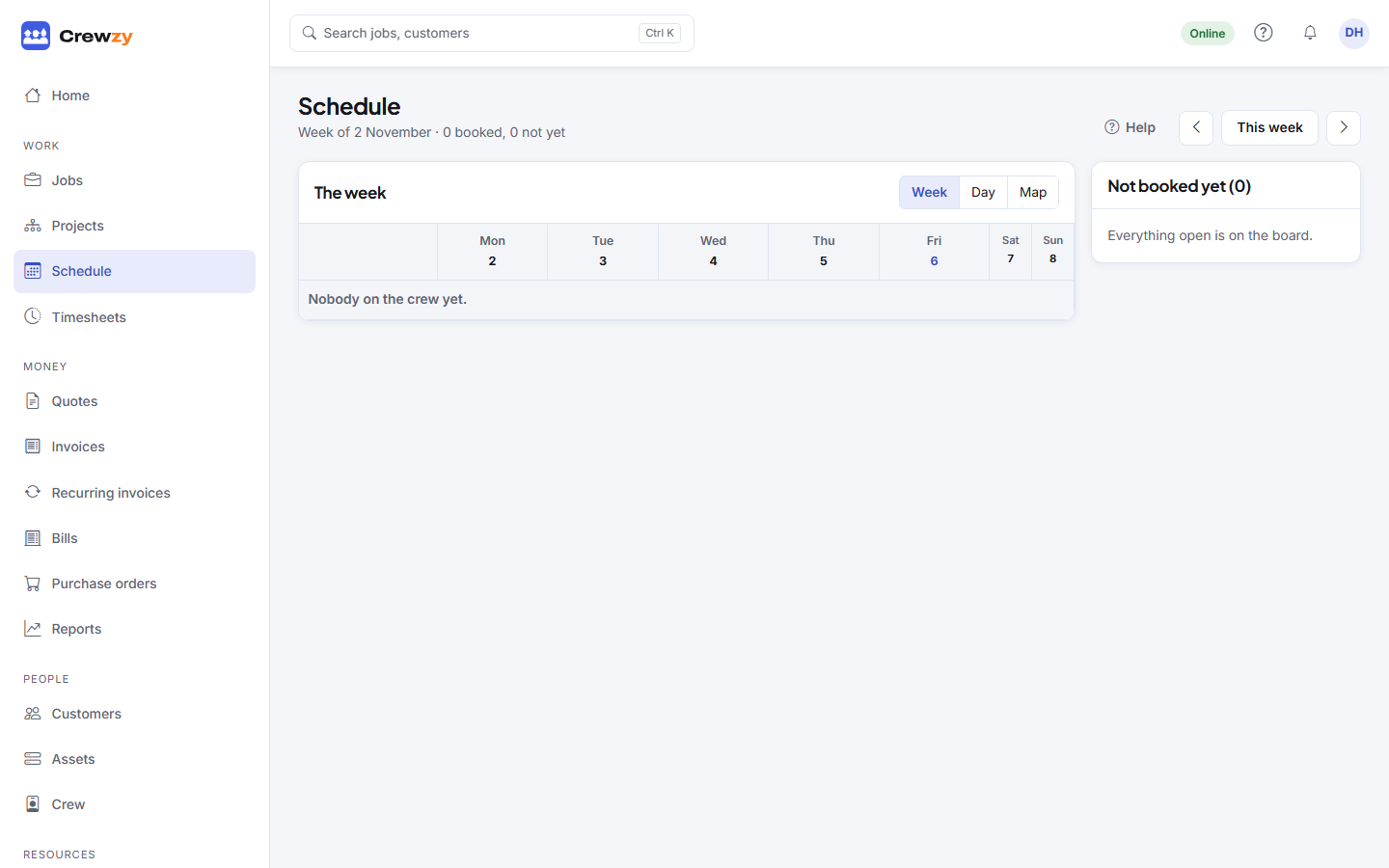
The week
Each person has a row and each day a column. Jobs not yet booked are listed under Not booked yet.
- Book a job: drag it from Not booked yet onto a person or a vehicle on a day. It goes in after whatever that row already has that day, for two hours.
- Move a booking: drag it to another day or row.
- Unbook: press the cross on the booking.
- Open a day by the hour: click the day's heading.
Use the arrows to move a week at a time, and This week to come back.
A booking that overlaps something else for the same person or vehicle is marked as a clash. Days a vehicle is unavailable are greyed out and will not take a booking.
The day, by the hour
Press Day to see one day by the hour.
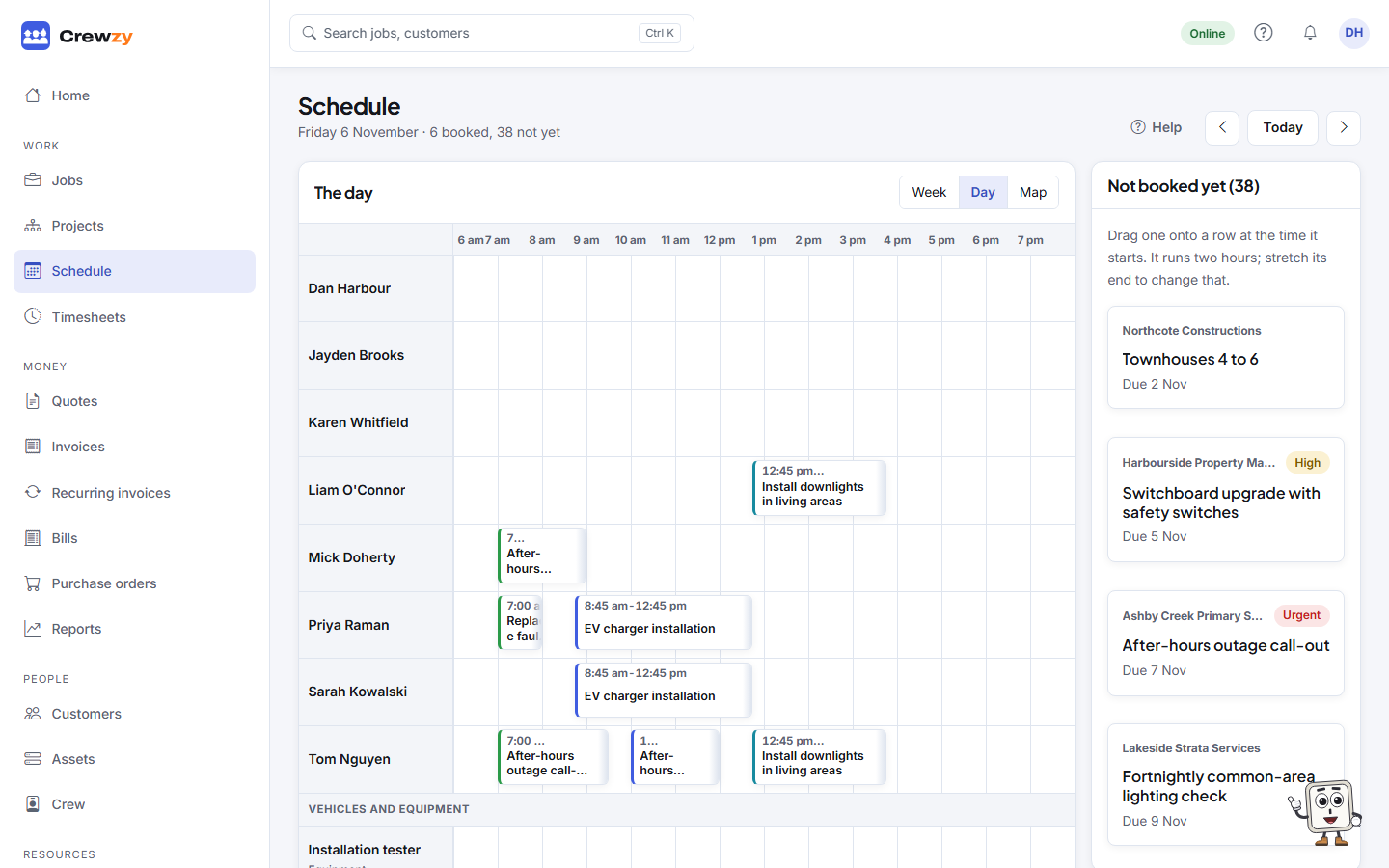
- Drag a booking along the row to change its time, or onto another row to give it to someone else. Times snap to 15 minutes.
- Drag the end of a booking to make it longer or shorter.
- Press the clock on a booking to type exact times.
- Bookings that overlap sit in their own lane so you can see the clash.
On a phone, the day shows as a list instead.