The crew app, for the office
What your workers can and cannot see, and how to get them started.
Workers get a simple app with two places, My Jobs and My Details: along the bottom of the screen on a phone, and in the bar at the top on a tablet or computer. There is no office menu, Home or Settings. Clocking on and off lives on each job, which is the only place it means anything. On a phone, an open job swaps the two places for its own bar of On my way or Speak, Clock on, Add and Finish. See A job on your phone.
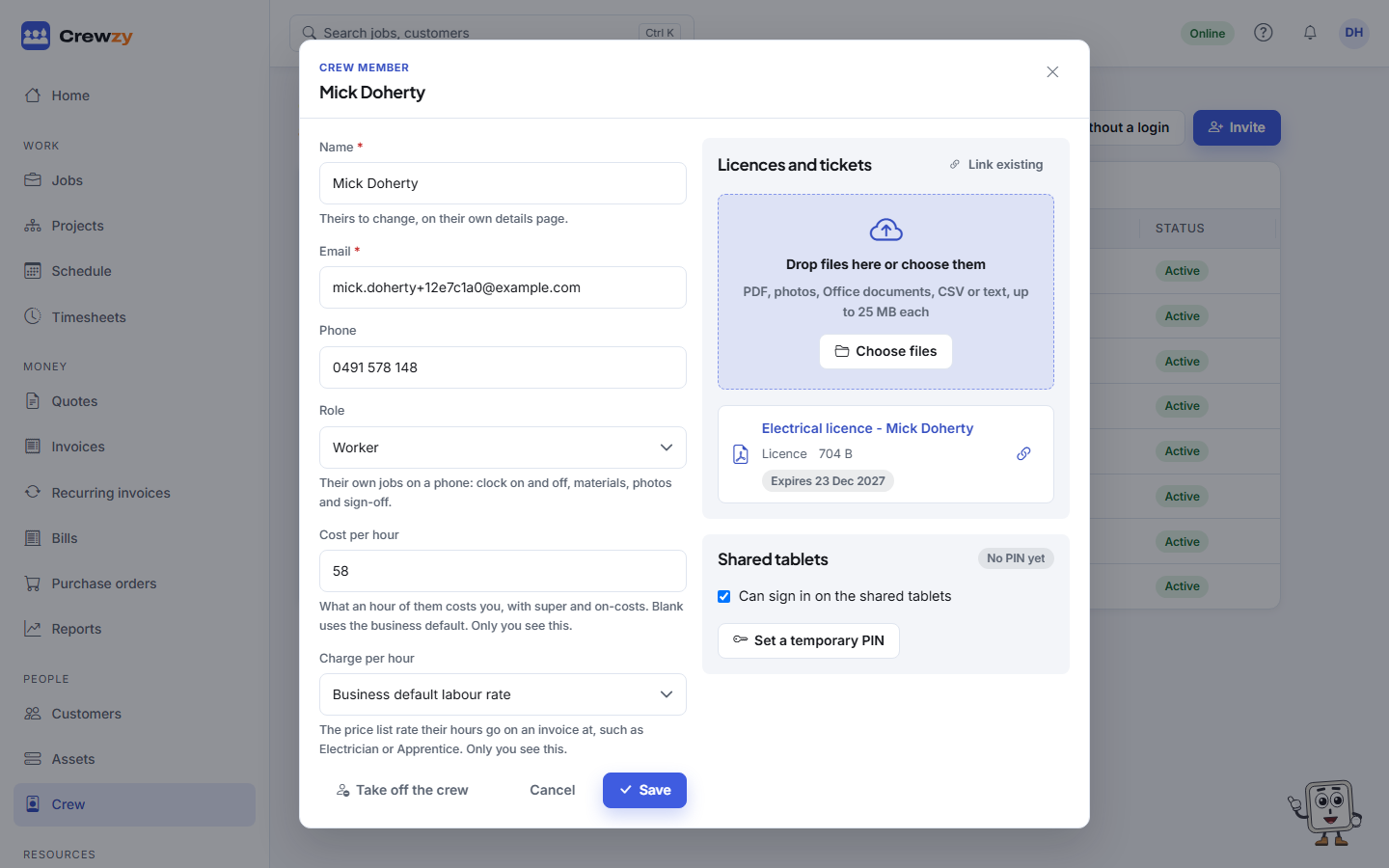
What a worker sees
- Only the jobs they are on. Search finds only those jobs and documents filed on them or on the worker.
- The customer, site and description of each job, the rest of the crew, and booked vehicles.
- The site's access notes, on jobs they are booked on that are not finished yet. Once a job is finished they no longer see them, on the job or from the assistant, and the copy saved on their phone drops them. The office always sees them.
- The job's notes, with pinned ones at the top. They can add their own. Notes on the customer, quotes and invoices never reach them. See Notes on a job.
- The parts on each job, without prices.
- Their own time on each job.
- The assistant, from Ask on each job. It reads only their own jobs, with the site's access notes while a job is open, and drafts notes, parts and variations for them to confirm. See Ask the assistant on a job.
What a worker does not see
- Other people's jobs, quotes, invoices, prices, costs or profit.
- Customers' phone numbers. The On my way text is sent for them.
- Settings, the price list and the crew list.
Getting a worker started
- Invite them as a Worker under People, Crew. Up to 20 active crew a month are included on every plan.
- Put them on a job. They get a notification if they have turned notifications on.
- Ask them to add the app to their Home Screen. The invitation says so, and the first time they open it in their phone's browser a Set up this phone card on My Jobs shows the steps for their phone. See Put the app on your phone.
Clock on locations
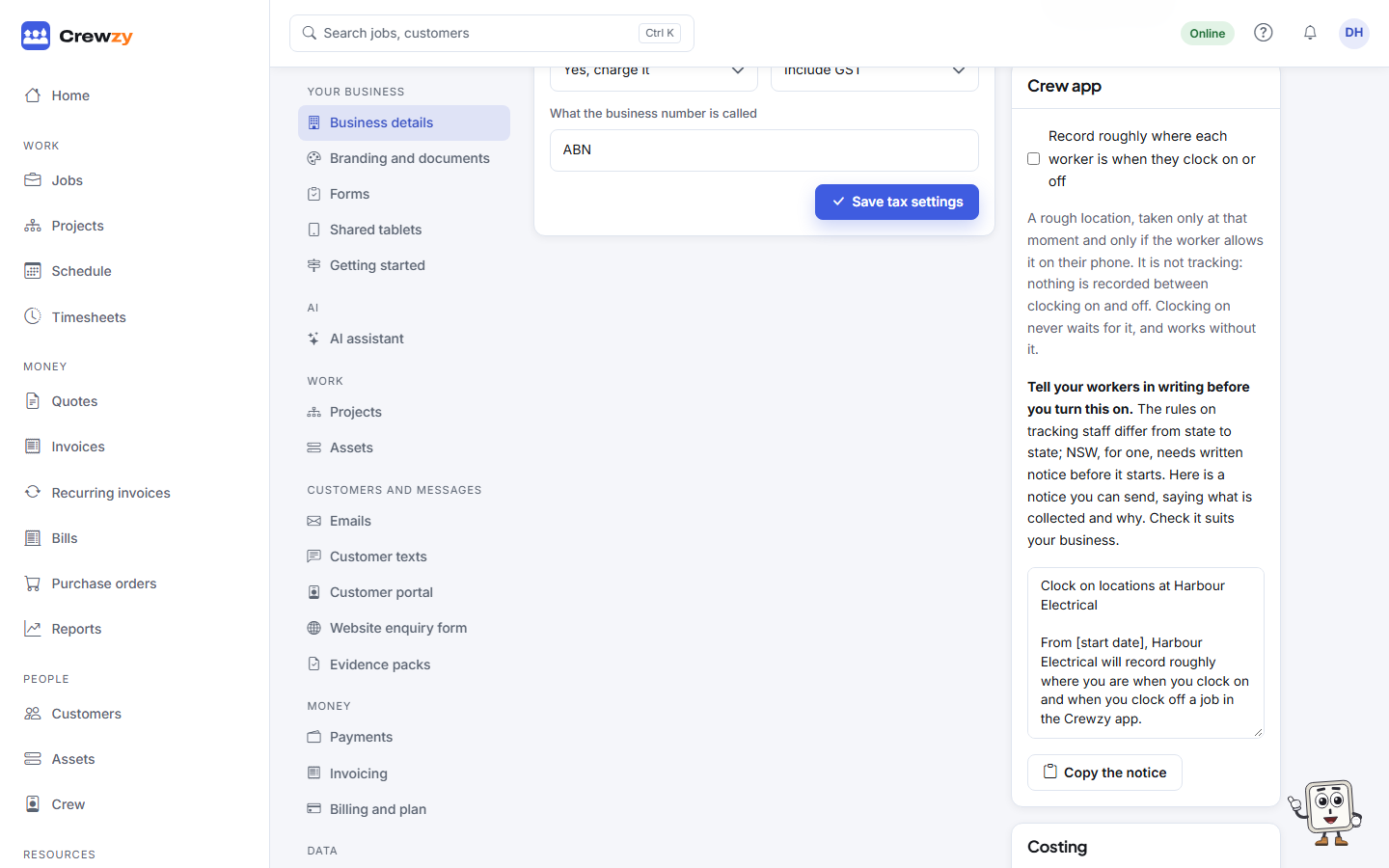
Under Settings, Business details, Crew app, an owner can choose to record roughly where each worker is when they clock on or off. It is off until you turn it on.
It is one rough reading when a worker clocks on and one when they clock off, and only if they allow it on their phone. Nothing is recorded in between, and clocking on never waits for it or needs it. Owners and office staff see the readings on the job's Time; other workers do not. They are kept with the time record, for as long as you keep your records here.
Tell your workers in writing before you turn it on. The rules on tracking staff differ by state; NSW, for one, needs written notice before it starts. Under the setting is a notice you can copy and send, saying what is collected, when, why, who sees it and how long it is kept. Fill in the start date and who to ask, and check it suits your business. It is not legal advice.
What workers see once it is on:
- On Set up this phone and This phone, a Location item: "Your location is saved once when you clock on and once when you clock off, so the office can see you were on site. It isn't tracked in between." Their phone asks only when they tap Allow location.
- Before their first clock on, if their phone has not been asked yet, the same sentence, with the phone's question after it.
- On each open job, a line saying the business records roughly where they are when they clock on and off.
Help your crew without leaving your desk
The office can add or correct anyone's time from the job page or the timesheets, and gets a notification when a worker's offline change is refused.