A job on your phone
The bar along the bottom of a job, what Add does, and where to find Ask.
Open a job from My Jobs and everything you do on it is in reach of your thumb. What you need first sits at the top: how to get in, pinned notes, and any form that is due.
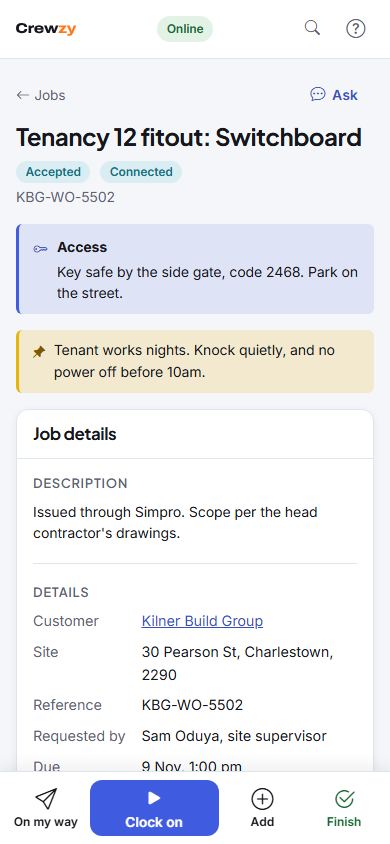
At the top of the job
- Jobs at the top left takes you back to your list.
- Ask on the same line opens the assistant for this job. See Ask the assistant on a job.
- Access: the site's access notes, such as a key safe or gate code, until you clock on. Then they move back under the site address.
- Notes the office has pinned, with a pin beside them. Read these first.
- Next up: a form that is overdue or needed before you can finish, with Fill it in.
The bar along the bottom
While you are on a job, a bar of four buttons takes the place of My Jobs and My Details. Each button always stays in the same place:
| Where the job is up to | Along the bottom |
|---|---|
| Not started | On my way, Clock on, Add, Finish |
| Clocked on | Speak, Clock off with your time so far, Add, Finish |
| Clocked off, not finished | Speak, Clock on, Add, Finish |
- On my way texts the customer that you are coming. It only shows when your business sends that text and your phone has signal. If it does not, Speak is there from the start. See Clock on and off.
- Speak writes up a job sheet from what you say. See Speak your job sheet.
- Clock on and Clock off record your time on the job.
- Finish opens the customer sign-off. See Finish a job on your phone.
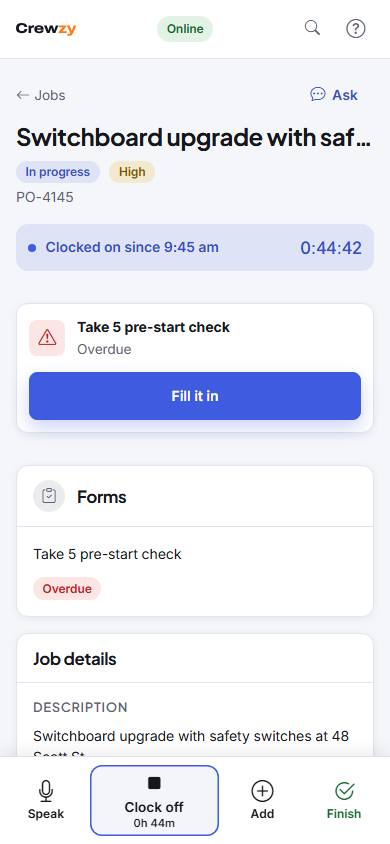
The clock at the top and Clock off count your own time. Time logged in the Job details box is everyone's time on the job, running clocks included, so it is more than yours when others have worked on it too.
Once the job is finished, the bar goes and My Jobs and My Details come back. On a tablet or computer there is no bar: the same buttons sit at the top of the job.
Add
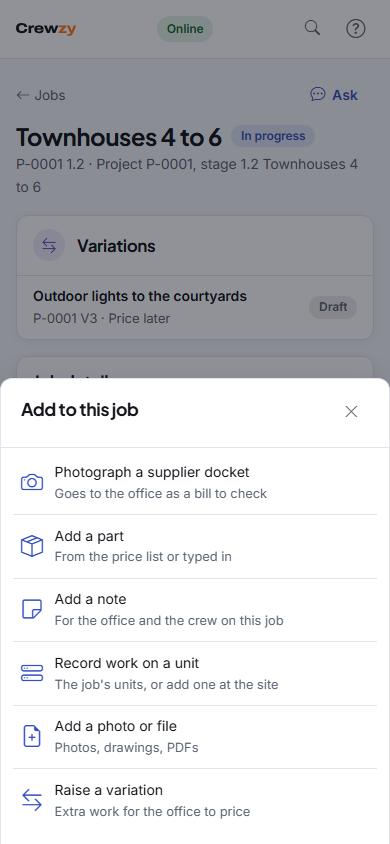
Tap Add to open Add to this job:
| Choice | What it does |
|---|---|
| Photograph a supplier docket | Opens the camera. The docket goes to the office as a supplier bill to check |
| Add a part | A part from the price list, or typed in. The office sets the price |
| Add a note | Opens the job's Notes box to write a note for the office and the crew on the job |
| Add a photo or file | Photos, drawings or PDFs, filed with the job |
| Raise a variation | Extra work for the office to price. Only on a job that is part of a project |
A part, a note, a docket and a photo of the job wait on the phone when there is no signal and send once you are back in range. Other files and variations need signal, so they are not offered offline.