Put the app on your phone
Install the crew app, keep your jobs on the phone and turn on new job notifications.
The crew app runs in your phone's browser, so there is nothing to download from an app store. Open the invitation email your office sent, sign up, and you are in.
Add it to your Home Screen. It gets an icon and opens full screen, like any other app, and on an iPhone it is the only way to keep your saved jobs and get job alerts: an iPhone clears a website's saved data after a week or so without use, and only notifies apps on the Home Screen.
Set up this phone
The first time you open the app in your phone's browser, a Set up this phone card sits at the top of My Jobs, with the steps for your phone and what to allow. Close it with the cross if you want; it comes back once, three days later, and after that the same steps are always on My Details, under This phone. Once the app is on your Home Screen the card goes for good.
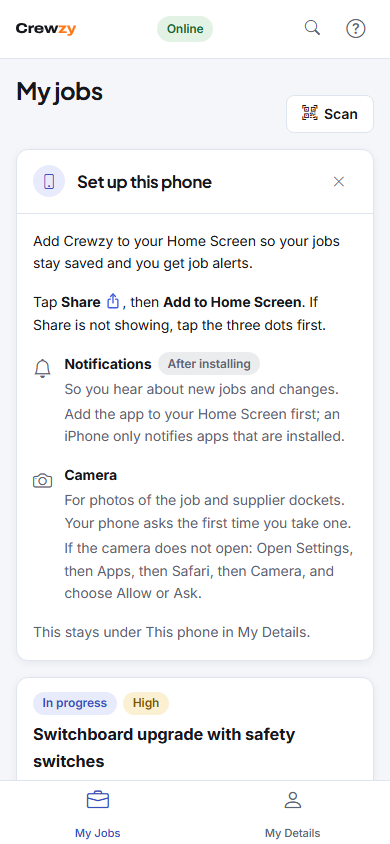
Add it to your Home Screen
- iPhone or iPad, in Safari: tap Share (a box with an arrow pointing up), then Add to Home Screen. If you cannot see Share, tap the three dots first.
- iPhone or iPad, in Chrome or Edge: on iOS 16.4 or later you can add it from these too. In Chrome, tap Share at the top beside the address; in Edge, tap the menu, then Share. Then Add to Home Screen. On an older iPhone, open the page in Safari instead.
- Android, in Chrome, Edge or Samsung Internet: tap Install. If there is no Install button, use the browser's menu: in Chrome the three dots at the top right, then Add to Home screen or Install app; in Samsung Internet the three lines at the bottom, then Add page to, Home screen; in Edge the three dots at the bottom, then Add to phone.
- Opened from an email or a message app (Gmail, Facebook, Messenger, Instagram, LinkedIn, Outlook): those apps open links in their own browser, which cannot install anything. The card says so. Use the app's menu to open the page in Safari or Chrome, or tap Copy link and paste it there.
Then open the app from its new icon.
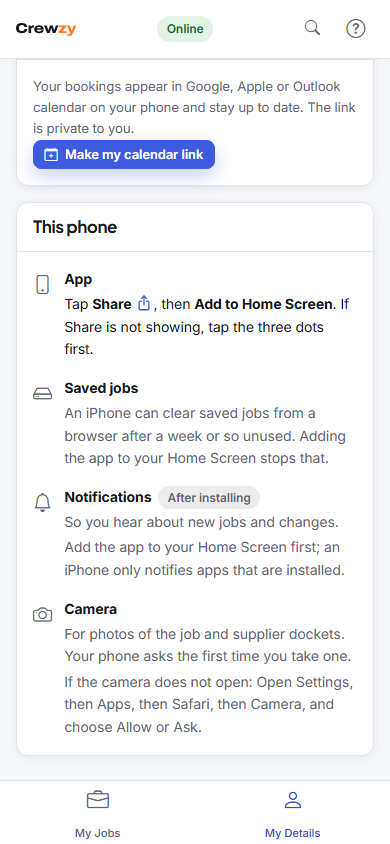
What to allow
The card and This phone list what the app would like, why, and whether it is on. Nothing is asked until you tap it.
- Notifications, so you hear about new jobs and changes. Tap Turn on. On an iPhone this works once the app is on your Home Screen.
- Location, only if your business records where you clock on. Your location is saved once when you clock on and once when you clock off, so the office can see you were on site. It isn't tracked in between. Tap Allow location so your phone asks now rather than at your first clock on. Saying no never stops you clocking on.
- Camera: nothing to do now. Your phone asks the first time you take a photo of a job or a docket.
If something says Blocked, the card gives the steps for your phone, such as on an iPhone Settings, Apps, Safari, Location, or on Android the icon beside the web address, then Permissions.
Your details and licences
My Details also holds your name and phone number, and Licences and tickets, where you can upload your own licences, white card and the like so the office has them on file.