Notes on a job
Read what the office and the crew wrote about a job, and add your own from the phone.
Every job has a Notes box, below the job's details. It holds what people have written about the job: a gate code that changed, a dog in the yard, what the tenant said. The office sees the same notes, and so does everyone booked on the job. The newest are first.
A note the office has pinned sits at the very top of the job, with a pin beside it, so you read it first. In the Notes box it is marked Pinned.
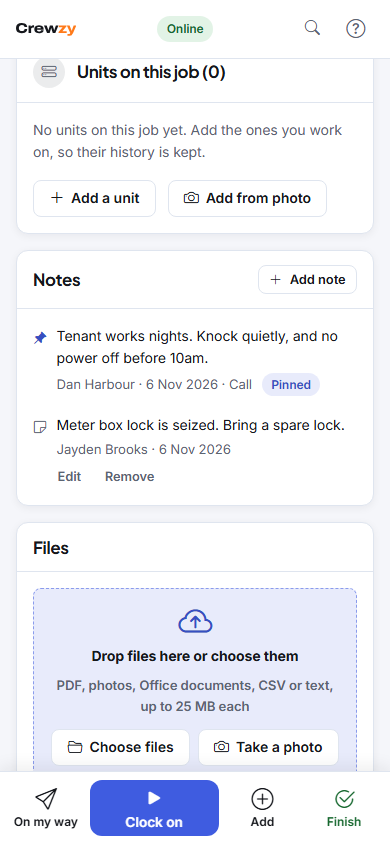
Add a note
- Open the job.
- Tap Add in the bar at the bottom, then Add a note. Or press Add note on the Notes box.
- Type the note and press Save note.
With no signal the note is saved on your phone and sent as soon as you are back in range, the same as your clock and parts. The badge at the top shows how many changes are waiting.
You can change or remove your own notes with Edit and Remove. You cannot change anyone else's.
What you do not see
The office also keeps notes about the customer, and about quotes and invoices: who pays slowly, what was said on the phone. Those stay in the office and never reach your phone.
Access notes
Before you clock on, the site's access notes (a key safe, a gate code) are at the top of the job on your phone, so you have them as you arrive. Once you clock on they move back into the job's details. They go once the job is finished.