Working without signal
What works with no signal, how it catches up, and what to do if a change is refused.
Basements, plant rooms and country sites often have no signal. The crew app keeps working.
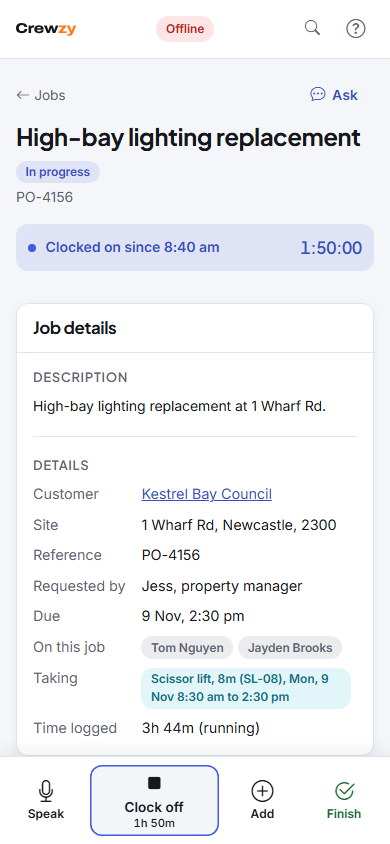
What works offline
- Your jobs: the list and each job are saved on the phone every time you open them with signal. With no signal you see the last copy straight away, with "Offline copy. Actions will queue." across the top. That works when you open the app with no signal too, as long as you have signed in on this phone before. A job that has never been on this phone, such as one given to you while you were out of range, needs signal to open the first time. The copy of a job that is not finished includes the site's access notes, so you can still get in; once a job is finished its copy drops them the next time the phone has signal.
- Clock on, clock off, adding a part or a note, taking a photo of the job, photographing a supplier docket and finishing a job: these are saved on the phone with the time you pressed them, and sent in order when you are back in signal. The office sees the real time you clocked, not the time it arrived. Anything sent twice over a patchy connection is only added once.
- Forms: fill them in and tap Submit; they go when you have signal. See Fill a form on site.
- Speaking a job sheet: record it and it is written up once you are back in range, where your business's set-up can turn recordings into words. If it cannot, you are told, and can type it instead. See Speak your job sheet.
Some things need signal: signing in, On my way, Ask, adding files other than photos, and raising a variation. With no signal, Add offers Take a photo of the job in place of Add a photo or file. Files and documents are not saved on the phone, so a job's Files box only shows when you have signal.
When the phone shows Online but the signal is too weak to reach Crewzy, the job opens from the copy on the phone while it keeps trying, and anything you do waits on the phone the same way.
How it catches up
The badge at the top shows how many changes are waiting, such as 2 to sync, and a notice under it says the same with how long the oldest has waited. They send by themselves as soon as the phone is back online, trying again every so often if the connection is patchy. Keep Crewzy open while it sends: an iPhone only sends while the app is open with signal, never in the background. The notice cannot be closed while anything is waiting, and goes by itself once it has all sent.
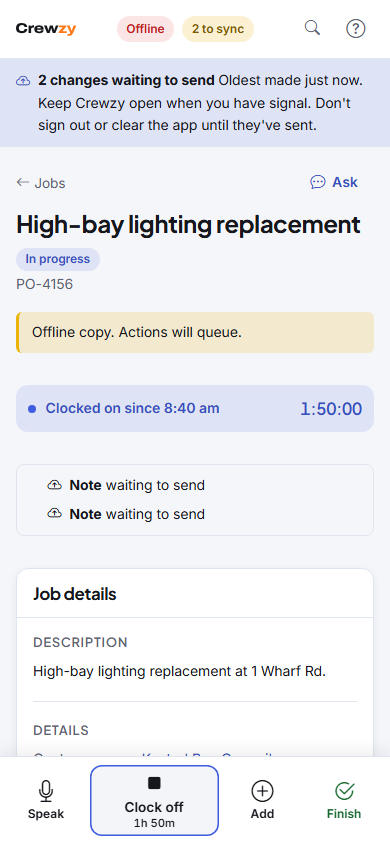
If a change has waited a day or more, the notice turns yellow and says so. Open Crewzy somewhere with signal and leave it open for a minute. If it still does not send, tell the office. Old clock times can only be sent within 3 days.
What not to do while changes are waiting
The waiting changes are only on this phone. Until the notice has gone:
- Don't sign out. Crewzy asks first and shows how many are waiting, with Stay signed in as the safe choice. If you sign out anyway, they stay on the phone but do not send until you sign in again on the same phone, and they are lost if the phone is cleared first.
- Don't clear Safari's or Chrome's website data, or delete the app from your Home Screen. That deletes the waiting changes with it.
- Don't swap to a new phone. Send everything from the old one first.
If your sign-in has run out while offline, a banner asks you to sign in again to send what is waiting. Nothing is lost.
If a change is not accepted
Sometimes the office has changed something while you were offline, for example taken you off the job. The change you made then cannot be accepted. A banner says how many changes were not accepted. Tap it to see them on My Details, with the reason, and choose Try again or Dismiss. The office is told as well.
Keep your saved jobs on an iPhone
An iPhone clears what a website has saved after a week or so of not opening it in Safari. For the crew app that means the jobs saved for no signal, and any changes still waiting to send. An app added to the Home Screen is kept, so add it there. Until you do, My Jobs shows a Keep your jobs saved tip with a link to the steps; it also shows on any phone that will not agree to keep Crewzy's saved jobs. Tap the cross to hide it for a week. Android phones keep an installed app's jobs too, and only clear a browser's when they are short of space. See Put the app on your phone.