Invite your crew
Add workers, office staff and other owners, and choose what each can do.
Everyone who works in the business gets their own login. Up to 20 active crew a month are included on every plan. Office logins are counted against your plan.
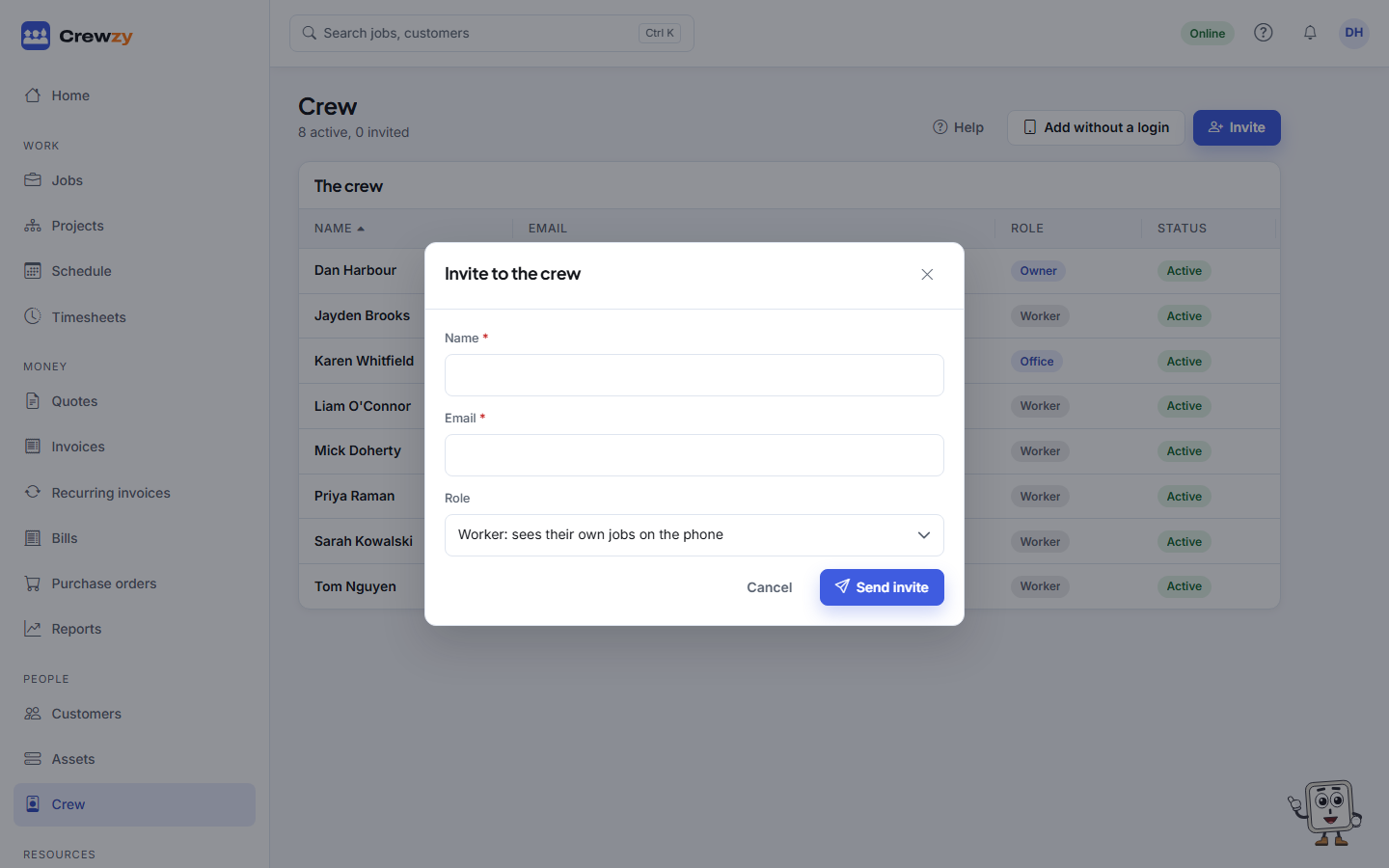
Send an invitation
- Go to People, Crew and press Invite.
- Type their Name and Email.
- Choose a Role: - Worker sees their own jobs on the phone. - Office runs dispatch, customers, quotes and invoices. - Owner can do everything, including billing and the crew.
- Press Send invite.
They get an email with a link to sign up. Until they do, they show as invited on the crew list. If they already have an account, for example with another business, they join straight away.
Inviting workers costs nothing. Your plan includes up to 20 active crew a month: workers who clocked on or were booked on a job that month. Each active worker above 20 is $10 for that month, up to 50, so once you have 20 workers on the crew list, inviting another shows a note saying so. See Do I pay for each worker?.
A self-serve plan takes up to 50 crew, counting invited ones and those who use only a shared tablet. The 51st is refused; taking someone who has left off the crew frees their place. More than 50 crew? Email support@getcrewzy.com and we'll talk to you about the Business plan.
Change someone's role or cost
Only an owner can change the crew. Click a person on the crew list to:
- change their Role
- set their Cost per hour: what an hour of them costs you, with super and on-costs. It is used to work out what each job cost. Leave it blank to use the business default. Only owners see it.
- set their Charge per hour: the price list rate their hours are invoiced at, such as Electrician or Apprentice. See Charge each person at their own rate.
- file their licences and tickets under their documents
- Take off the crew when they leave. Their past time and jobs stay on record.
What your crew see
Workers get the crew app: their own jobs, clocking on and off, and finishing a job with the customer's signature. See The crew app.