Using a shared tablet
Pick your name, enter your PIN, and switch worker when you hand the tablet on.
Some businesses keep a tablet in the van or the workshop that the crew share. It works like the app on your phone, showing only your own jobs, once you have told it who you are.
Sign in
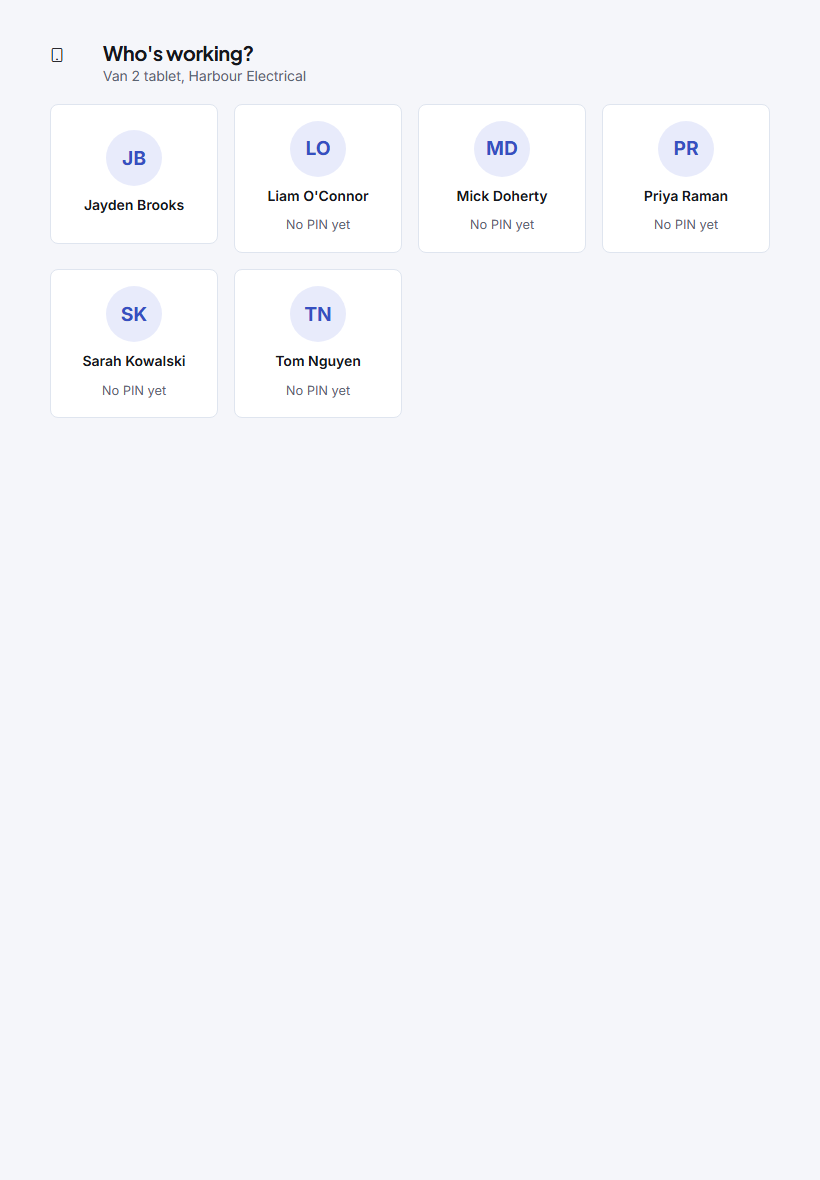
- On Who's working?, tap your name.
- Enter your PIN and tap Sign in.
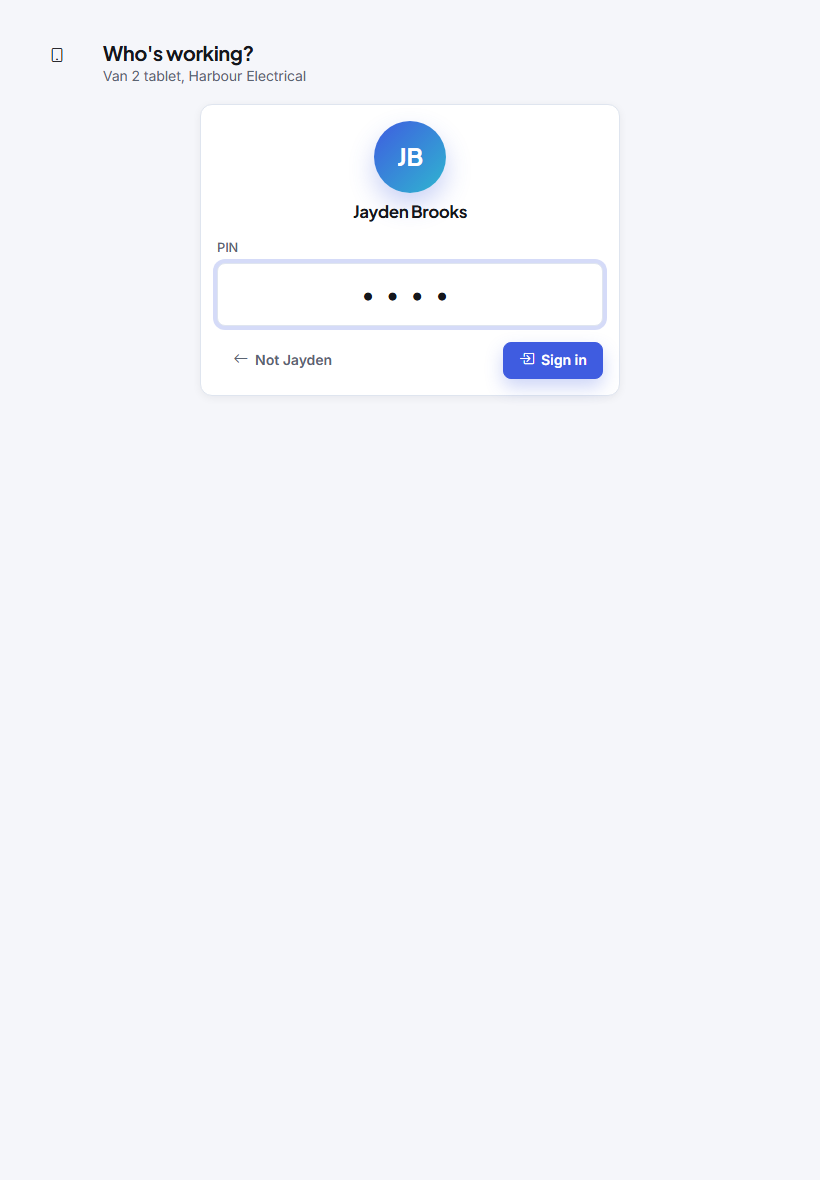
If the office gave you a temporary PIN, the tablet asks you to choose your own straight after. Type it twice and tap Save PIN and sign in.
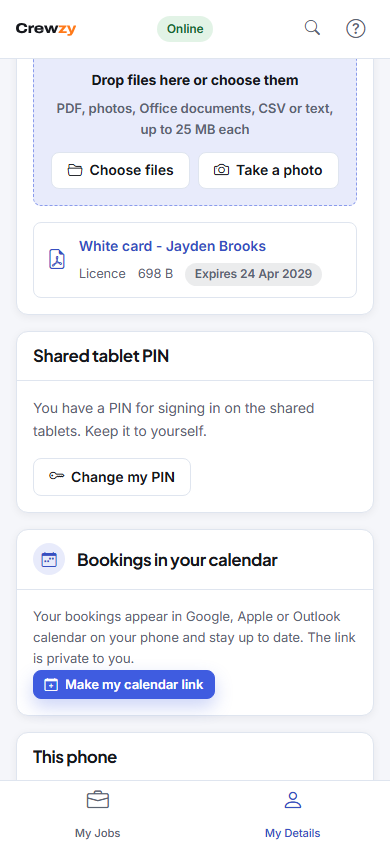
No PIN yet? Set one in My Details on your own phone, under Shared tablet PIN, or ask the office for a temporary one.
While you work
Your name stays across the top of every screen. Check it is yours before you clock on or finish a job: whatever you do is recorded as the person named there.
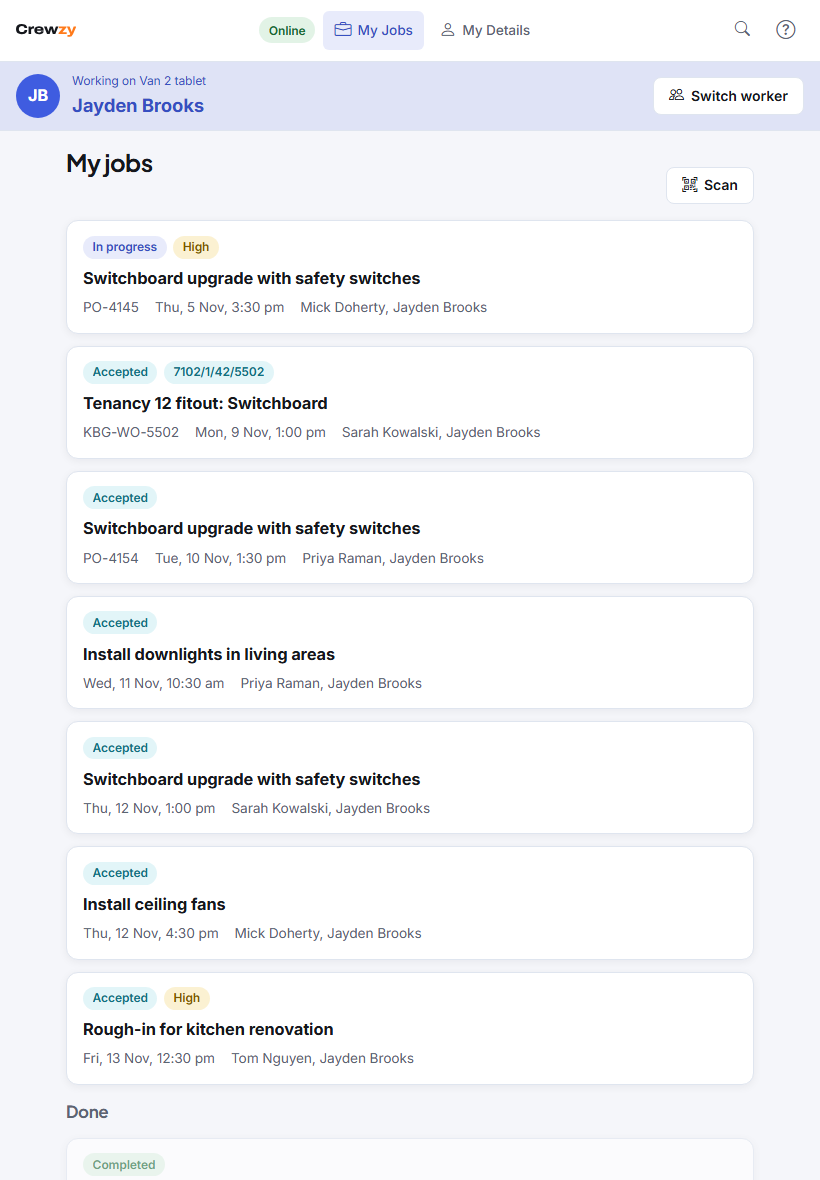
Everything works as on your phone: your jobs, clocking on and off, notes, photos, parts, forms and sign-off. You only ever see your own jobs, never anyone else's.
Hand it on
Tap Switch worker when you are done, so the next person does not work as you. If you forget, the tablet signs you out by itself after a while with nobody touching it, 15 minutes unless the office has changed it, even if the app was closed.
With no signal
You can keep working once you are signed in. Anything you do is kept on the tablet and sent as you when it gets signal, even if someone else has signed in by then. If you tap Switch worker while your changes are still waiting, the tablet asks first. Switch anyway is safe as long as the tablet gets signal within 3 days and nobody clears its website data before then. They do not see what you did unless it is on a job of theirs too. Switching worker needs signal, because the PIN is checked by the office's system.
Your PIN
Keep your PIN to yourself. To change it, open My Details and press Change my PIN under Shared tablet PIN. On the tablet you need your current PIN to do it.
After five wrong PINs in a row you are locked out. Ask the office to unlock you, or to reset your PIN if you have forgotten it.