The asset register
Keep every unit you look after at your customers' sites, with its details, manuals and the jobs that worked on it.
On the Unlimited plan. A free trial includes it too.
An asset is one unit at a customer's site that you install, service or repair: the split system on the roof, the hot water unit in the laundry, the main switchboard. Each one belongs to a site, has a type with the details that suit it (refrigerant and kW for air conditioning, litres for hot water), a make, model and serial, and a history built from the jobs that worked on it.
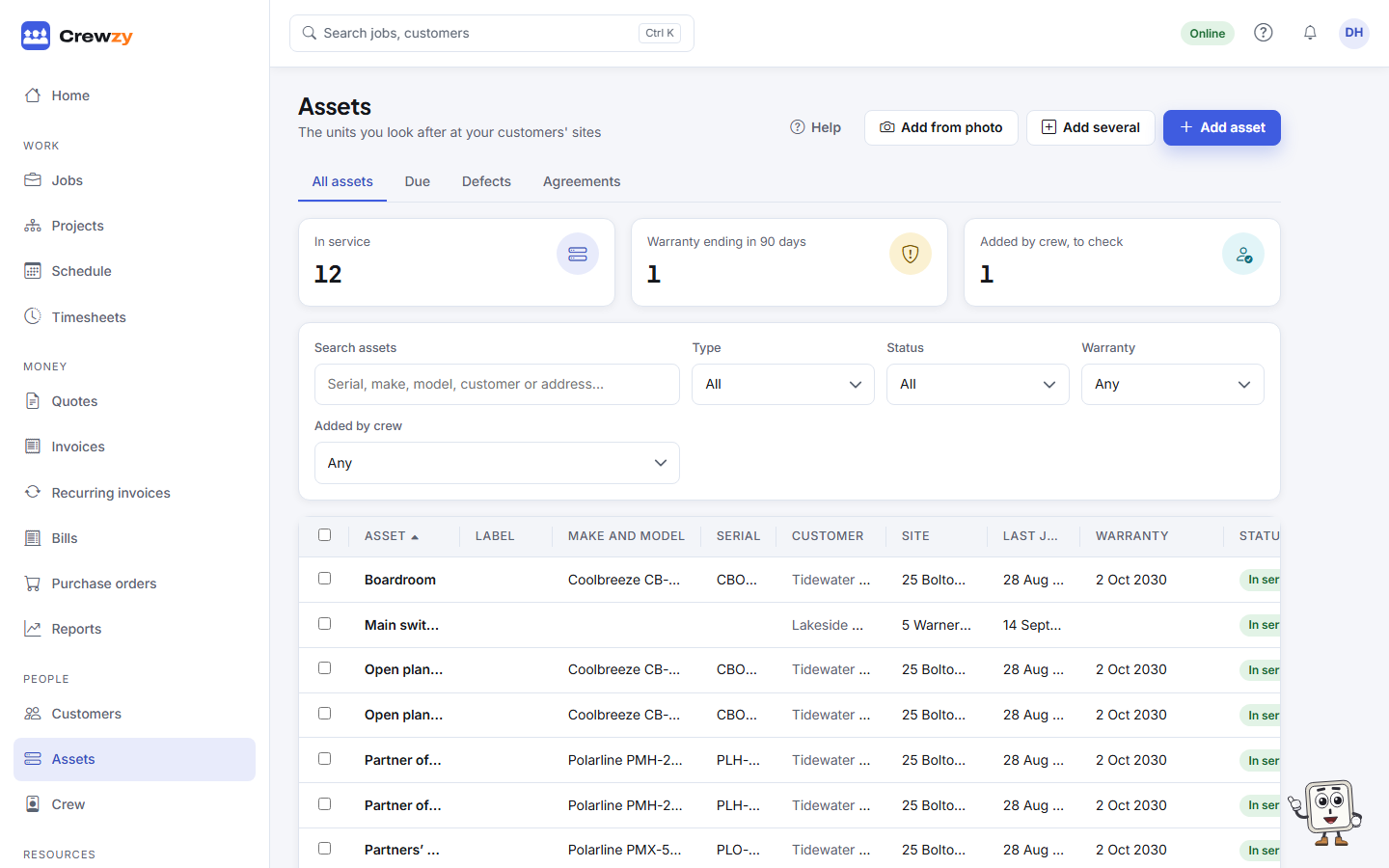
Assets are not your own vehicles and equipment. Your utes, trailers and lifts stay under Resources, Vehicles and equipment, and the two never share a list or a search.
Add an asset
- Go to People, Assets and press Add asset. You can also add one from a customer's Assets tab, or from a job's Assets box.
- Choose the Customer and the Site. A customer with no site yet can use their billing address as one.
- Choose the Type, then type the Make and Model. A make and model in your model library links the unit to it, with its manuals.
- Add the Serial, Location and any dates you know. If the serial is already on another unit, you are told which.
- Fill in the type's own details, such as the indoor and outdoor serials of a split system.
- Press Save asset. The asset's page opens.
To read the details off the unit instead of typing them, see Add an asset from a nameplate photo.
For a multi-head system, add the outdoor unit first, then each indoor head as its own asset with Part of set to the outdoor unit.
More about assets
- Add several assets at once, each with its own label number.
- Import assets from a spreadsheet, matched to your sites and types.
- Change many assets at once: move them, change their type or mark them removed.
- Find an asset by serial, make, model, customer or address.
- An asset's history: every job that worked on it.
- Models and manuals, shown on every unit of a model.
- Remove or replace an asset, keeping the old one's history.
- Service plans: how often you service each kind of unit, and when each is next due.
- The due list: the units due, by month and by site.
- A repeating job with the site's units: each visit lists the units due.
- Assets if you change plan: nothing is lost.
- On the crew's phones: Units on a job.