Models and manuals
Keep each make and model once, with its manuals and notes, and have them show on every unit of that model.
On the Unlimited plan. A free trial includes it too.
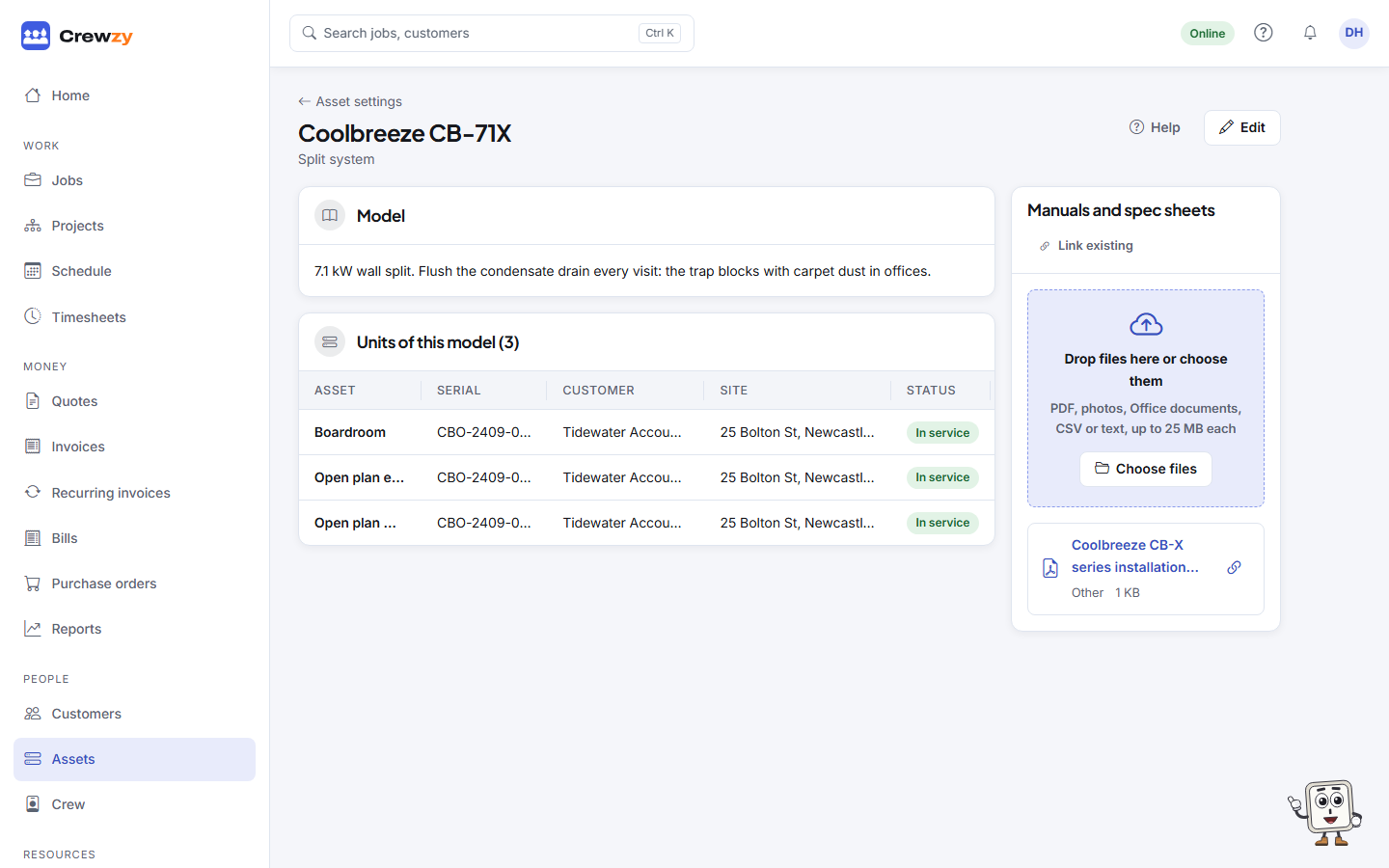
Your model library holds each make and model you work on once, such as Coolbreeze CB-71X. Upload a manual to the model and it shows on every unit of that model: on the unit's page in the office, and on the crew's phones when the unit is on their job.
Add a model
- Go to Settings, Assets and press Add model in the Model library box.
- Type the Make and Model, and choose its Usual type.
- Add Notes every tech should see, such as a common fault or how often the filters need washing. They show on each unit's page.
- Save, then open the model to add its manuals.
A unit whose make and model match a model in the library is linked to it however they were typed, so "CB-71X" and "cb 71x" are the same model.
Add a manual
On the model's page, use Manuals and spec sheets to upload the installation manual, a spec sheet or a wiring diagram, as a PDF or a photo. Upload it once; every unit of the model has it.
On a unit's page, the model's files are under From the model library, below the unit's own photos and documents.
On the crew's phones
When a unit is on a worker's job, its model's manuals are listed under Manuals on the unit. Each one has Save for offline, so it opens in a plant room with no signal.
A worker sees the manuals of the units on their own jobs, and nothing else of the library.