Add an asset from a nameplate photo
Photograph a unit's nameplates and let the AI fill in the make, model, serials and details for you to check.
On the Unlimited plan. A free trial includes it too.
Typing a serial off a dusty compliance plate is slow and easy to get wrong. Take a photo instead: the AI reads the plate into the Add asset form, and nothing is saved until you have checked it and pressed save.
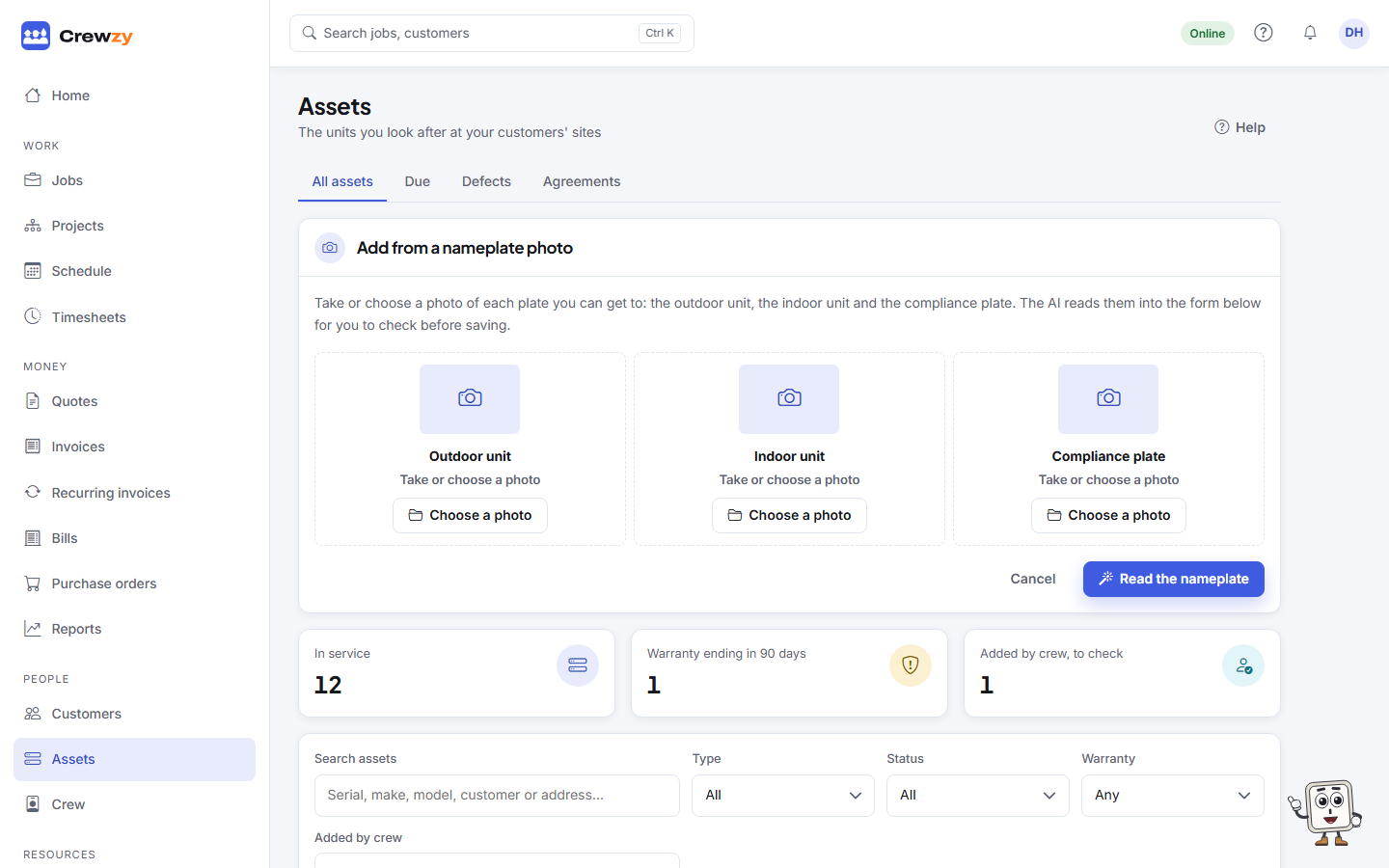
Read a nameplate
- On the Assets page, press Add from photo. From a job, press Add from photo in the job's Assets box instead, and the unit goes on that job once saved.
- Take or choose a photo of each plate you can get to: the Outdoor unit, the Indoor unit and the Compliance plate. One is enough; more gives it more to read.
- Press Read the nameplate.
- Check the form. Anything the AI was unsure of says Check this against the photo. Anything it could not read clearly is listed at the top and left out.
- Choose the Customer and Site (from a job, they are already the job's), add where the unit is, and save.
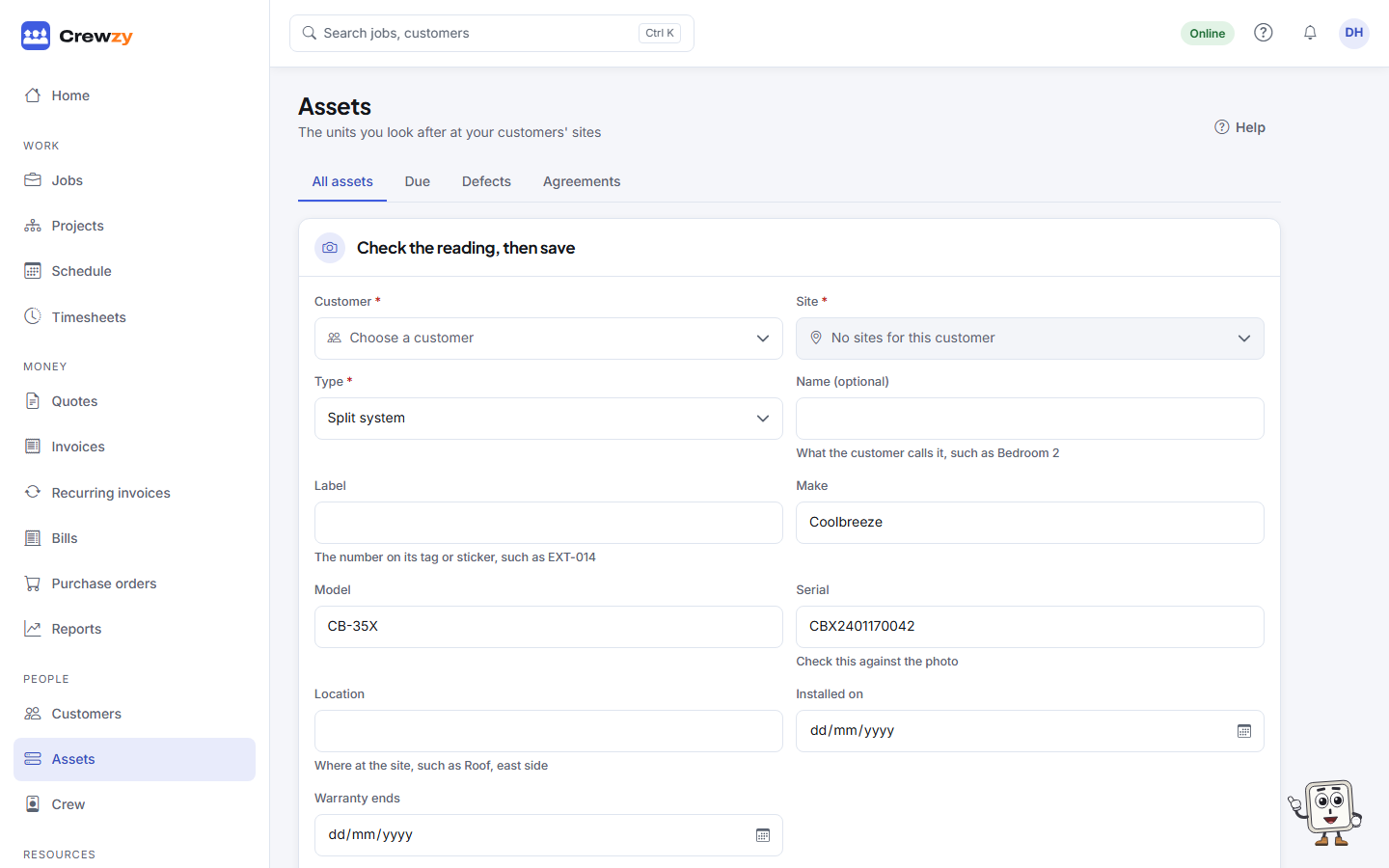
The photos are kept on the asset, under Photos and documents, so anyone can check a detail against the plate later.
The same unit twice
If the serial is already on another unit in your register, you see This serial is already on with a link to that unit. Open it instead if it is the same unit.
Good to know
- Reading needs signal. On the crew app with no signal, type the unit in, or read it once you are back in range.
- Each reading counts as three AI actions towards your monthly allowance.
- The make and model are matched to your model library, so the unit gets its manuals straight away.