Link assets to a job and record the work
Choose the units a job works on, say what was done to each, and keep the last service date up to date.
On the Unlimited plan. A free trial includes it too.
A job's Assets box, on its Details tab, lists the units it works on.
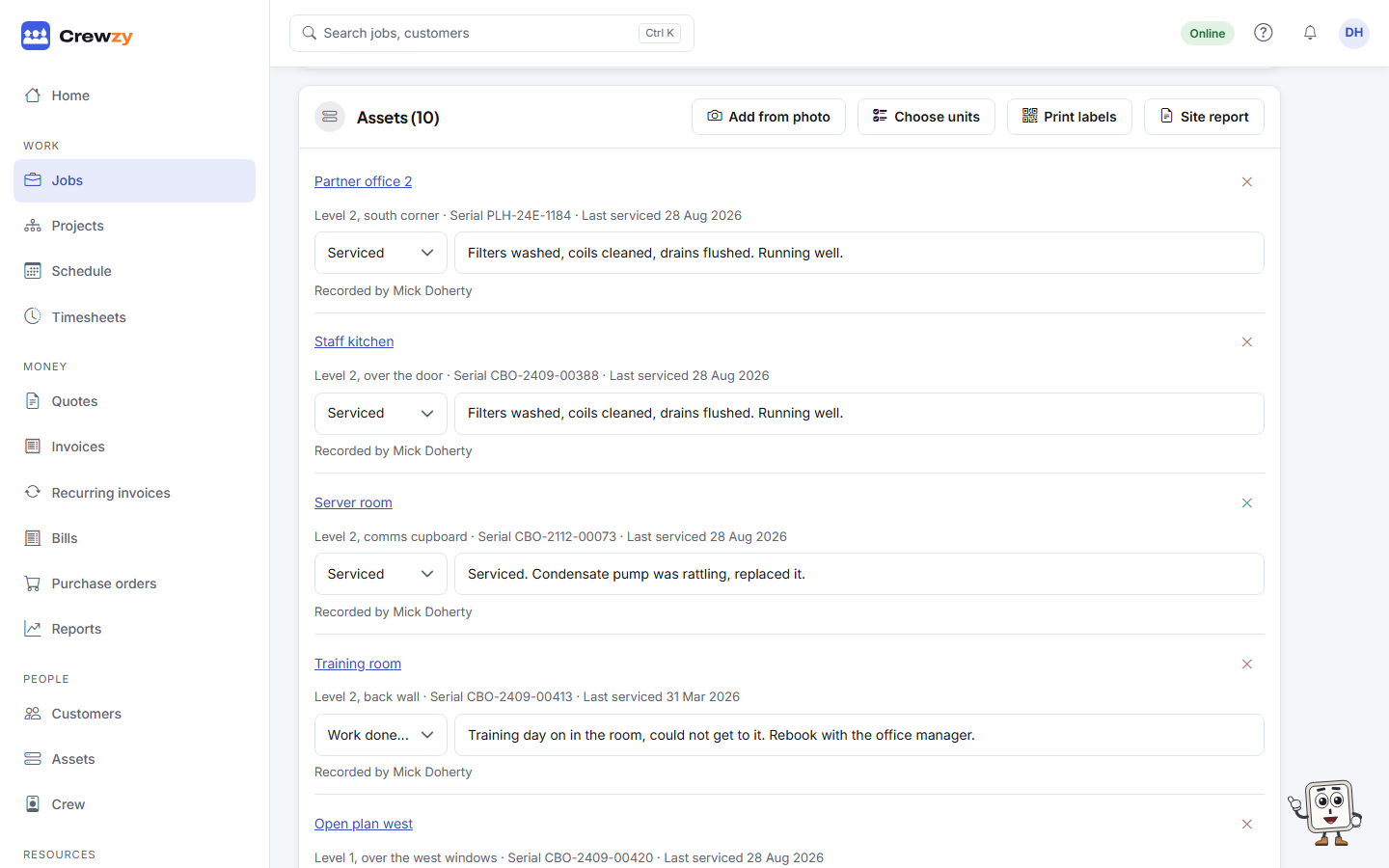
- Press Choose units and tick the units at the job's site that this job is for. A job with no site offers every unit of its customer.
- To add a unit that is not on the register yet, press Add a unit, or Add from photo to read it off its nameplates. It is added at the job's site and linked to the job.
- For each unit, pick the Work done: installed, serviced, repaired, inspected or removed, and type a line about it, such as "Cleaned filters, gas pressure fine".
When the job is finished, each unit recorded as serviced has its Last serviced date moved to that day, and each one repaired or inspected has its Last maintained date moved. A date is never moved back to an earlier one.
The job then shows on each unit's History, newest first, with what was done, who recorded it, and the parts used on that unit. On a job with one unit, all of the job's parts show on it.
You can type an earlier Last serviced date on an asset for visits from before you used Crewzy.
The crew see the job's units on their phones, and record the work there themselves. See Units on a job.