An asset's history
Every job that worked on a unit, newest first, with what was done, who did it, the parts and the photos.
On the Unlimited plan. A free trial includes it too.
Open an asset from the Assets page, a customer's Assets tab or a job. Its History box lists every job that worked on it, newest first.
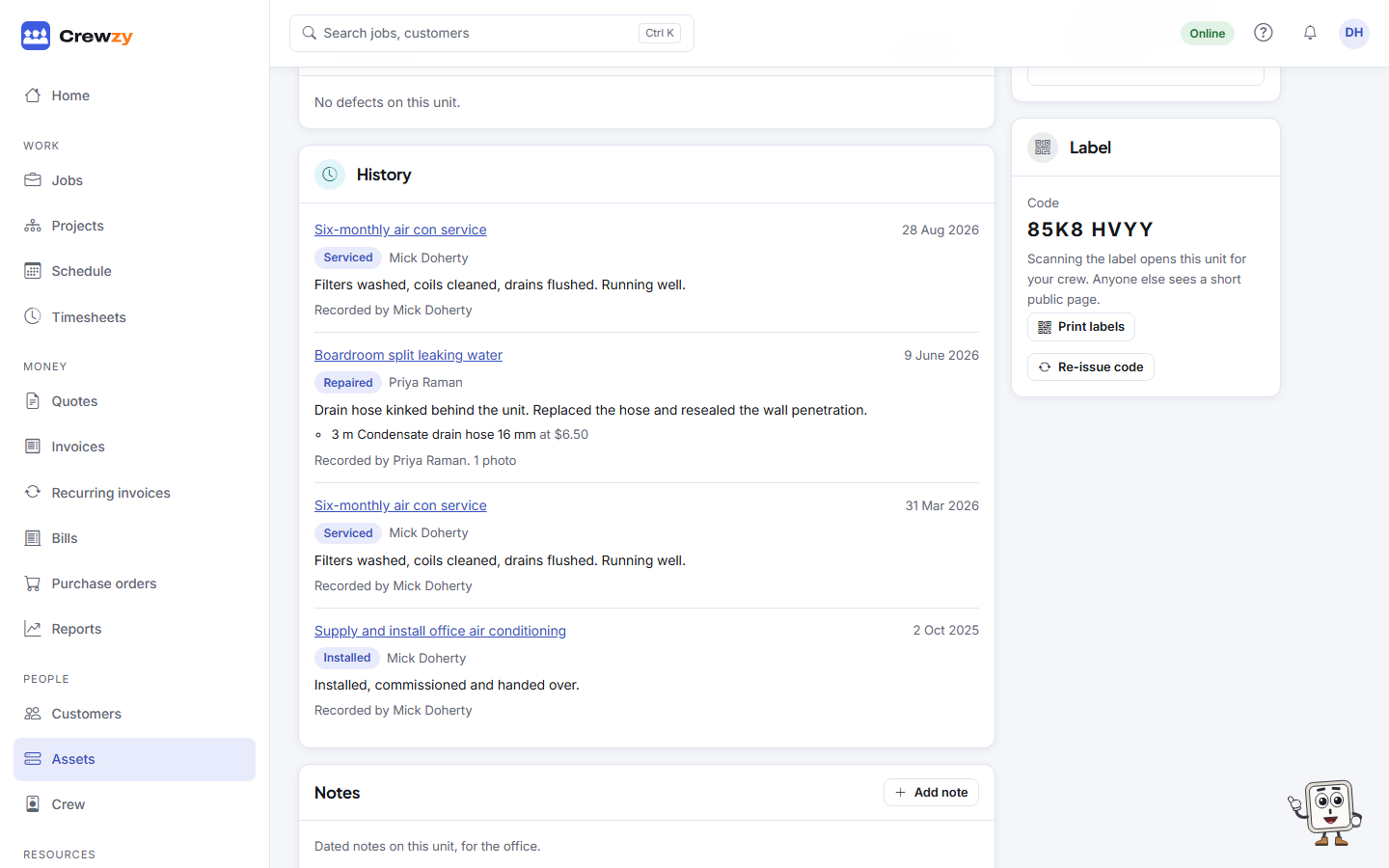
Each job in the history shows:
- the day it was done, its title and status, as a link to the job
- the Work done (installed, serviced, repaired, inspected or removed) and the line about it
- the crew, who recorded the work, and on which shared tablet
- the parts used on this unit, with prices if you can see costs
- how many photos were tagged to it
Nothing is copied: the history is worked out from the jobs whenever you open it, so a change to a job shows straight away. On a job with one unit, all of that job's parts show on it.
Last serviced and last maintained
The details at the top show Last serviced and Last maintained. Finishing a job moves them to that day for each unit recorded as serviced, or as repaired or inspected. They never move back to an earlier day. You can type an earlier date for visits from before you used Crewzy.
To spot units that are due, sort the Assets page by Last job.
Notes, photos and documents
The asset's Notes box keeps dated notes, such as a call from the customer. Photos and documents holds the unit's own files and every photo tagged to it on a job.