Customers and sites
Add customers and the addresses you work at, and see everything for one customer in one place.
Go to People, Customers. Search by name, sort by any column, and move through the pages at the bottom.
Add a customer
Press New customer and fill in the Name, Email, Phone and Billing address. The email is where quotes and invoices go.
Tick No text messages if the customer has asked not to be texted. They then get no texts from the app, whatever is turned on.
Sites
A site is an address you work at for that customer: a house, a shop, one building of a strata. One customer can have many sites. On the customer's Overview tab, press the + on the Sites box and fill in the Street address, Suburb and Postcode, an optional Site name, and any Access notes such as gate codes or where to park. Press Add site.
Click a site to change it. Its Site documents, such as plans, are filed there too.
The crew see the site on their jobs. They see its access notes only while a job there is open: at the top of the job on their phone until they clock on, and gone once the job is finished. The office always sees them.
The customer's page
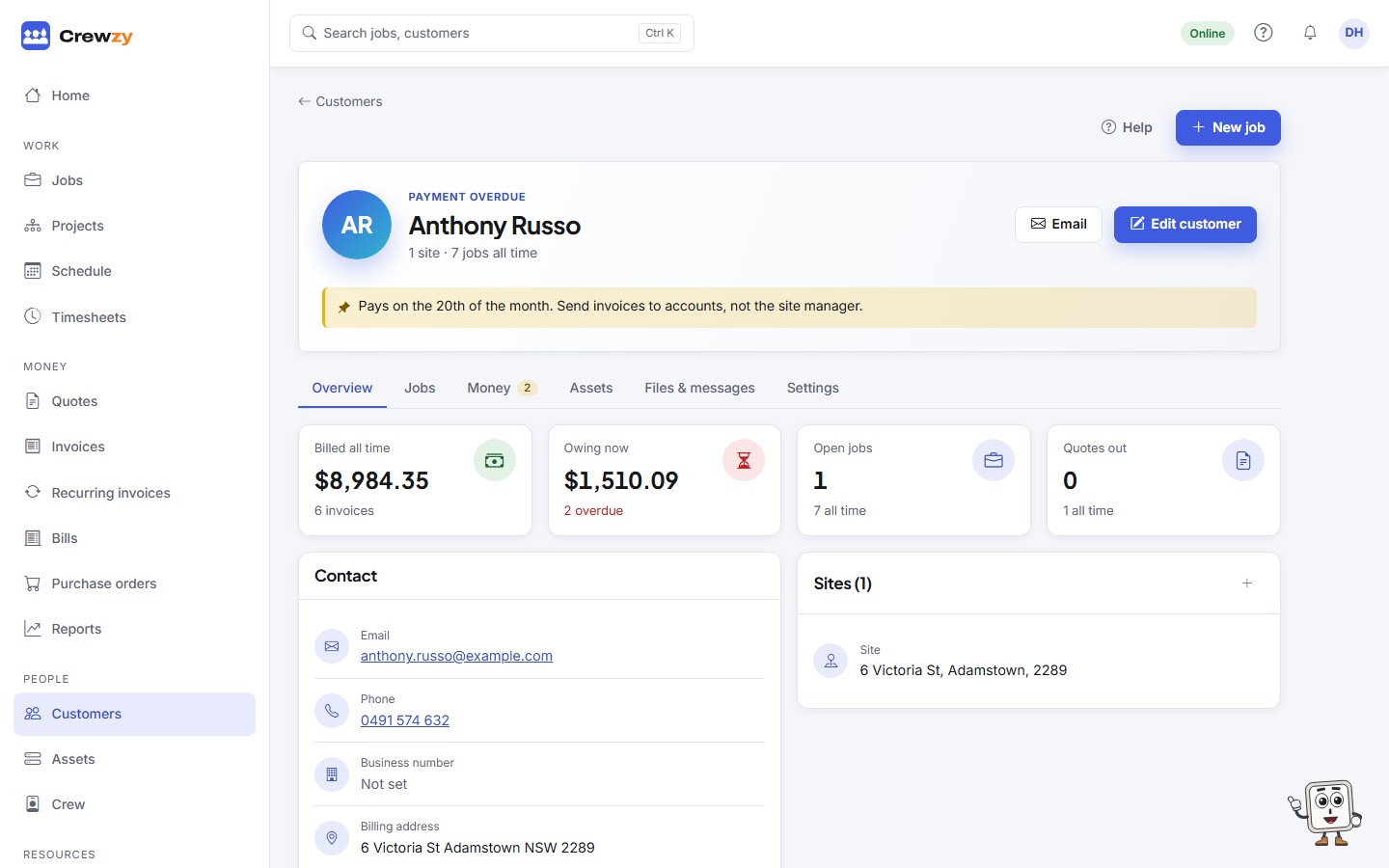
Everything for one customer is on their page, in tabs:
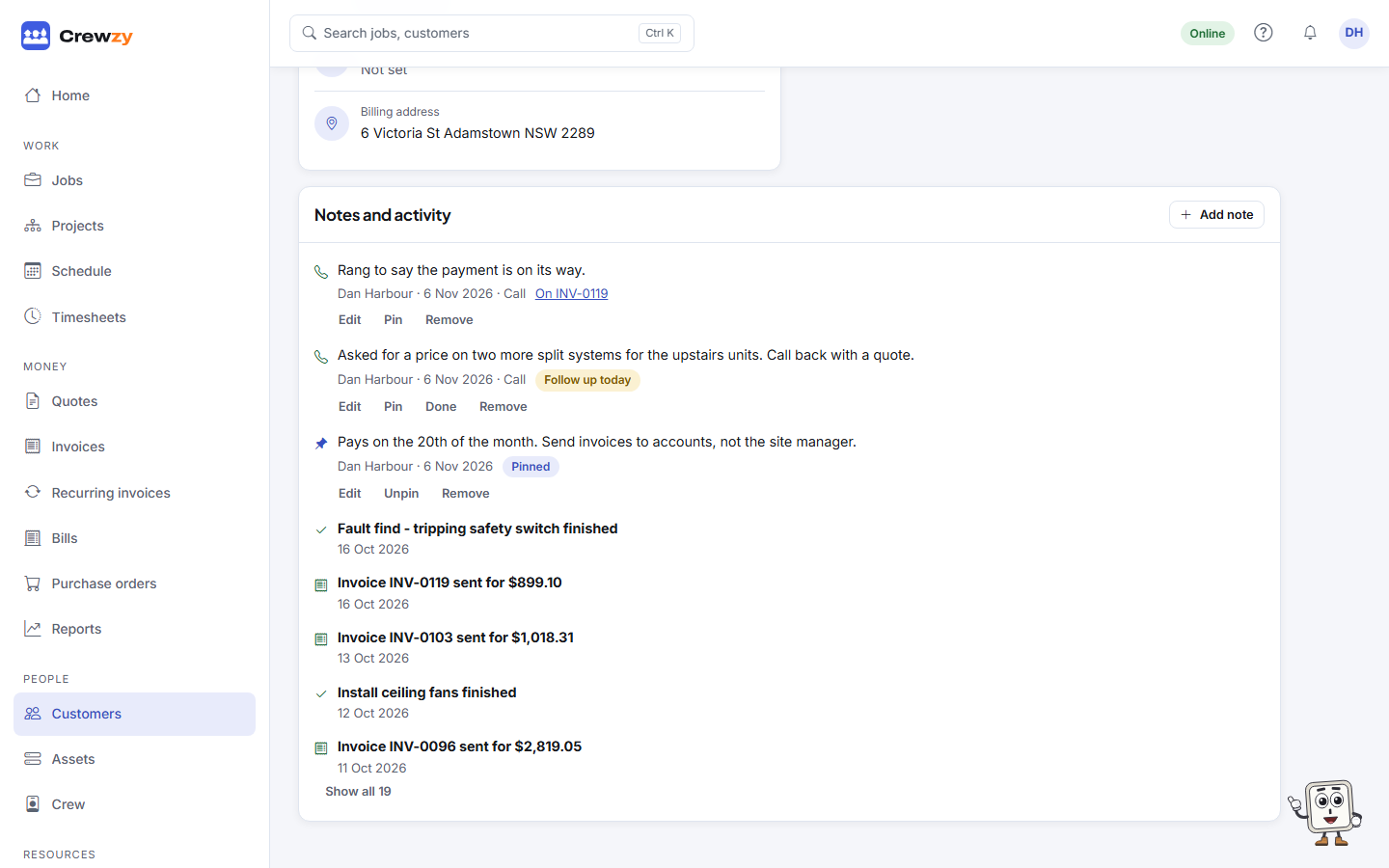
- Overview: Billed all time, Owing now, Open jobs and Quotes out, their Contact details and Sites, and Notes and activity: the office's notes on the customer and their quotes and invoices, with the latest quotes, invoices, payments and finished jobs (see Notes and follow-ups)
- Jobs: all their jobs
- Money: Payment record (how many of their invoices are settled in full, and how many are overdue), Recurring billing (what they are billed on a schedule, and their saved card), and their invoices and quotes. A number on the tab counts overdue invoices
- Files & messages: documents filed against the customer, and every text with them
- Settings: Portal, to send or copy the link to their own page of quotes, invoices and jobs (see Your customer portal), and Evidence packs, whether their finished jobs' evidence packs are sent to them by themselves, and to which addresses (see Evidence packs)
From the top of the page: New job, Email (when they have an email address) and Edit customer. Pinned notes about the customer show under their name, above the tabs.