Units on a job
See the units your job works on, their details, manuals and last visits, record what you did, and add one from a photo.
When the office puts units on a job, such as the split systems you are servicing, they are in the Units on this job box on the job. The box works offline too.
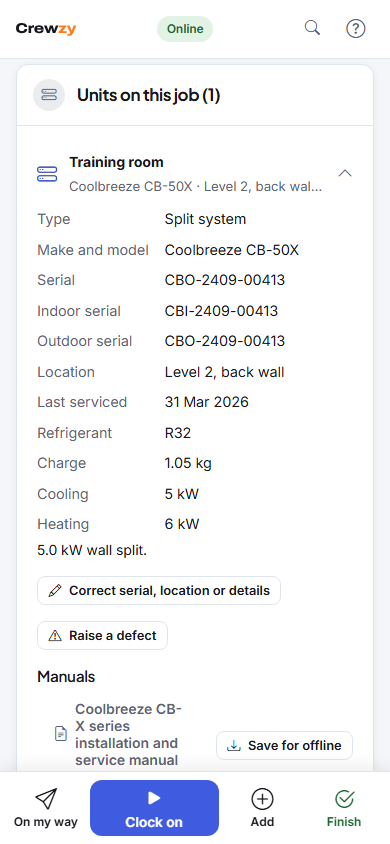
See a unit
Tap a unit to open it. You see its type, make and model, serials, where it is, when it was last serviced, and its details such as refrigerant and charge. Under that:
- Manuals: its model's manuals. Tap one to open it, or Save for offline to keep it on your phone for a plant room with no signal.
- Last visits: the last five jobs on it, with what was done.
A unit with a QR label opens straight from the label: on My jobs, press Scan and point the camera at it, or type the code under the QR. See Unit labels and scanning.
When the site has a plan, press Site plan to see where each unit is and what it needs on this job, and tap a pin to open the unit. It opens with no signal too. See Site plans.
Record what you did
Under Today, pick the work done (installed, serviced, repaired, inspected or removed) and type a line, such as "Cleaned filters, gas pressure fine". Finishing the job moves the unit's last serviced date.
A unit on a service plan shows the level due on its line, such as Due: Yearly. When you pick Serviced or Inspected, pick the level you did; the level due is chosen for you. Finishing the job moves that level's last done. It works offline too.
On a site's run, each unit also has Pass, Fail and Not tested under its name, and Pass all passes the rest after asking. See Pass, fail or not tested.
A fail raises a defect, shown under the unit as Defect raised: press Add a photo or Add a note. To raise one by hand, open the unit and press Raise a defect. On a job booked to fix defects, each shows as To fix: press Fixed or Not fixed. See Defects.
If a serial or location is wrong, press Correct serial, location or details. The make, model and warranty are the office's to change.
When you finish the job, any unit with nothing recorded is listed so you can record it then. You can still finish without.
Add a unit
Other units at the site are listed under the job's units: tap Add to job to put one on it.
For a unit that is not on the register yet:
- Add a unit: type it in.
- Add from photo: take a photo of each nameplate you can get to, and the AI fills in the make, model, serials and details for you to check. Add to this job takes you back to the job with the unit on it. Reading needs signal.
Going round a site adding units of one kind, such as the extinguishers on a floor? Once one is on the job, press Same as last: the next unit starts with the same type, make, model, location and details, and the next label (EXT-008 after EXT-007). Type its serial and press Add to this job. It works with no signal.
The office looks over the units you add.
Ask the assistant
Ask in your own words, such as "What's the serial on the outdoor unit?" or "When was this unit last serviced?". It looks only at the units on your own jobs. On a run, ask "What's due on this job?" or "What still has no result?" for each unit's level due and what is left to test.