Asset types, their fields and the model library
Set up the kinds of unit you look after, the details each keeps, and the models with their manuals.
On the Unlimited plan. A free trial includes it too.
Go to Settings, Assets.
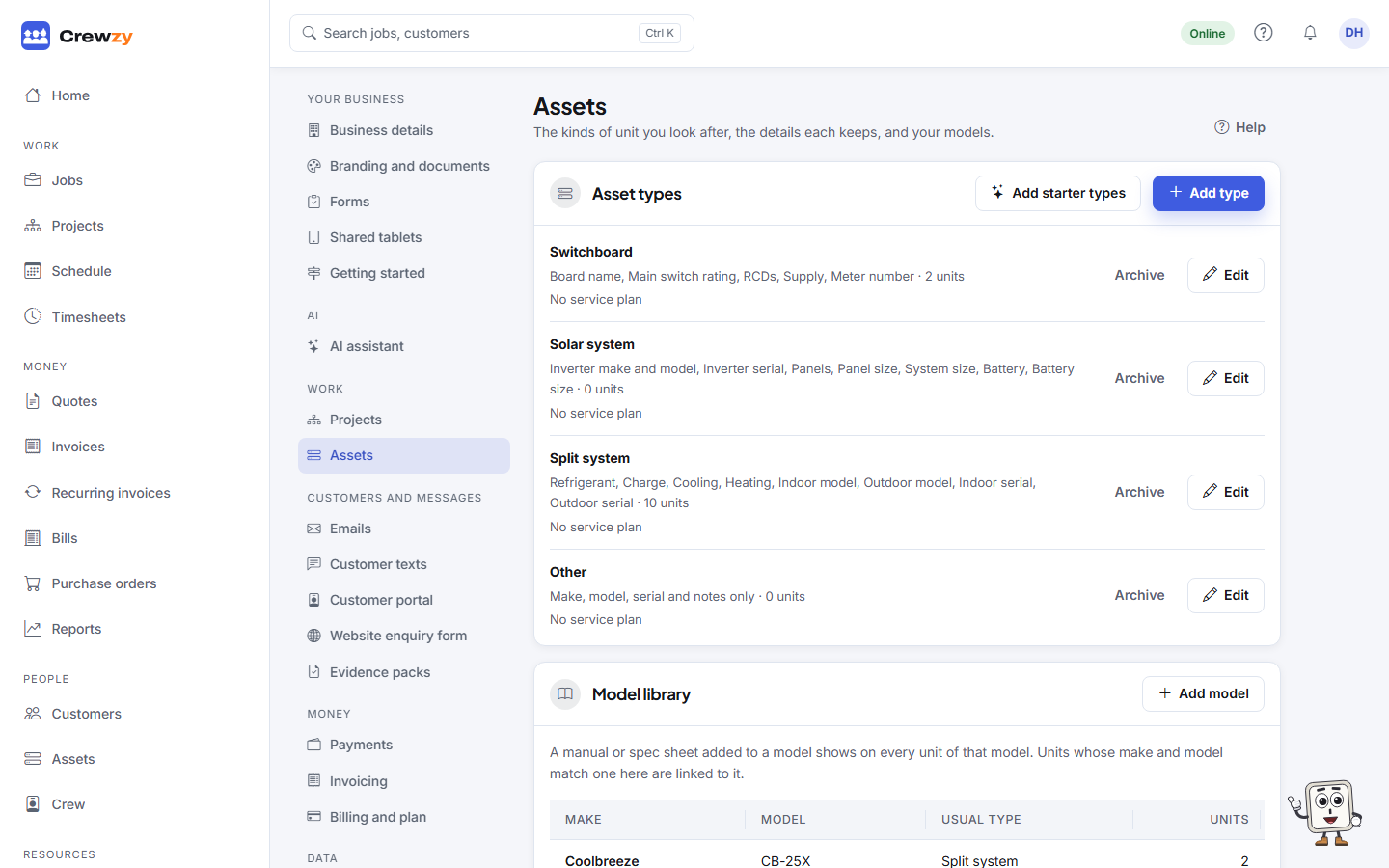
Asset types
The first time you open Assets, you get starter types for your trade, such as Split system for air conditioning or Hot water unit for plumbing. Press Add starter types to add any others.
To change a type, press Edit beside it:
- Change its name, or each field's name, kind, unit and choices. A field can be text, a number, a pick-one list, a date, or yes or no.
- Tick Needed for a field every unit of this type must have.
- Press Add field for another, or the bin to take one off.
- Press Save type.
Label numbers sets how units of the type are numbered when several are added at once, such as EXT-### for EXT-001, EXT-002 and on. See Add several assets at once.
Service plan sets how often units of the type are serviced, by levels you name, such as a six-monthly and a yearly. Crewzy fills in none: set them to suit the standards you work to. See Service plans.
Result fields are what a tech fills in with a pass, fail or not tested on a job, such as a reading, and The crew can use Pass all for these units lets the crew pass the rest at once. Crewzy fills in none. See Pass, fail or not tested.
Taking a field off keeps what units already hold in it; it just stops showing. Archive a type you no longer use: its units keep it, but new units cannot use it.
The model library
A model is a make and model held once, such as Coolbreeze CB-71X, with its manuals and notes. Press Add model, then open it to add its manuals, spec sheets and wiring diagrams. They show on every unit of that model. See Models and manuals.