Customer texts
Booking confirmations, reminders, On my way, quote and invoice links and enquiry thank yous by text.
Go to Settings, Customer texts. Each text is off until you turn it on.
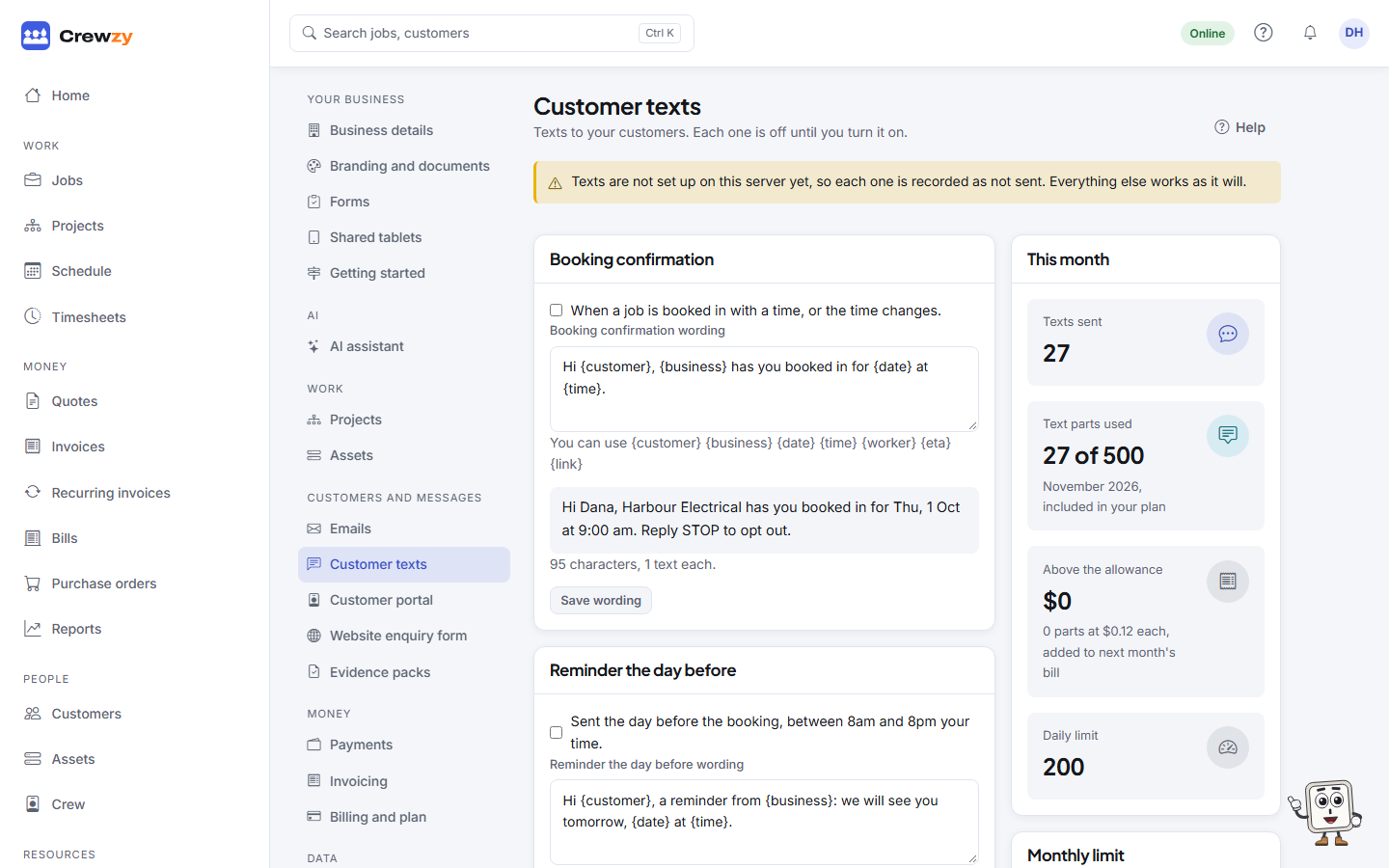
| Text | When it goes |
|---|---|
| Booking confirmation | When a job is booked in with a time, or the time changes |
| Reminder the day before | The day before the booking, between 8am and 8pm your time |
| On my way | Sent by the worker from the job, with an optional arrival time |
| Invoice sent | A thank you with the link to view and pay the invoice |
| Quote sent | The link to view and accept the quote |
| Enquiry received | A thank you to someone who sends an enquiry from your website form |
Each text has its own box:
- Tick the box to turn it on. It saves straight away.
- Change the wording if you like. The placeholders, such as
{customer},{business},{date},{time}and{worker}, are listed under it. - Check the preview and how many texts each one takes, then press Save wording. Use the default puts the standard wording back.
On my way
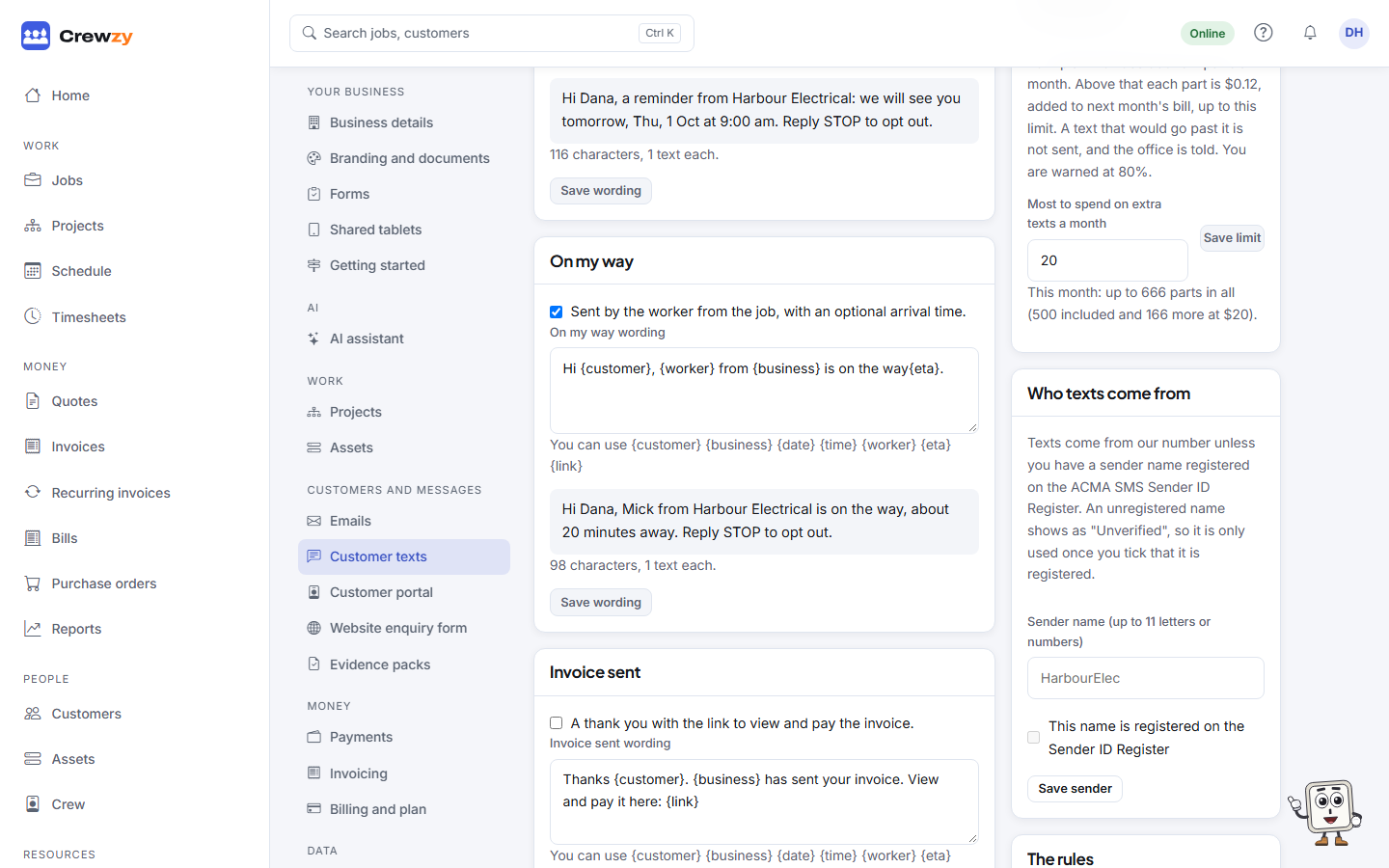
When On my way is on, your crew see an On my way button on each of their jobs, at the left of the bar along the bottom of the phone, until they clock on. Pressing it asks Arriving in (about 10 to 60 minutes, or leave it out) and texts the customer, for example "Hi Sophie, Dave from Harbour Electrical is on the way, about 20 minutes away." The button then shows when it was sent, and can be pressed again if they are held up.
While it is off, the button is not there: that place on the phone's bar is used for Speak instead. It needs a signal, so it is not offered offline. See Clock on and off.
Who texts come from
Texts come from one of our numbers, so customers can reply to them.
You can set a Sender name of up to 11 letters or numbers, such as your business name, under Who texts come from. In Australia a sender name must be on the ACMA SMS Sender ID Register, so it is only used once our support team has confirmed it is registered to your business: save the name, then contact support. Changing the name means confirming it again. Texts sent with your name are one way: customers cannot reply to them, and the Messages card says so.
The rules
- Texts end with "Reply STOP to opt out", and a STOP reply is honoured straight away. You get a notification when a customer does.
- A customer marked No text messages on their record gets none.
- There is a Daily limit on how many texts the business sends.
- Every text is recorded against its job, quote or invoice, whether it went or not.
What texts cost
Texts are counted in parts. A text of up to 160 letters is one part; a longer one takes two or three. A special character, such as an emoji, makes each part hold 70. The preview under each text shows how many parts it takes.
| Plan | Text parts included a month |
|---|---|
| Base | 50 |
| Connected | 200 |
| Unlimited | 500 |
| Free trial | 200 |
Past what your plan includes, each part is 12c (15c in New Zealand), GST included. They are added up when the month ends where your business is, and go on your next bill. Replies from customers, and STOP, are never counted or stopped.
This month shows the texts sent, the parts used out of your plan's, and what the parts above it come to so far.
Monthly limit
The owner sets the most to spend on texts above the allowance each month, under Monthly limit: from $0 to $500, $20 to start. Type the amount and press Save limit. The office can see it but not change it.
- At 80% of what can be sent this month (your plan's parts and what the limit pays for), the owner gets a notification and an email.
- A text that would go past the limit is not sent. It is recorded on its job, quote or invoice as Not sent: SMS limit reached, with a link to raise the limit, and the office is told once.
- Texts start again on the first of next month, or straight away if the owner raises the limit.
On the free trial there is no limit to set: texts stop at the trial's 200 parts until next month or until you choose a plan.
When a customer texts back
A reply goes on the job, quote or invoice the last text to them was about, in a Messages card, and you get a notification. It also shows on Home under Customer questions until you answer.
A reply only ever reaches the business that sent the text, even if another business using Crewzy texts the same customer. A STOP likewise stops texts from your business only.
Type your answer in Reply by text, or press Suggest a reply to have one drafted from the conversation and the job, then edit it and press Send text. Replies follow the same rules as every text. The job's Messages tab, and the customer's Files & messages tab, show the whole conversation.