Your customer portal
Give each customer one page with their quotes, invoices, bookings and documents, opened from a link.
Each customer can have their own page with your business: every quote and invoice you have sent them, a statement, their upcoming bookings and finished jobs. They open it from a link, with no account or password.
Send a customer their link
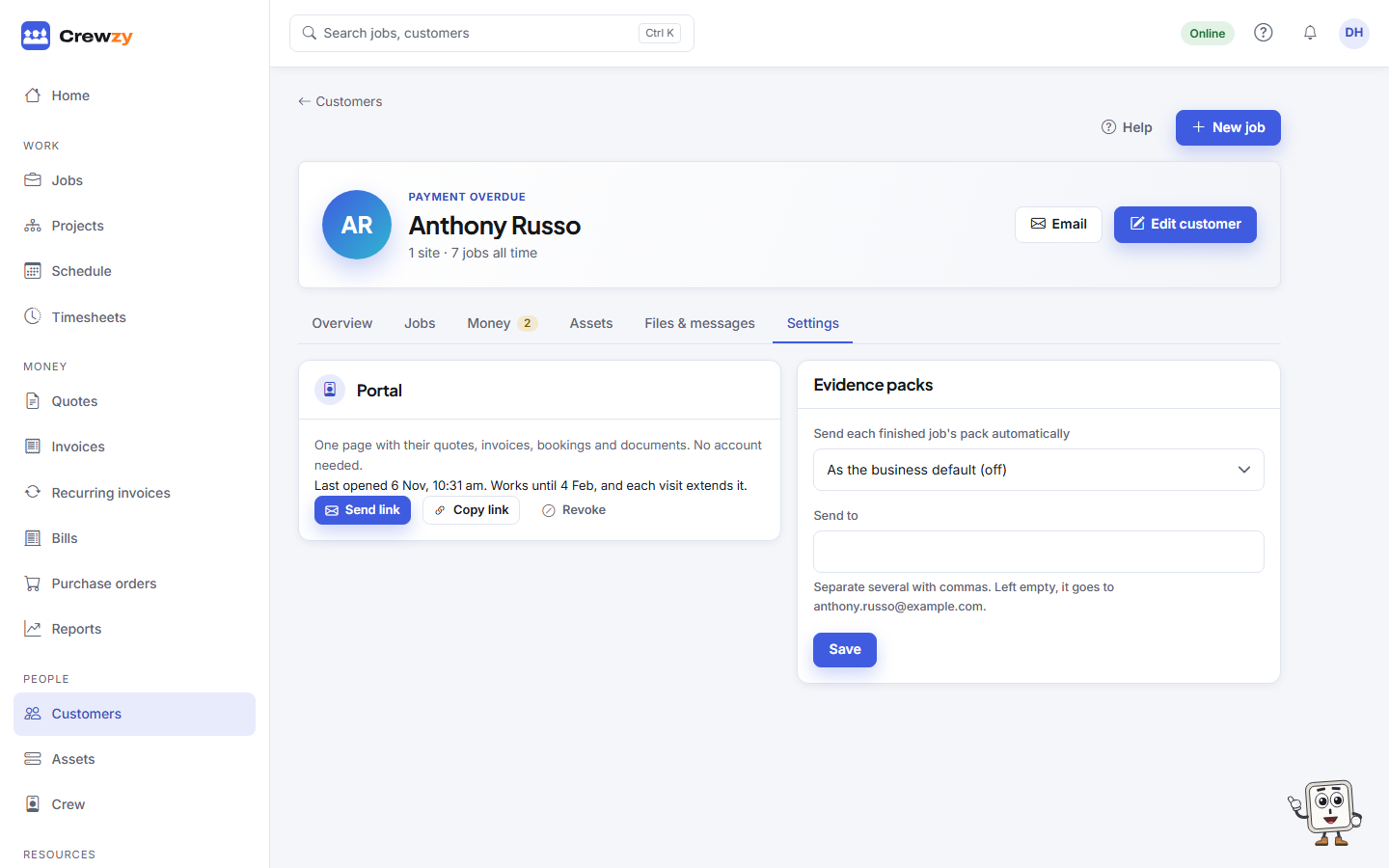
Open the customer and go to their Settings tab, where the Portal card is.
- Send them a link (or Send link once they have one) emails it to the address on their record. The customer needs an email address first.
- Copy link puts it on your clipboard to send another way.
You can also ask the assistant to "send Harbour Property their portal link".
The card shows when the customer last opened their page, and how long the link works for.
What the customer sees
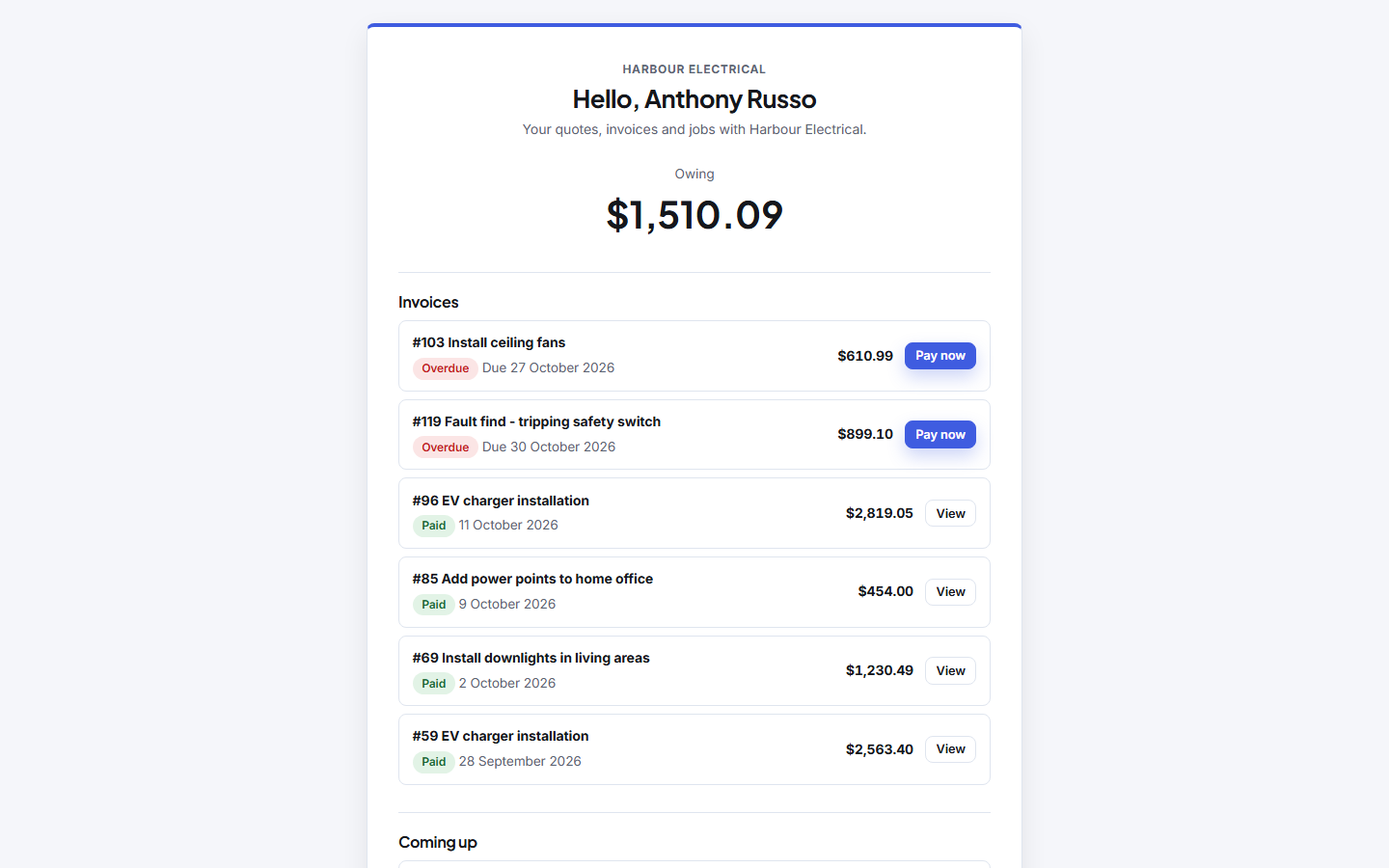
- Invoices, unpaid first, each with Pay now, which opens the same payment page as the invoice email.
- Quotes, which they can accept, decline or ask about, the same as from the quote email.
- A statement of what they have been charged and paid, and the balance.
- Coming up: booked visits, with the crew by first name.
- Finished jobs, with the completed forms you chose to email to customers.
- Regular payments and the card they saved, if any.
- Your text messages with them, to read only.
- Your equipment, if you turn it on: the units at their sites, the defects still to fix, their site reports, and Request service on a unit. See What customers see in the portal.
- Their details, with Request a change. A request comes to you as a notification; nothing changes until you edit the customer.
They never see costs, internal notes, crew surnames or other customers.
Choose what it shows
Go to Settings, Customer portal. Untick Give customers their own page to turn it off for everyone, which stops every link straight away. Under What customers see, choose whether it shows bookings and finished jobs, documents, evidence packs, units, defects and site reports, and text messages. Quotes, invoices, the statement and their details always show. Only an owner can change these. Evidence packs are off unless you turn them on, because they are usually made for whoever gave you the work. Units, defects and site reports are off until you turn them on too.
A link to the portal in quote and invoice emails adds a line to those emails for customers who already have a link.
Change the wording of the email with the link under Settings, Emails, in Sending a customer their portal link.
Keeping it private
Anyone with the link can see the page, so treat it like a key.
- A customer has one link at a time. After you revoke it, the next one you send or copy is a new link.
- Revoke on the Portal card, then Yes, revoke it, stops the link straight away.
- A link stops working after 90 days without being opened. Each visit extends it.
- On an expired link, the customer can ask for a fresh one. It only ever goes to the email address on their record, never to an address they type.