Clock on and off
Record your time on a job, and let the customer know you are on the way.
Your time is recorded on the job itself. There is no separate timesheet to fill in.
On a phone, Clock on and Clock off are in the middle of the bar along the bottom of the job. On a tablet or computer they sit at the top of the job. See A job on your phone.
Clock on and off
- Open the job and tap Clock on when you start. The job moves to in progress for the office, and Clocked on since shows at the top of the job with your time ticking over.
- Tap Clock off when you stop, for a break, to go to another job, or at the end of the day.
- Clock on again when you come back. Each stretch is recorded separately.
Everyone on a job clocks their own time. If a crewmate is already on the clock, you still see Clock on for yourself, and your clocking off never stops theirs.
Your time shows on the job and on the office's timesheets straight away. If you forget, ask the office to add or correct the time. Entries they type or change are marked so everyone can see.
On my way
Before you clock on, tap On my way to text the customer that you are coming:
- Choose how long until you arrive under Arriving in, or Leave it out.
- Tap Send text.
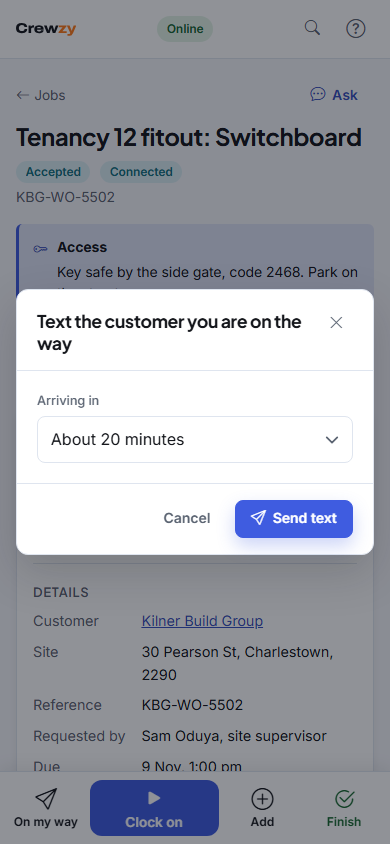
It only shows when your business has turned on the On my way text (see Customer texts) and your phone has signal. The customer's number never shows on your phone.
Once it has gone, the button says when, such as Sent 7:42 am. Held up? Tap it again to send a new time. After you clock on, its place on your phone goes to Speak.
Clocking on with no signal
That works. The clock on is saved on the phone and sent when you are back in signal. See Working without signal.