Bring in your data from another system
Import customers, sites, jobs, your price list and unpaid invoices from Tradify, ServiceM8, Fergus or a spreadsheet.
If you are moving from another system, you do not need to type everything in again. Export it from the old system as a CSV file and bring it in under Settings, Import. The same screen is linked from Getting started and from an empty customer list or price list.
Before you start
- Save each export as CSV. An Excel file needs Save As, CSV first.
- Import in this order: customers, then sites, then jobs. That way sites and jobs link to the right customer. The price list can go in at any time. Unpaid invoices go in after customers.
- A file can be up to 1 MB and 50,000 rows. A bigger export can be split into several files.
- Anyone in the office can check a file. Only an owner can import it.
- On the Unlimited plan, units at your customers' sites come in too, after the sites: see Import assets from a spreadsheet.
Import a file
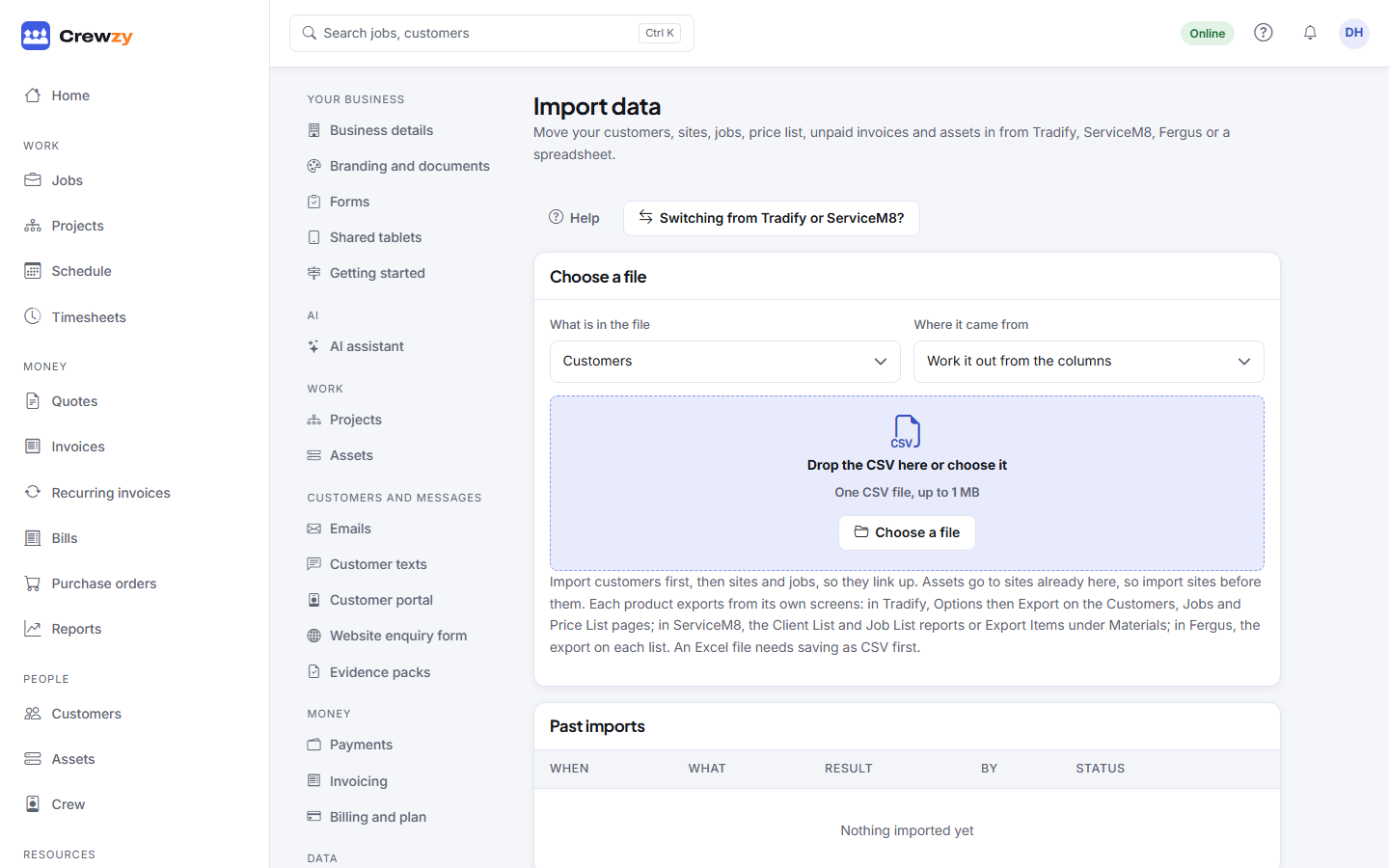
- Under Choose a file, pick What is in the file: customers, sites, jobs, price list or unpaid invoices.
- Pick Where it came from (Tradify, ServiceM8, Fergus or another system), or leave it on Work it out from the columns.
- Choose the CSV file.
- Check what was found: the rows in the file, how many are ready to import, how many are already here, and any problems with the spreadsheet row they are on.
- Check the column mapping. Each field shows the column it reads from. Point any field at a different column, or at Not in this file.
- Choose what happens to Rows that are already here: Leave them as they are, or Fill them in from the file. A blank cell never wipes out what you already have.
- For jobs, tick Include completed, invoiced and cancelled jobs if you want your history as well as open work.
- Press Import, which names how many rows will go in, such as Import 120 customers. Start again picks a different file.
Undo an import
The most recent import can be taken back out: press Undo beside it under Past imports. Undo removes what that import created, except anything used since, such as a job that has been booked or a customer who has been quoted. It tells you how many it kept.
What is matched
| Record | Matched to what you already have by |
|---|---|
| Customers | Name and email |
| Sites | Customer and street address |
| Jobs | Their number in the old system |
| Price list items | Code, or name when there is no code |
Imported jobs never count towards the Base plan's monthly job limit.