The price list
Your parts, labour rates and fees, with what they cost you and what you charge.
Go to Resources, Price list. Quote and invoice lines pull from here, and so does the job costing.
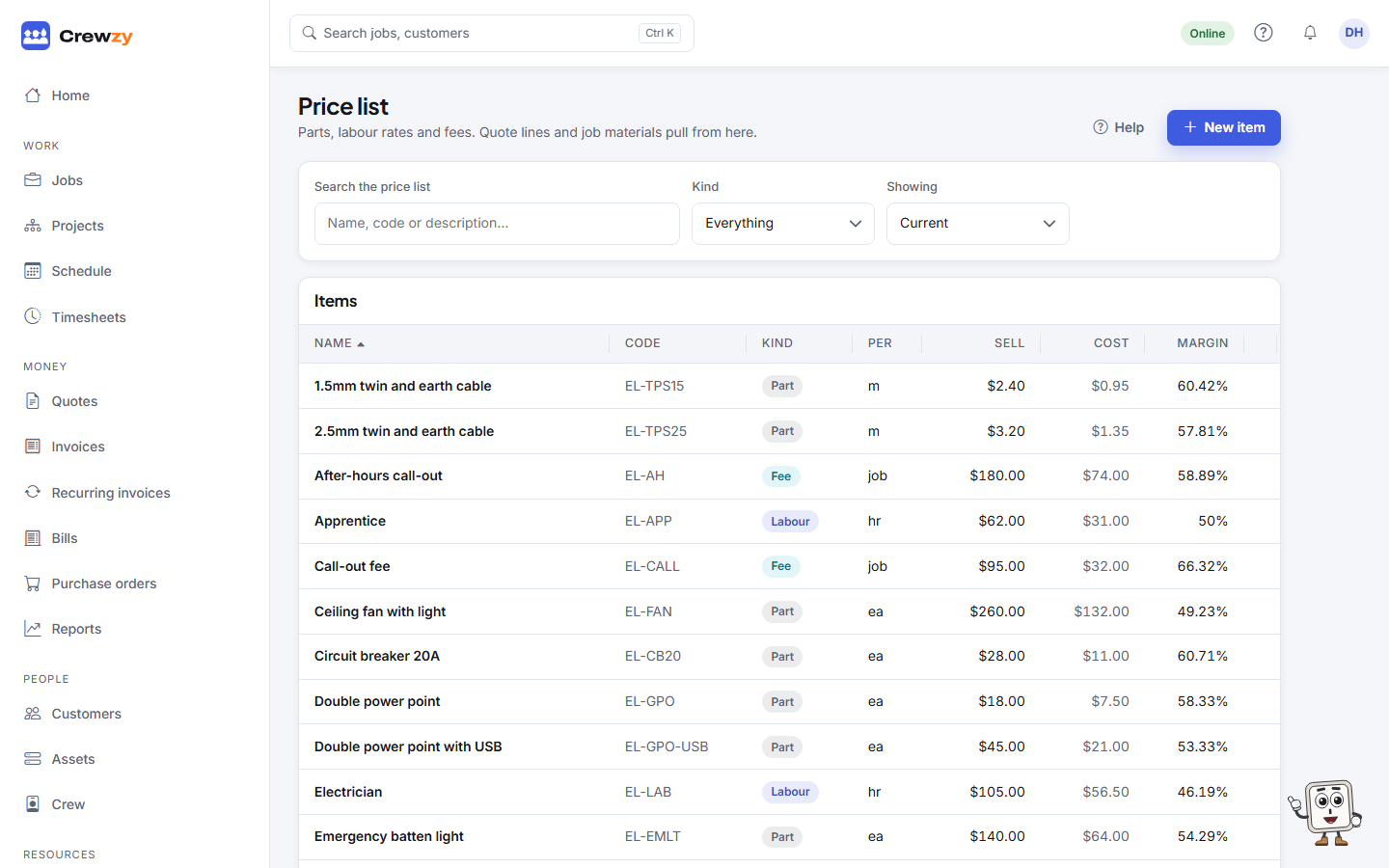
Add or change an item
Press New item, or click an item to change it.
| Field | What to put |
|---|---|
| Kind | Part, Labour or Fee |
| Code | Your own code or the supplier's part number (optional) |
| Name and Description | What shows on the quote or invoice line |
| Priced per | The unit: each, hour, metre and so on |
| Cost price | What it costs you, before GST |
| Sell price | What you charge |
| Tax applies to this | Untick for anything GST-free |
Starter prices
A new business starts with typical items for its trade, each tagged starter price. The tag goes when you edit the item. Checking your labour rate is one of the setup steps, because a starter rate is only a guess.
Why cost price matters
The cost price is what the Profit by job report and each job's Costing card count materials at. An item with no cost price makes a job's profit look better than it is, and those jobs are flagged as having unpriced work. A part typed onto a job by hand is counted at the Cost each entered on it.
Labour rates and job invoices
When a job is invoiced, its hours are charged at one of your labour rates: the one chosen in Settings, Invoicing, or the first hourly rate on the list until you choose one. Parts on the job go across at their price on the job, or at the sell price here.
Retire an item
Items are retired rather than deleted: open the item and tick Retired: keep it on old quotes, hide it from new ones. It stays on old quotes and invoices and disappears from the list you pick from. To see retired items again, choose Retired or Current and retired under Showing.