Evidence packs
One PDF of a finished job for the builder, strata or facilities manager who gave you the work.
When a builder, strata manager or insurer asks for proof the job was done, send them an evidence pack. It is one PDF with everything they usually chase you for, ready to attach to a claim.
What is in it
- The job, its reference and who it came from, the site and the customer.
- What was done: the job's description and the work done from any job sheets added to it. Notes in the job's Notes box stay in your business and are left out.
- Time on the job: who worked, when and for how long, with the total.
- Materials and parts used. Prices are left out unless you tick Show the prices of parts.
- Photos from the job, with when each was taken.
- The customer's sign-off and signature.
- Every form on the job. A form that was not finished says so.
- Supporting documents: pictures are shown, and other files are listed by name.
Sections with nothing in them are left out. A job with a lot of photos keeps the pack small enough to email: the pack says how many photos were left out, and they stay on the job.
Make and send it
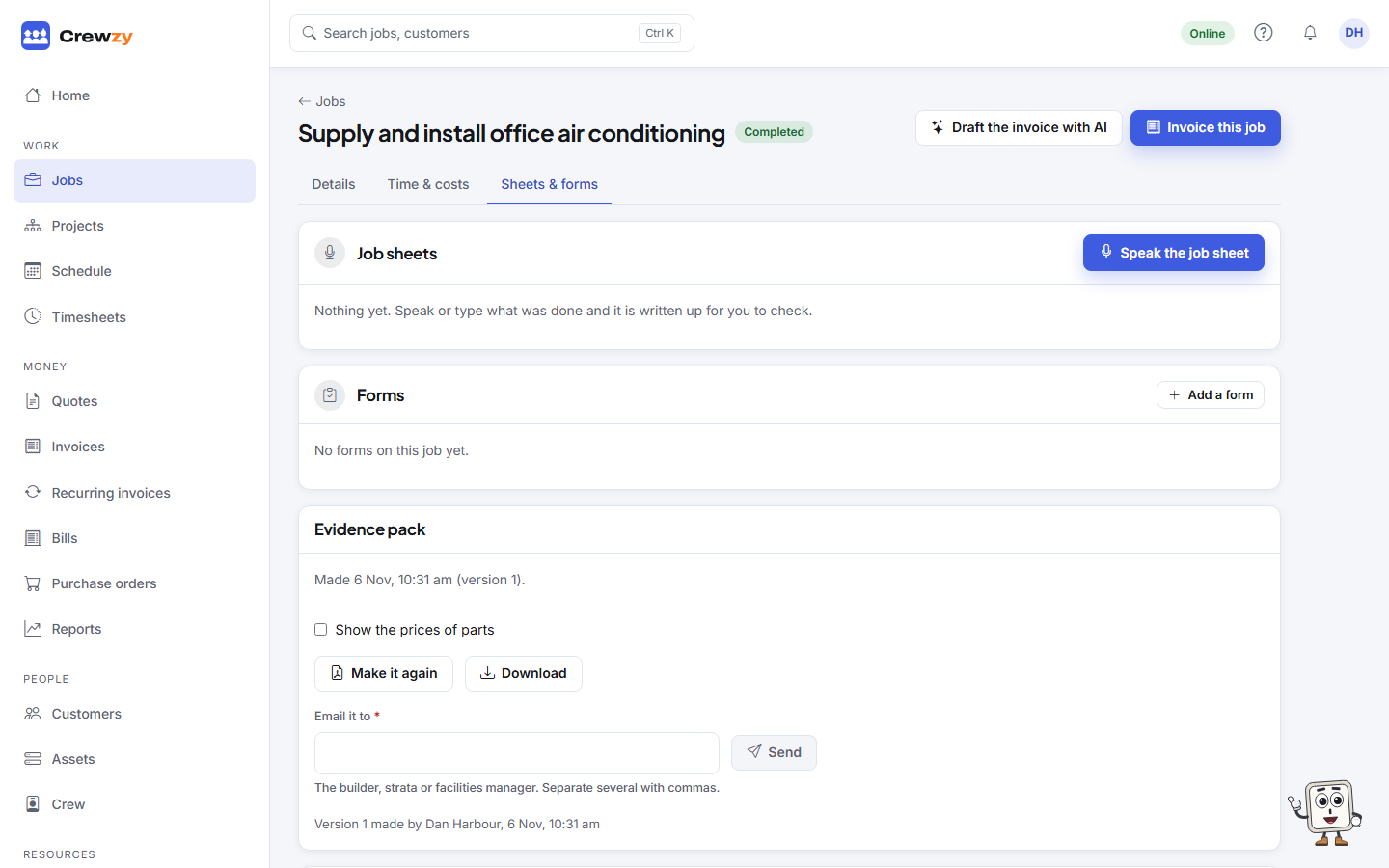
- Finish the job. The Evidence pack card appears on the finished job's Sheets & forms tab.
- Press Make the evidence pack. It is saved with the job's files.
- Type the builder's or manager's email under Email it to and press Send. Separate several addresses with commas.
Changed something after making it? Press Make it again. The new pack becomes the current one and the earlier versions are kept. The card lists every pack made and who it was sent to.
You can also ask the assistant: "Make the evidence pack for the Smith job" or "Has the evidence pack for the Smith job been sent?". It shows a card first and does nothing until you confirm, and sending is a separate card that says it sends an email.
The wording of the email is yours to change under Settings, Emails, Sending an evidence pack.
Send them automatically
A pack can go by itself when a job is finished, so nobody has to remember.
- For every customer: Settings, Evidence packs, then tick Send every customer their job's evidence pack when it is finished. It is off until you turn it on.
- For one customer: on the customer's Settings tab, the Evidence packs card says Yes, No or As the business default. Under Send to, type up to five addresses it goes to, separated by commas. Left empty, it goes to the customer's email.
- For a work giver: on Connections, open Evidence packs under the work giver and tick the box. Their jobs then follow this setting rather than the customer's. It is emailed to the addresses you give, or the customer's email if you give none; it is not yet attached inside their own system.
Choose when it goes under When it goes: half an hour after the job is finished, or at 5pm on the day it is finished, in your business's time. A job finished after 5pm goes half an hour later rather than waiting overnight.
The job's Evidence pack card shows "Sending automatically to ... at ..." with a Cancel button until it goes, then "Sent automatically" with the version. Reopening or cancelling the job calls it off, and so does sending the pack yourself before it was due.
If a form the job needs is not finished, the pack waits and sends once it is, for up to a week. If the email fails, the card says why with Send it now, and the office is told. You can also be told each time one goes: turn on Evidence pack sent automatically in Your notifications.
Your customer portal shows the latest evidence pack only if you have turned that on in the portal's settings; sending automatically does not change it.
Ask the assistant "Which evidence packs are going out today?", or "Send the Smith customer their evidence packs automatically". It shows a card and changes nothing until you confirm.