Bookings in your phone's calendar
See your bookings in Google, Apple or Outlook calendar, kept up to date from Crewzy.
Your bookings can show in the calendar you already use on your phone, next to everything else in your day. Crewzy gives you a private link that your calendar app checks for changes, so a moved or cancelled booking updates by itself.
Make your calendar link
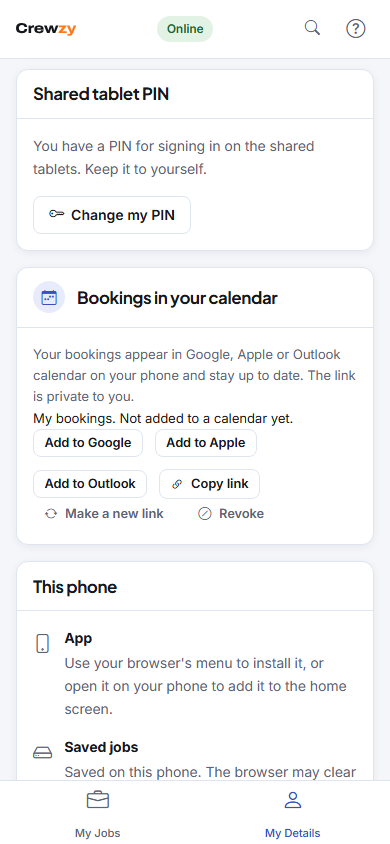
- Open My Details: on your phone, tap it at the bottom of the screen. In the office, open the menu with your initials at the top right and choose My details.
- In Bookings in your calendar, choose Make my calendar link.
- Choose Add to Google, Add to Apple or Add to Outlook, and follow your calendar app's prompts.
If your calendar app is not listed, choose Copy link and paste it wherever the app asks for a calendar to subscribe to by address.
The card then shows when your calendar last checked the link, or Not added to a calendar yet.
What shows in your calendar
Each booking shows the job title, its time, the site address and the customer's first name, or the business name for a business. A link opens the job in Crewzy. Prices, costs and private notes never go into your calendar.
The calendar covers the last 30 days and the next six months. Calendar apps check for changes on their own schedule, from every few minutes to a few hours, so a change can take a little while to appear.
For the office
If you can see the schedule, you can choose what your link shows: My bookings, Everyone on the crew, or The whole schedule, vehicles and equipment included. To change it later, choose again under Next link shows and press Make a new link, then add the new link to your calendar. Each person makes their own link from their own login.
Keep your link private
Anyone with your link can see the bookings it shows. If you think someone else has it, choose Make a new link or Revoke: the old address stops working straight away, and you add the new one to your calendar again.