Your first job, from booking to paid
A walk through one job end to end, so you see how the pieces fit.
This walks through one job from the phone call to the money in the bank. Each step links to a fuller article.
1. Add the job
Go to Work, Jobs and press New job. Pick the Customer and Site, give it a Title and a Description of the work, and press Save & open.
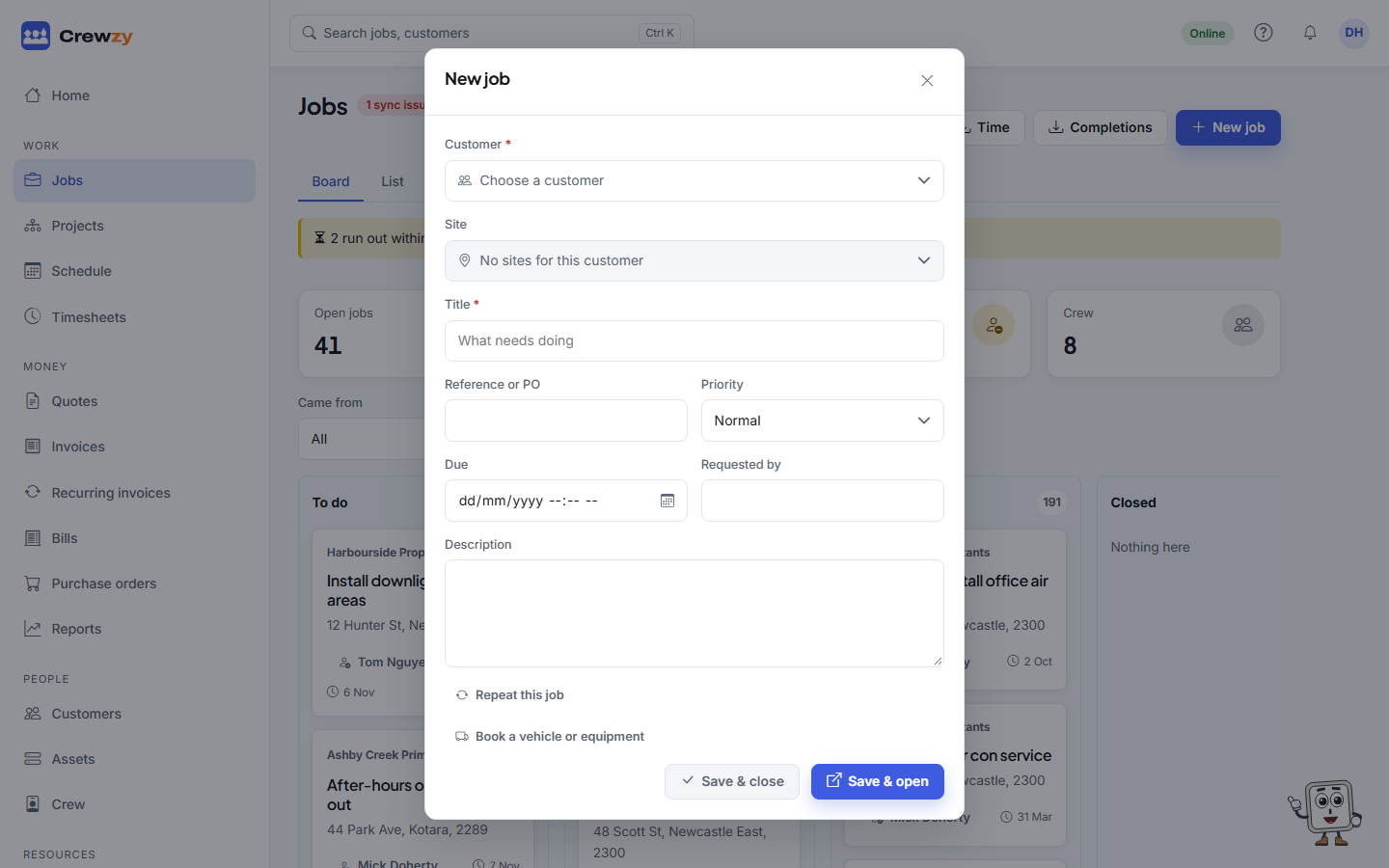
If the customer is new, add them first under People, Customers. See Create a job.
2. Book it in
Drag the job onto a person and a day under Work, Schedule, then set its start and finish. Booking someone puts the job on their phone. If you have turned on booking texts, the customer gets a confirmation. See The schedule.
3. The crew do the work
The worker sees the job on their phone under My Jobs. On the job, the bar along the bottom has On my way (when customer texts are on), Clock on and Clock off, which record their time, Add for parts, photos and notes, and Finish. When the work is done they press Finish, get the customer's name and signature, and press Mark complete. See Finish a job on your phone.
4. Invoice it
Open the finished job and press Invoice this job. A draft invoice is made from what was done:
- the hours worked, as one labour line at your labour rate
- the parts and materials on the job, one line each at their price
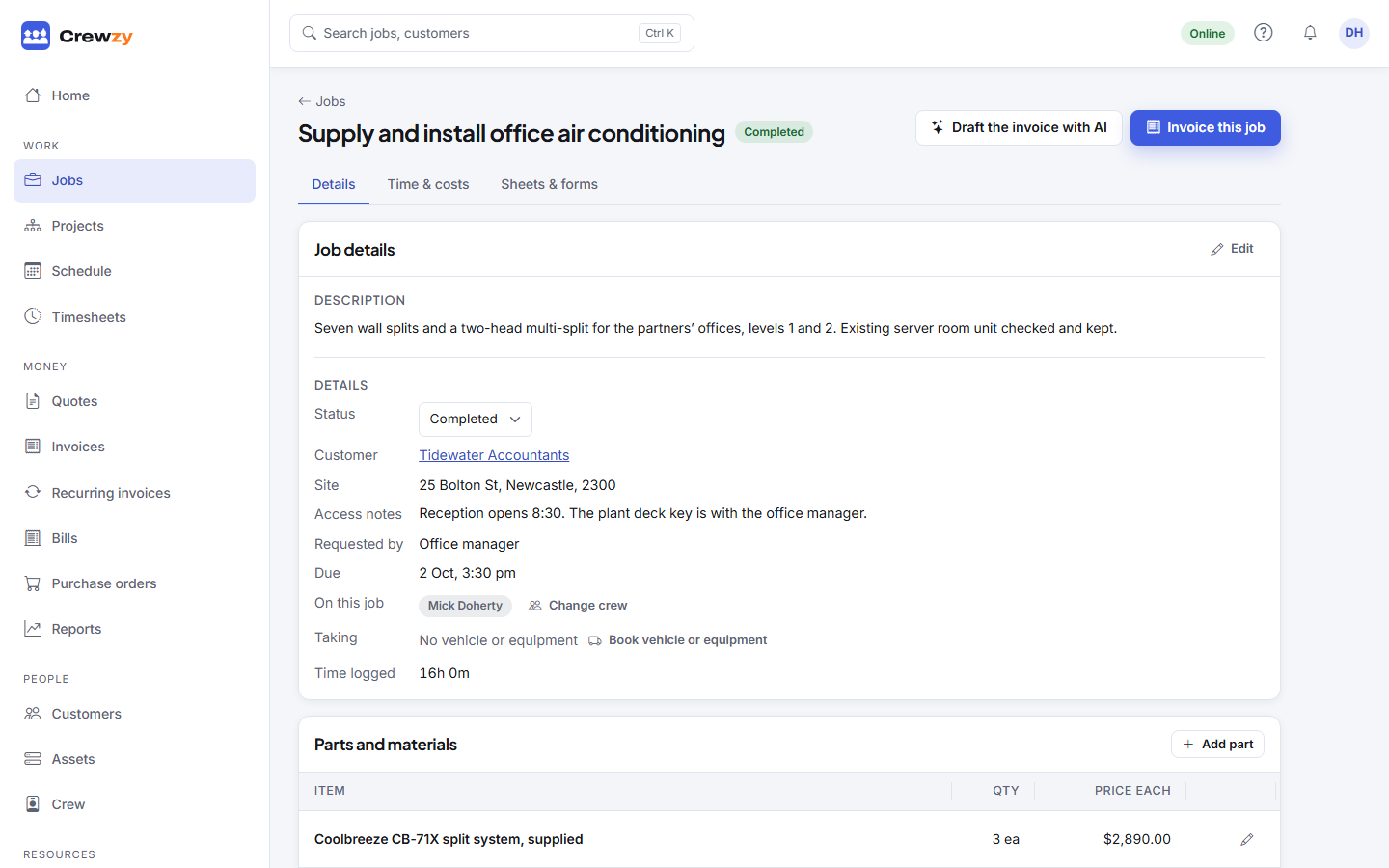
The labour rate is the first hourly rate on your price list until you choose one in Settings, Invoicing. Check the lines before you send.
5. Send it and get paid
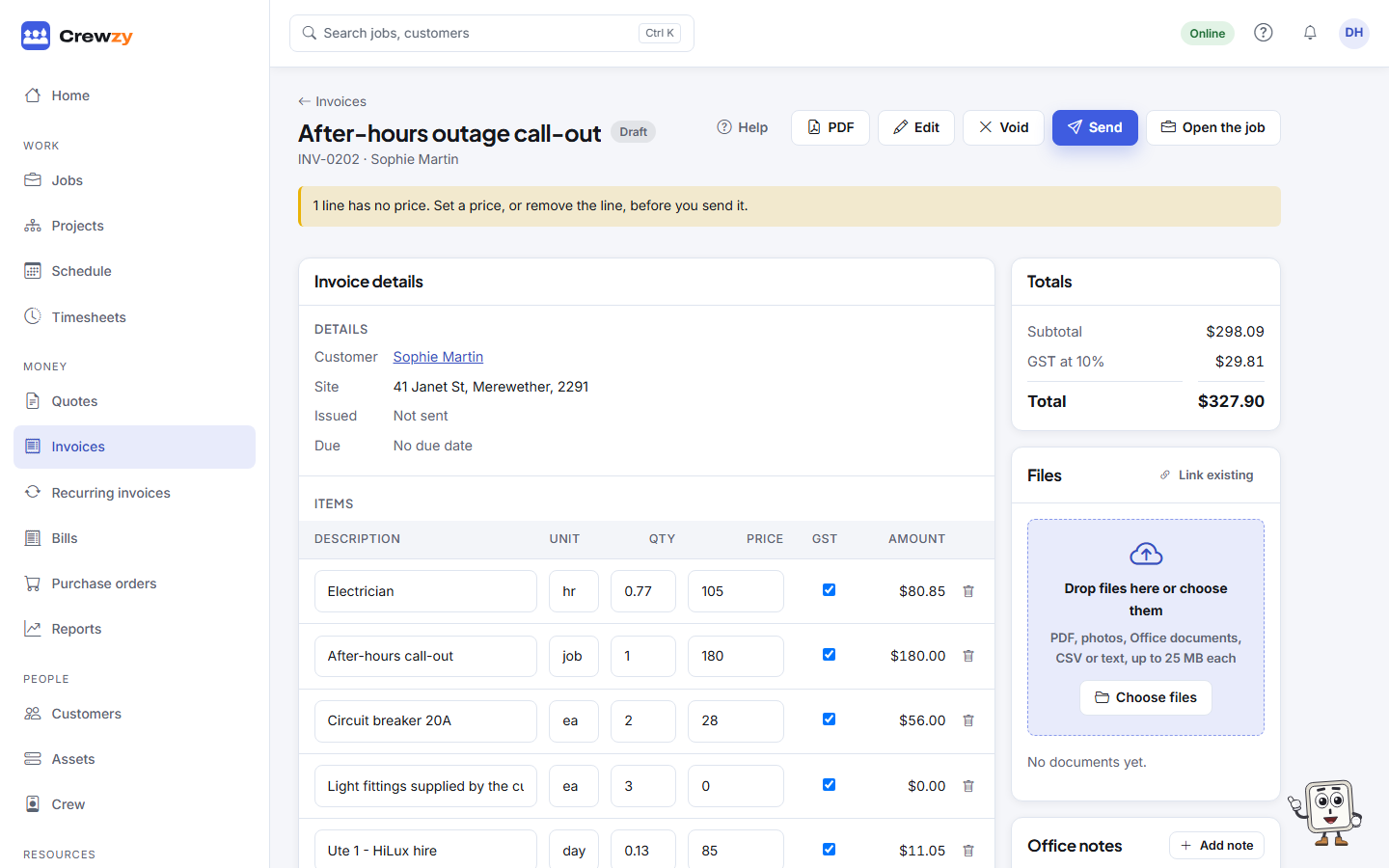
On the draft invoice, check the lines and press Send. The customer gets an email with a PDF and a link to view and pay it. When they pay online, the invoice is marked paid by itself. If they pay by bank transfer, press Record payment. See Send an invoice.
That is the whole loop. From here, Home shows what is owed, what is booked today and anything that needs attention.