Send an invoice
Email the invoice with its PDF and pay link, or mark it sent.
Open the draft invoice and press Send.
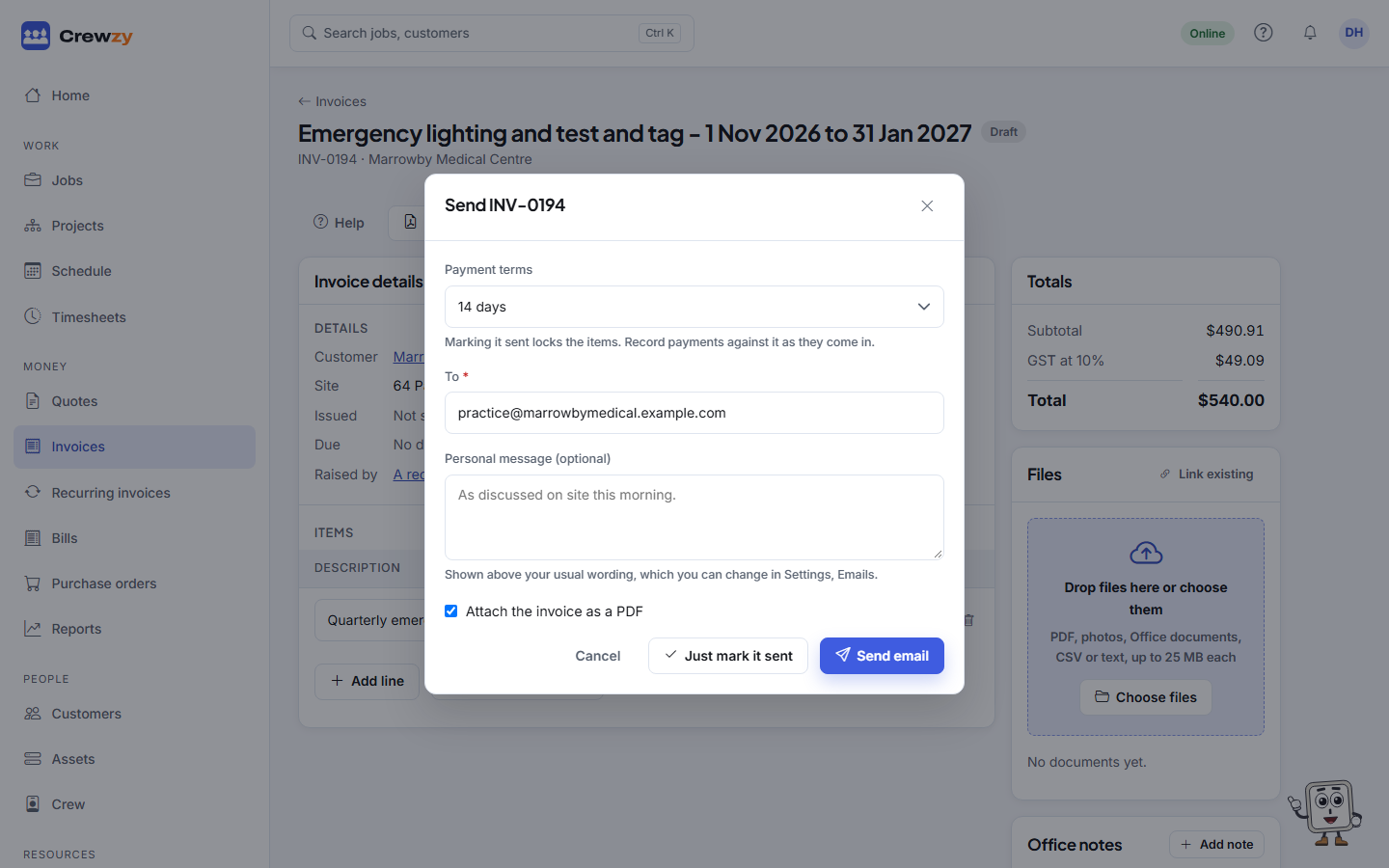
- Check the To address, taken from the customer's record. Type one if there is none on file.
- Add a Personal message (optional) if you like. It goes above your usual wording.
- Choose the Payment terms: Due on receipt, 7 days, 14 days, 30 days or No due date. They set the invoice's due date.
- Leave Attach the invoice as a PDF ticked to include it.
- Press Send email.
If you gave the customer the invoice another way, press Just mark it sent instead. It takes the payment terms chosen too.
What happens when it is sent
- The invoice gets its issue date, and its due date from the payment terms, and can no longer be changed.
- The customer's email has a button to view and pay it online. See Getting paid online.
- If Xero is connected, the invoice goes to your books.
- If invoice texts are turned on, the customer also gets a text with the link.
- If the customer has a portal link, the email can also link to their own page of every quote and invoice. See Your customer portal.
Email again sends it once more, and the Email history box shows every email and whether it went.
Change the email's wording
The subject, opening and sign-off of the invoice email can be changed under Settings, Emails, Sending an invoice. See Customer emails.