Invoice a finished job
Make a draft invoice from the hours and materials on a job.
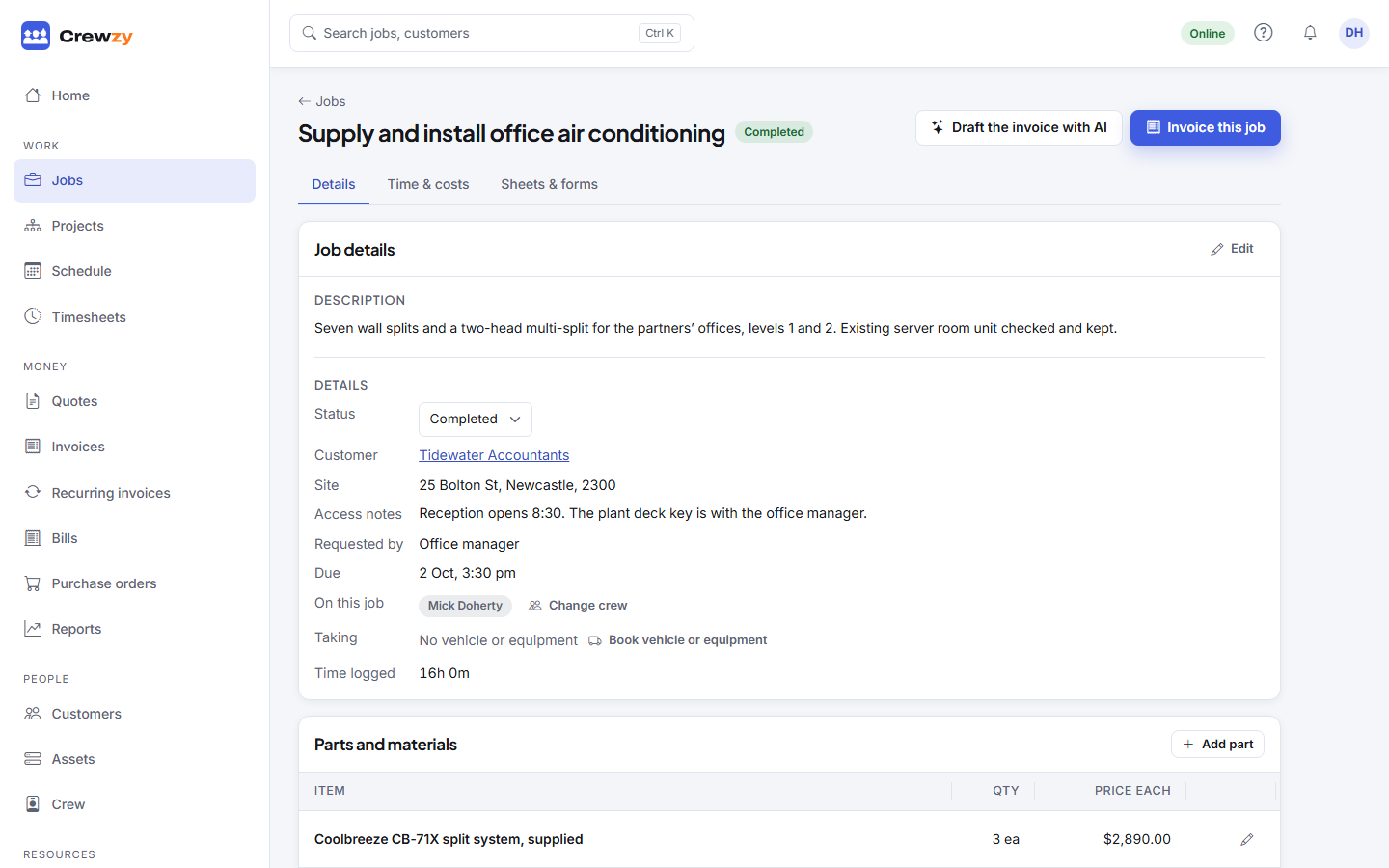
Once a job is finished, open it and press Invoice this job. A draft invoice opens for the job's customer and site, titled with the job's title. If the job has a reference or PO number, it goes in the invoice notes.
What goes on the draft
- Labour: all the time recorded on the job, added up into one line of hours, at your labour rate. The rate is the one chosen in Settings, Invoicing, or the first hourly rate on your price list until you choose one. If your crew have their own charge rates, there is one line for each rate instead. See Charge each person at their own rate.
- Parts and materials: each part on the job as its own line, at the price on the job, or the price list's sell price if the job has none.
When the job has charge rates, Invoice this job first asks how to charge the hours: each person at their own rate, or every hour at one rate.
If a line still has no price, such as a part typed in without one, the draft says how many lines have no price. Set a price or remove the line before you send.
A job can only be invoiced once. If it already has an invoice, open that one instead.
Let AI draft it
When AI is on for your business, a finished job also has Draft the invoice with AI beside Invoice this job. It makes the same draft, then:
- writes a short summary of the work for the customer, in the invoice notes,
- matches parts the crew typed in to items on your price list, so they take your prices,
- adds items the job calls for that are on your price list, such as a call-out fee.
Every price comes from your price list or the job: AI never makes one up, and never sees your prices, costs or the customer. A part it could not match stays with no price, and the draft says so. Nothing is sent. It counts as one AI draft.
Check and change the draft
On the draft you can:
- change the description, unit, quantity or price of any line, or remove it
- Add line or Add from price list for anything else, such as a call-out fee
- Edit the title, the notes for the customer and the terms
- add files in the Files box, and choose which to show the customer on the pay page
- under What the customer sees, choose to show the job's timesheet on the pay page: each shift with who worked it and the hours, never rates or costs
- keep notes for your team in Office notes. They never reach the customer. See Notes and follow-ups
When it is right, press Send. You choose the Payment terms as you send it. See Send an invoice.