Create a quote
Price the work line by line from your price list, with notes and an expiry date.
Go to Money, Quotes and press New quote. To see one customer's quotes, open the customer and choose their Money tab.
Start the quote
Fill in the Customer, the Site if it is for one address, a Title such as "Switchboard upgrade", when it Expires, and any Notes for the customer. Save it, and the quote opens as a draft.
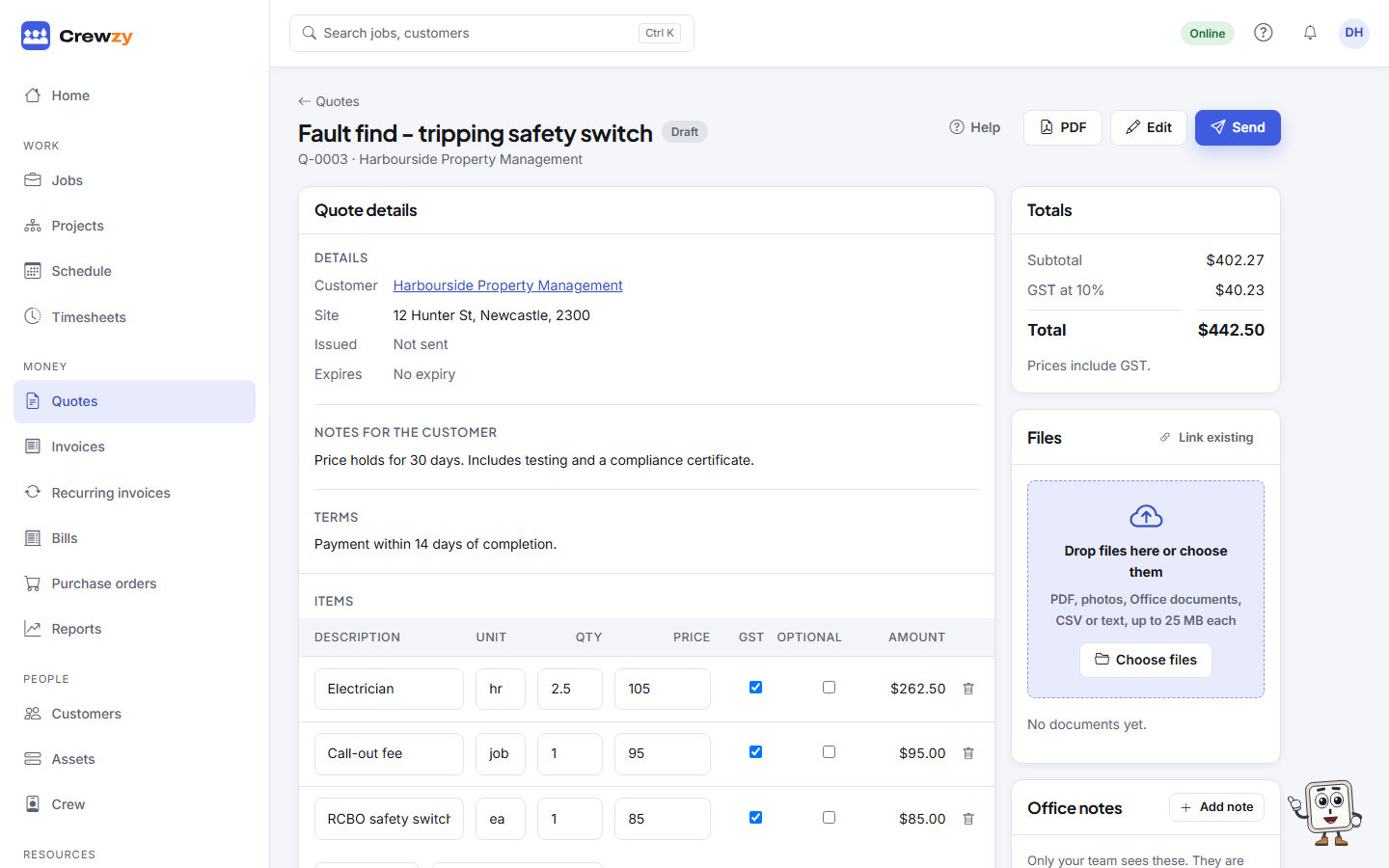
Add the lines
- Add from price list picks a part, labour rate or fee from your price list, at its sell price.
- Add line adds a blank line to describe anything else.
Change the description, unit, quantity or price of any line in place. The Totals box on the right includes GST worked out from your tax settings.
To let the customer choose between versions of the work, press Offer options; to add an extra they can tick on or off, tick Optional on its line. See Options and optional lines.
Edit, preview and attach
- Edit changes the title, expiry, notes for the customer and terms. The customer and site are set when the quote is made: to change them, make a new quote.
- PDF opens the quote as your customer will see it.
- Add plans, photos or a scope document in the Files box. You can choose to show them to the customer on their quote link.
- Office notes keeps notes for your team about the quote, such as a call with the customer. They never print on the quote or reach the customer. See Notes and follow-ups.
A quote can only be changed while it is a draft. Once sent, it is what the customer agreed to look at.
The quotes list
The list shows how many quotes are Open and their Value out, and how many were Accepted and their Value won. Search by title or customer, filter by status, and sort by any column.
| Status | Means |
|---|---|
| draft | Not sent yet |
| sent | With the customer |
| accepted | The customer said yes |
| declined | The customer said no |
| expired | Passed its expiry date with no answer |
| converted | Turned into a job |