Draft a quote with AI
Describe the job, or say it, add photos if they help, and get a draft priced from your price list.
Go to Money, Quotes and press Draft with AI, or ask the assistant in the corner for Draft a quote.
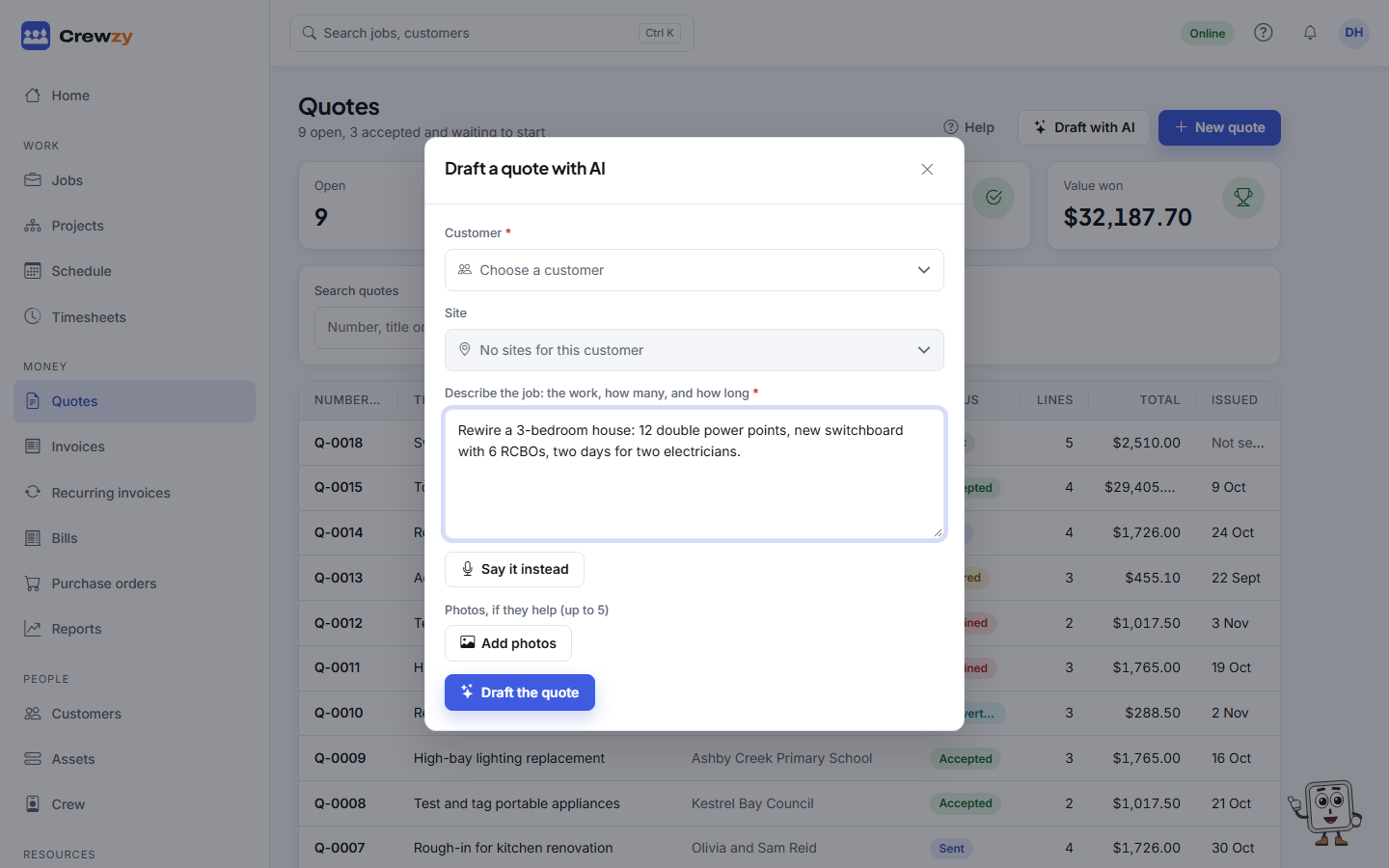
Describe the job
- Choose the Customer, and the Site if it is for one address.
- Describe the work: what it is, how many, and roughly how long it takes. For example: "Rewire a 3 bedroom house, 12 double power points, new switchboard, two days for two of us." Press Say it instead to speak it, where your browser can listen.
- Add up to five photos if they help show sizes or what is there now. A draft with photos takes three of your AI drafts rather than one.
- Press Draft the quote.
Check the draft
The quote opens as a draft, the same as one you made yourself. Nothing is sent.
- The lines come from your price list at its sell prices: labour at your labour rates for the hours estimated, and parts with quantities. AI never makes up a price.
- A line with no price is something the job needs that is not on your price list. The quote says how many there are; set a price or remove the line.
- The scope of works is in the notes for the customer.
- Assumptions and what is not included are shown above the quote. Press Add these to the notes to put them in the customer's notes, after changing anything you disagree with.
Read it through like any quote, then send it when you are happy with it.
Good to know
- The more you say about the job, the closer the draft. Quantities and hours you give are used as they are.
- Your prices and costs are never sent to the AI; it only sees the names and units on your price list.
- On Base you have 20 AI drafts a month. Connected and Unlimited include AI. An owner can turn AI off in Settings, AI assistant.