Options and optional lines
Offer Good, Better and Best versions of the work, and extras the customer ticks on or off.
A quote can give the customer a choice. Options are two or three versions of the work, such as Good, Better and Best, each with its own lines and total; the customer accepts one. Optional lines are extras, such as a surge protector or a second coat, that the customer ticks on or off.
You can use either, or both. A quote with neither works exactly as it always has.
Offer options
Open the draft quote and press Offer options, under the lines. The lines you have become the first option, Good, and a copy of them becomes the second, Better. Change the copy into the better version: add lines to it, take some off or change the prices.
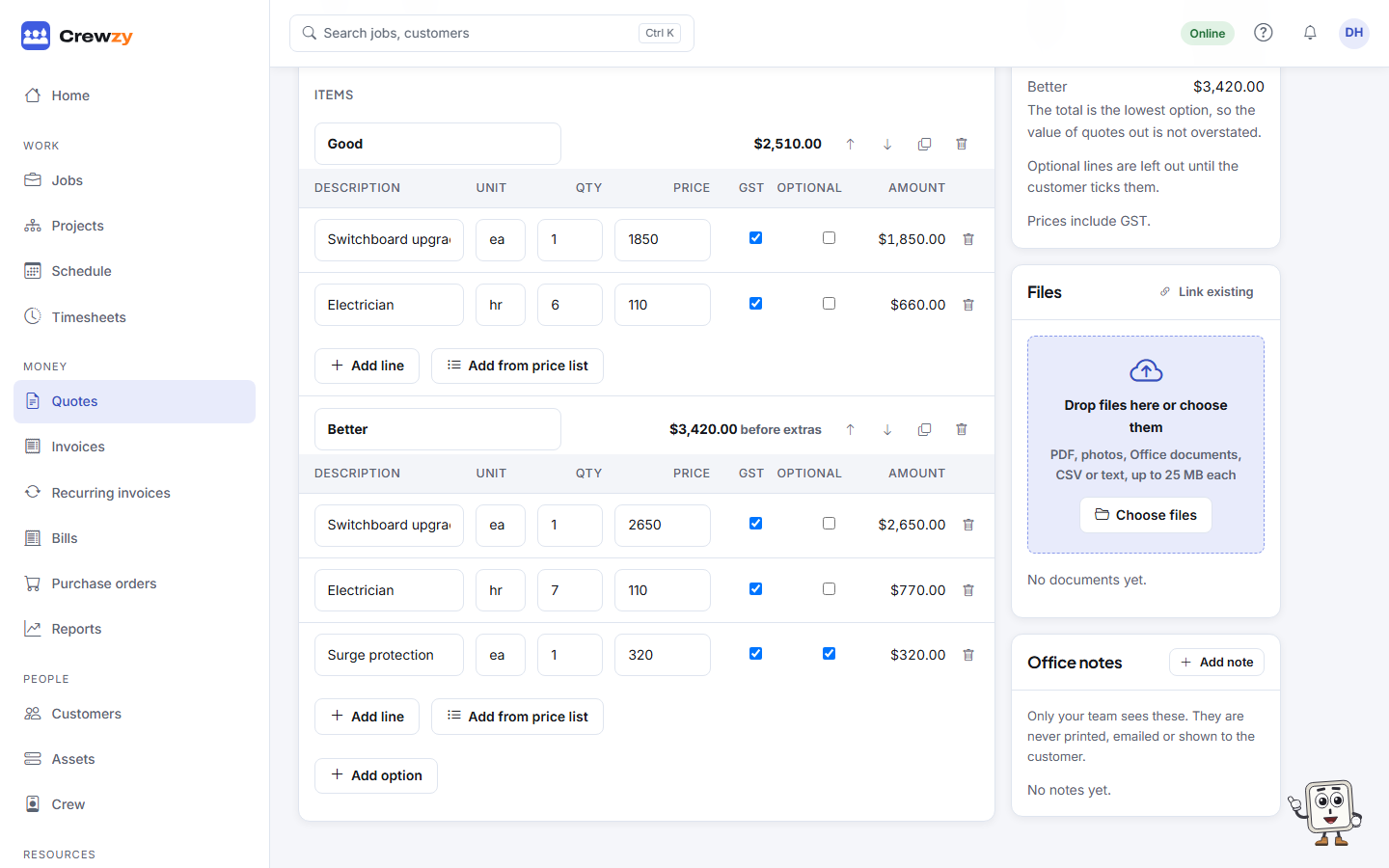
Each option has its own box with its name, its total and its own Add line and Add from price list buttons. In the box's heading:
- type over the name to change it, for example to "Standard" and "Premium"
- the up and down arrows change the order the customer sees them in
- Copy makes a new option from that one, ready to change
- the bin takes the option and its lines off. Take off all but one and the quote goes back to a single set of lines.
Add option, under the last box, adds an empty third option. A quote offers up to three.
Every option needs at least one line before the quote can be sent.
Mark a line optional
Tick Optional on a line. It stays on the quote but is left out of the total until the customer ticks it on their link. On a quote with options, an optional line belongs to the option it is in.
What the totals show
Until the customer accepts, the quote's total, in the Totals box and on the quotes list, is the lowest option without any extras. That keeps the value of quotes out from being overstated. The Totals box lists each option's total as well.
Once the customer accepts, the total becomes what they chose: their option with the extras they ticked, with GST worked out on that.
What your customer sees
On the link, the options sit side by side, or one under another on a phone. The customer picks one, ticks any extras, and the total at the top changes as they go. When they accept, the form says exactly what they are accepting, such as "Better, with Surge protection, for $649.99". They sign or confirm the same way as any quote. See What your customer sees.
The PDF prints each option under its own heading with its total, and marks optional lines Optional. After acceptance it marks the option Accepted and the others Not chosen.
When they accept by phone
Press Accepted on the quote. Choose Which option? and tick the Optional lines they want, then Mark accepted.
Into the job and the invoice
Turn into a job carries across only the option the customer accepted and the extras they ticked. The other options stay on the quote, marked Not chosen, as a record of what was offered; they never reach the job or its invoice.
Things to know
- Options and optional lines are for quotes you price yourself. A quote made from a project's stages, and a variation, cannot offer them.
- A project can be made from a quote with options or optional lines only once the customer has accepted it.
- The assistant can draft a quote with options: tell it which lines go in which option, such as "Good: an electric unit; Better: a heat pump, with a timer as an optional extra". Draft with AI from a description and photos makes one set of lines; press Offer options on the draft afterwards.