Send a quote
Email the quote with a link the customer can accept from, or mark it sent.
Open the draft quote and press Send.
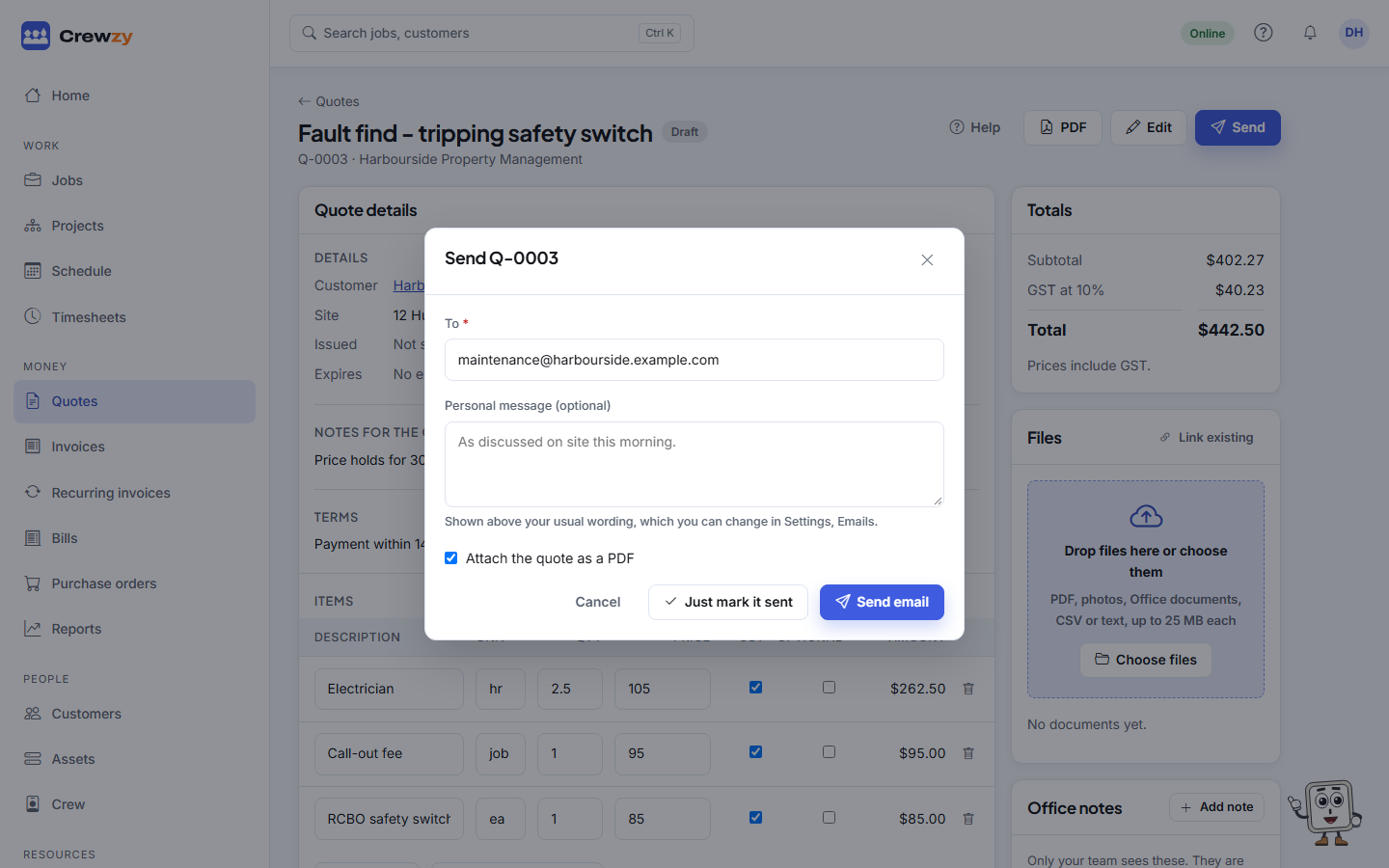
- Check the To address. It comes from the customer's record. If they have no email on file, type one.
- Add a Personal message if you like. It is shown above your usual wording.
- Leave Attach the quote as a PDF ticked to include the PDF.
- Press Send email.
The email leads with a link to the quote online, where the customer can accept it, decline it or ask a question. See What your customer sees.
Already given it to them?
If you handed the customer a printed copy or sent it another way, press Just mark it sent instead. The quote moves to sent without an email.
After sending
- Email again sends it once more, for example to a different address.
- Email history on the right shows every email sent and whether it went.
- If quote texts are turned on and the customer has a mobile, they also get a text with the link.