Find your way around a project
The figures at the top of a project, and what is on each of its tabs.
Open a project from Work, Projects. It opens on the Stages tab once it has stages, and on Overview before that.
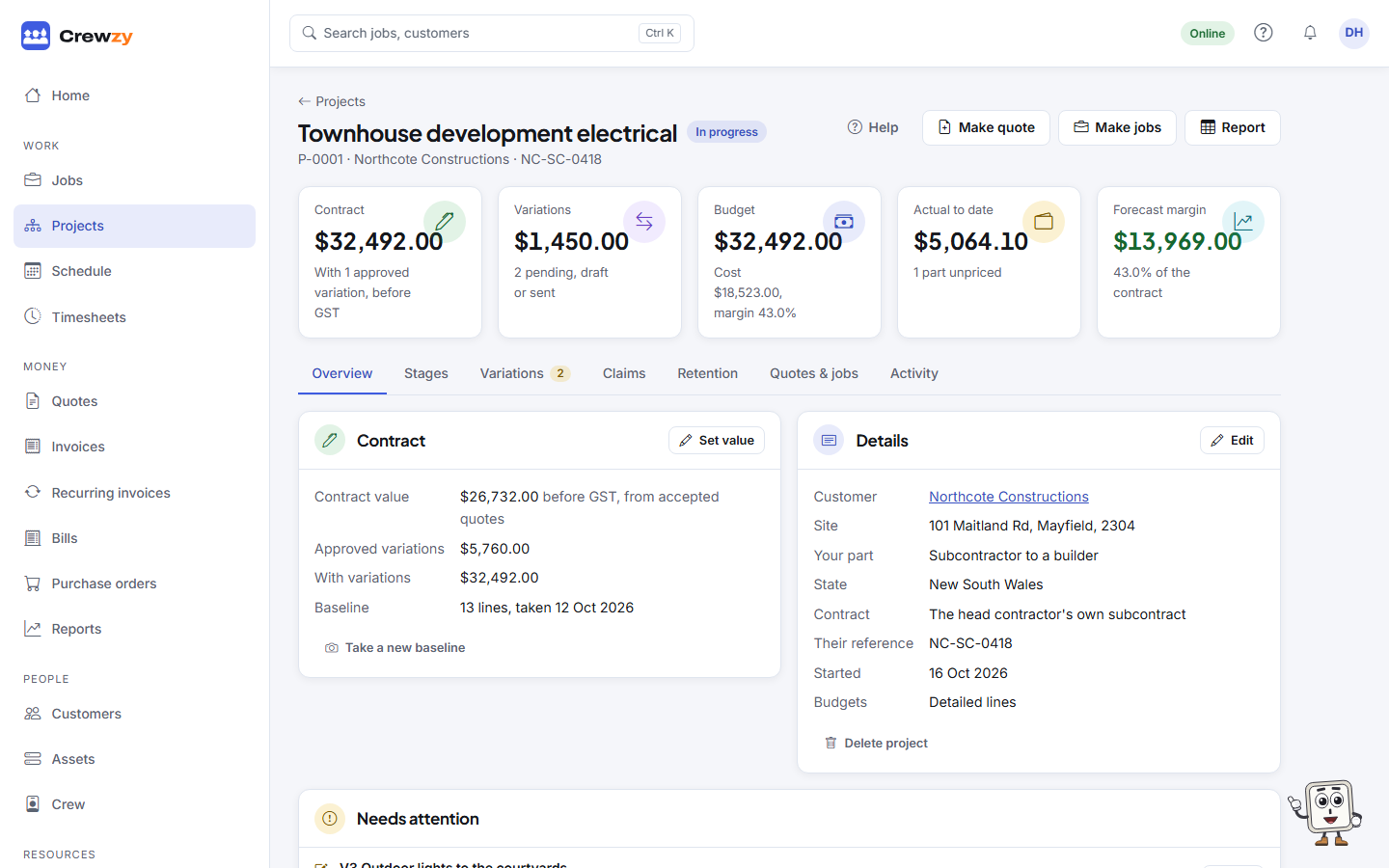
At the top
The header has the project's name, number, customer and status, and three buttons:
- Make quote: a quote from the whole project or chosen stages. See Quote a project and agree the contract.
- Make jobs: jobs from a stage. See Make jobs and track costs.
- Report: budget against actual for each stage, with the jobs and bills behind it. Only the owner and office see it.
Under them, the figures stay in view on every tab:
- Contract: the agreed value before GST, with approved variations.
- Variations: the value of variations still a draft or sent.
- Budget: what the stages add up to.
- Actual to date and Forecast margin: what the work has cost so far, and what is left of the contract once the budget still to spend is added. Only the owner and office see these.
The tabs
| Tab | What is on it |
|---|---|
| Overview | The Contract box (contract value and baseline), the Details box (customer, site, your part, state, dates and budgets, with Edit and Delete project), Needs attention, Closing the project and Recent activity |
| Stages | The stages tree and the chosen stage's prices, or Budget vs actual |
| Variations | The variation register, with New variation and CSV. The tab shows how many are pending |
| Claims | Progress claims, the claim being worked on, retention and invoicing terms, and the claim history |
| Retention | What the builder holds, when it can be claimed back, and the retention ledger |
| Quotes & jobs | The project's quotes and jobs, with Make quote, Make jobs and Add a job |
| Activity | Everything that has happened on the project and who did it |
Claims and Retention are for the owner and office only.
Needs attention
The Needs attention box on the Overview tab lists what wants doing next, the most urgent first, each with a button to the place to do it:
- variations still a draft (Price it or Send it), including ones the crew raised from site,
- variations sent and waiting on an answer (Follow up), and any past the notice period,
- jobs with parts or hours that have no price, so the actual cost is short (Open job).
When there is nothing, it says so.
Change or remove a project
Press Edit on the Details box to change the name, Status, your part, site, state, whether it is A home the owner lives in, the Contract type, Their reference, the Started and Target completion dates, Budgets, Variation notice (days) and the description.
Delete project removes the project with its stages, priced lines and variations. Its quotes and jobs stay, no longer on a project. It cannot be undone, and a project with claims in your books cannot be deleted. To keep it for the record, close or cancel it instead. See The final claim and closing a project.
A project moves to Contracted when a quote on it is accepted, and to In progress when the first job is made on a contracted project. Set the others with Edit.
| Status | Means |
|---|---|
| Lead | Not won or quoted yet |
| Quoting | A quote is out |
| Contracted | The contract is agreed |
| In progress | The work is under way |
| Practical completion | The work is finished |
| Defects period | Waiting out the defects liability period |
| Closed | Finished and kept for the record, read only |
| Cancelled | Not going ahead |