Make jobs and track costs
Make jobs from stages, cost bills and orders to a stage, and see budget against actual.
Jobs made from a project's stages are ordinary jobs. Everything recorded on them, such as hours, parts, hire and other costs, counts against their stage.
Make jobs from stages
- On the project, press Make jobs at the top of the page (or on the Jobs box of the Quotes & jobs tab).
- Choose the Stage, or The whole project. The stage chosen on the Stages tab is filled in for you.
- Choose One job for the stage and everything under it, or One job per stage under it. When the stage also has lines of its own, they get a job of their own as well.
- Tick Put the stage's materials on the job as parts to fit if the crew should see what is meant to go in. It is off unless you tick it, because parts on a job count as used and add to its cost straight away.
- Press Make job (or Make 3 jobs, for as many as it will make). When it is the first job on a contracted project, the project moves to In progress.
Each job takes the project's customer and site, the stage's name as its title, and the stage's lines as its scope. Its reference is the project number and stage number, such as P-0012 2.1. The job shows which project and stage it is for; the crew see the stage name, never the budget.
The jobs on the project are listed on the Quotes & jobs tab, with the stage each is for and its status.
To put a job you already have on a stage, such as a callback, press Add a job on the Jobs box of the Quotes & jobs tab, choose the job and the stage.
Bills and orders on a stage
A supplier bill or purchase order for a job counts against the job's stage. For costs with no job, such as skip bins or site sheds, choose the Project stage on the bill or order. Bill lines with no job are then costed straight to that stage once the bill is approved.
Setting, changing or removing a bill's or order's stage, or a new one taking its job's stage, is written to the project's Activity tab. A stage cannot be removed while jobs, orders or bills are on it.
Budget against actual
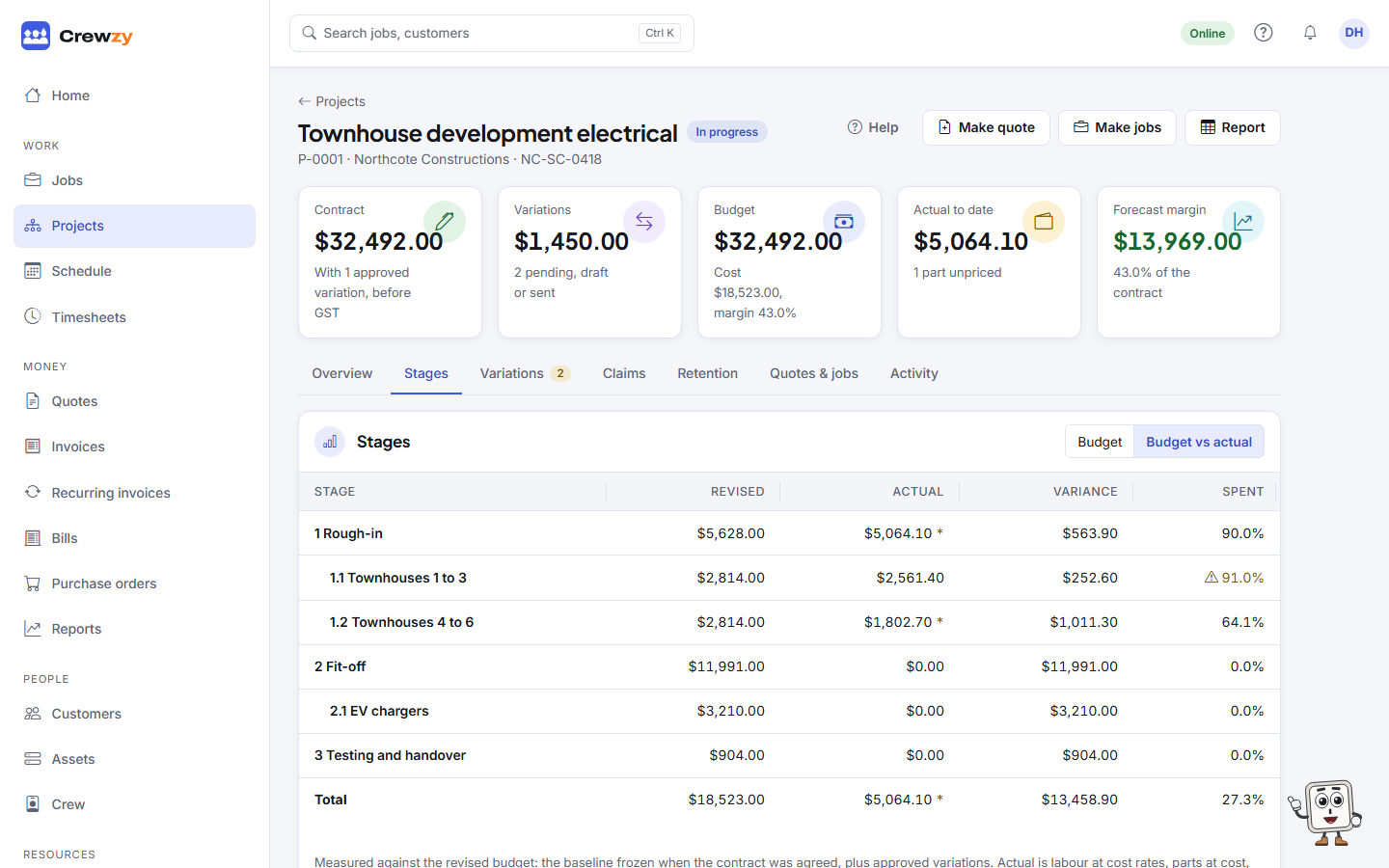
On the Stages tab, choose Budget vs actual at the top of the Stages box (beside Budget). This device remembers the choice. It shows, for each stage and everything under it:
- Baseline: the budget frozen when the contract was agreed. Before there is one, Budget shows the budget as it stands.
- Revised: the baseline plus approved variations. Until variations arrive it is the same as the baseline.
- Actual: labour at cost rates, parts at cost, booked hire, other costs and approved bills costed to the stage. A job counts once work has started on it, so hire booked for a job nobody has started yet is not in actual. See What counts.
- Variance: what is left, or how far over when it is negative.
- Spent: actual as a share of the budget, in amber with a warning sign from 90% and in red once it is over.
- Forecast: actual plus what is left of the budget, where actual has not already passed it.
Hours with no cost rate and parts with no cost are marked with an asterisk and counted, never treated as free.
The figures at the top of every tab show the Contract, Actual to date and Forecast margin: the contract value less the forecast cost.
Press Report at the top of the project for the same figures with the jobs and bills behind them, and CSV to download them. Costs are only shown to the office and the owner.