Start a project
Set up a bigger piece of work for one customer, blank or from a quote.
A project is a bigger piece of work for one customer, such as a new home or a fit-out, split into stages that each have a budget. Use one when a job is too big to price and track as a single job.
Go to Work, Projects and press New project.
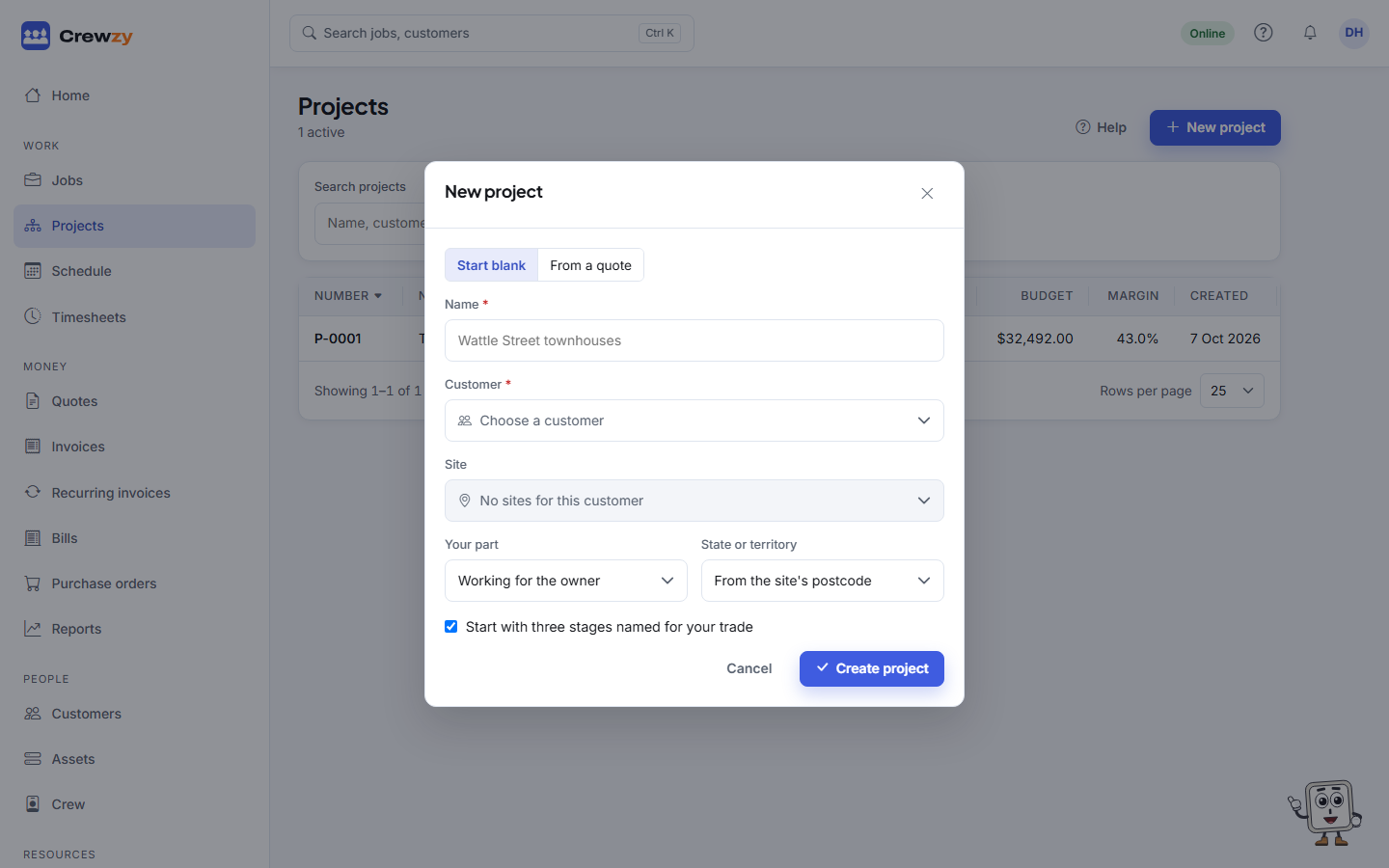
Start blank
- Choose Start blank.
- Give it a Name, choose the Customer and, if it is at one address, the Site.
- Choose Your part: working for the owner, a subcontractor to a builder, or the head contractor.
- Leave the state to come from the site's postcode, or choose it.
- Leave Start with three stages named for your trade ticked to get stages such as Rough-in, Fit-off and Testing and handover, which you can rename. Untick it to start with none.
- Press Create project. The project opens. See Find your way around a project.
Start from a quote
When you priced a big job as an ordinary quote and won it, bring it across as a project:
- Choose From a quote.
- Choose a sent or accepted quote.
- Choose Your part and press Create project.
The quote's lines come across under one stage named after the quote, before GST, with costs from your price list, and the quote now belongs to the project. A sent quote makes a project that is quoting; when it is accepted, the contract value and baseline are set as for any project quote. An accepted quote makes a contracted project with them set at once.
The projects list
The list shows each project's number, customer, status and budget before GST, and, for the owner and office, the margin. Search by name, customer, the head contractor's reference or a number such as P-0012, and filter by status. Active shows everything not closed or cancelled.