Quote a project and agree the contract
Make quotes from the stages, accept them, and see the contract value and baseline.
A project's quotes are ordinary quotes printed from its stages. They are sent, answered on the customer's link, signed and reminded about exactly like any other quote.
Make a quote
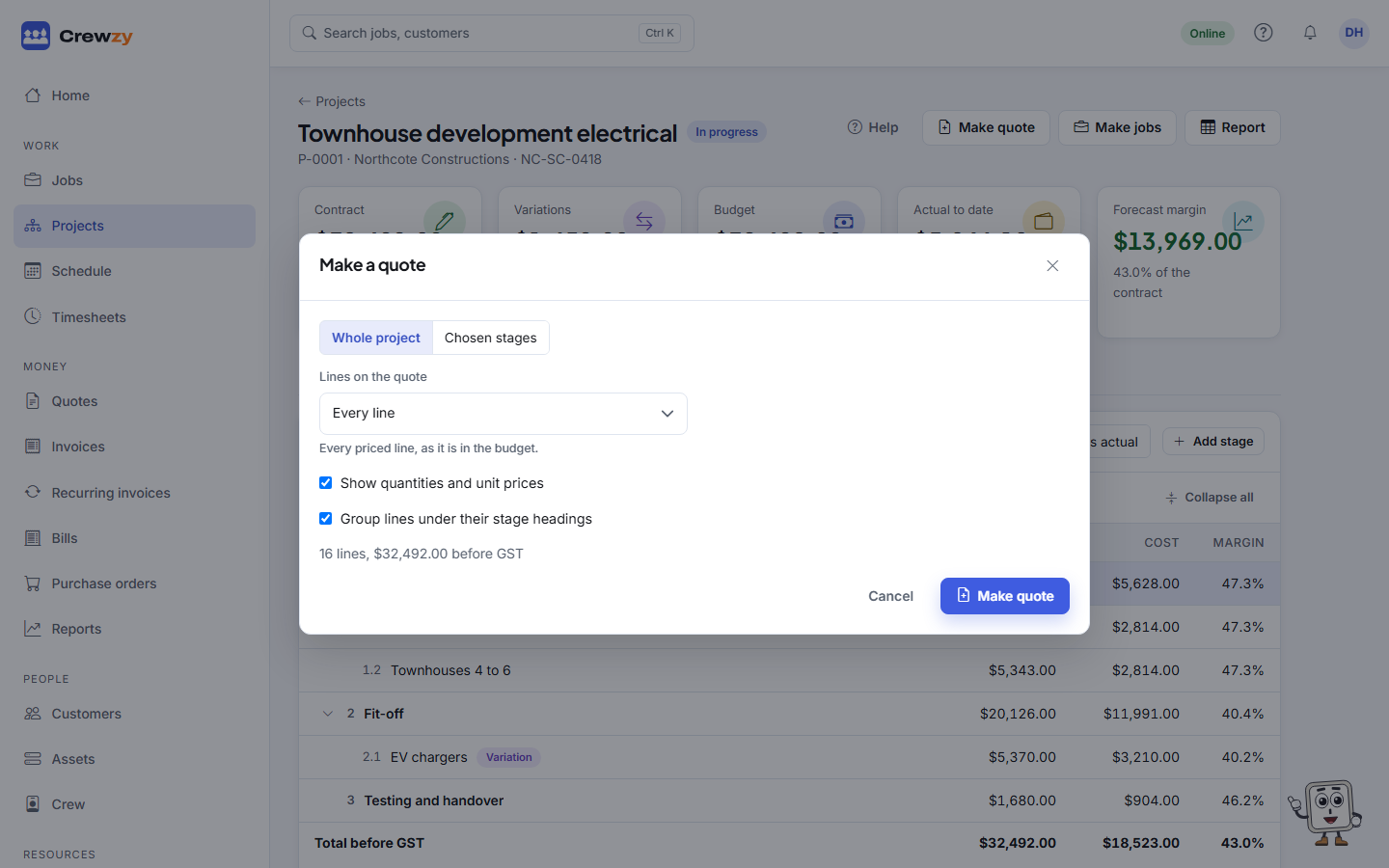
- On the project, press Make quote at the top of the page (or on the Quotes box of the Quotes & jobs tab).
- Choose Whole project, or Chosen stages and tick the stages to quote. A stage takes everything under it with it.
- Choose the Lines on the quote: - One line for each stage prints each stage quoted as one amount. - One line for each stage at a level prints each stage down to the level you choose as one amount. - Every line prints every priced line as it is in the budget.
- Untick Show quantities and unit prices to print amounts only.
- Leave Group lines under their stage headings ticked to print each stage's name above its lines.
- Press Make quote. The quote opens as a draft, ready to check and send.
You can make as many quotes as you like on one project, such as two options, or a separate quote for an extra. Each is listed on the Quotes & jobs tab with its status and amount.
When a quote is accepted
When the customer accepts on their link, or you press Accepted on the quote:
- The project's contract value becomes the accepted quotes added up, before GST.
- A baseline is taken: the budget lines of the stages that quote covered, frozen as they stand, to compare against later.
- A project still being won moves to Contracted.
Nothing becomes a job on its own. Make jobs from the stages when the work is ready to book (see Make jobs and track costs). A quote that is part of a project cannot be turned into a single job.
A quote accepted later adds to the contract value, and the baseline grows to take in that quote's stages. Lines already in the baseline keep the figures they were frozen with.
A contract that did not start from your quote
When a builder sends their own subcontract and schedule, open the project's Overview tab, press Set value on the Contract box and type the contract value before GST. Tick Freeze the budget as it stands now as the baseline to take the baseline at the same time. Quotes accepted after that add to the figure you typed. Use accepted quotes goes back to adding up the quotes.
Take a new baseline on the Contract box freezes the whole budget again as it stands. Earlier baselines are kept.
The Contract box shows the contract value and where it came from (accepted quotes or typed in), approved variations and the contract with them, and when the latest baseline was taken.
Activity
The Overview tab shows the latest few things under Recent activity, and the Activity tab lists everything that has happened on the project and who did it: stages added, renamed, moved or removed, quotes made, sent, accepted or declined, baselines taken, the contract value changing, jobs made or added, and status changes.