Build the stages and budget
Add, rename, move and remove stages, and price each one.
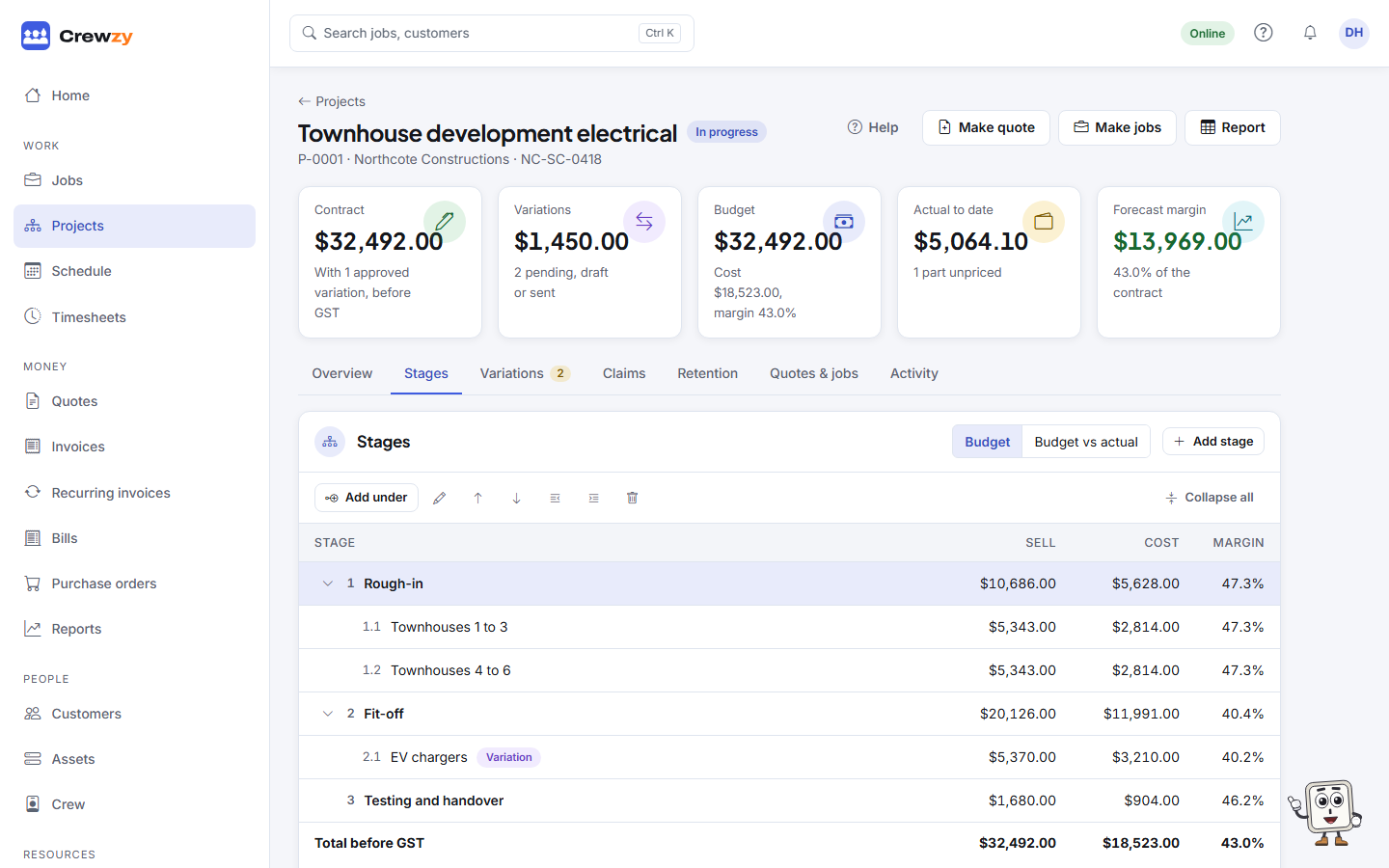
A project's stages are on its Stages tab, which is where a project opens once it has any. They are a tree: stages can hold stages, up to eight levels deep. Each stage's figures are what is priced on it plus everything under it, and the total is shown before and with GST.
Change the stages
Press a stage to choose it. The bar above the stages acts on the one chosen:
- Add stage at the top of the Stages box adds a stage at the top level. Add under adds one inside the chosen stage.
- The pencil renames it. You can also press Enter on a stage, or double-click it.
- The arrows move it up or down among the stages beside it.
- The indent buttons move it in a level, under the stage above it, or out a level.
- The bin removes it, with everything under it. You are asked first.
Numbers such as 2.1 follow where a stage sits, so they change as stages move.
Open and close branches
A stage with stages under it has an arrow beside its name. Press the arrow to close it and hide what is under it, and again to open it. A closed stage still shows what everything under it adds up to. Collapse all and Expand all in the bar close or open every branch.
Which branches you closed is remembered for each project on this device. Choosing a stage that is hidden opens the stages above it.
From the keyboard
| Key | Does |
|---|---|
| Up and Down | Move between the stages on show |
| Home and End | Go to the first or last stage |
| Right | Open a closed stage, or step into an open one |
| Left | Close an open stage, or step out to the stage above |
| Alt and Up or Down | Move the stage up or down |
| Alt and Right or Left | Move the stage in or out a level |
| Enter | Rename; Enter again saves, Escape puts the name back |
| Tab and Shift+Tab while renaming | Save and move the stage in or out a level |
| Delete | Remove the stage |
| Tab | Leave the stages for the next part of the page |
Price a stage
The box under the stages shows the chosen stage, with its number and name.
- With one amount a stage (the usual setting), type what the stage sells for, before GST. The owner and office can also put in an expected cost.
- With detailed budgets, the stage has lines: labour, materials, subcontract or other, each with a quantity, a cost and a sell price. Press Add line, or Add from price list to bring in an item at its price list cost and sell. Change any line in place.
- On a phone, each line is a short row showing what it is and its amount. Tap a line to change or delete it in a dialog; Add line and Add from price list open the same dialog.
A line with no cost yet is counted as not costed, never as free, and the figures say how many there are.