Progress claims
Claim for the work done each period, stage by stage, less what you claimed before and retention, and send it with your state's wording.
A progress claim asks the customer or builder to pay for the work done so far. Each claim is measured from the one before: you say how far along each stage is, and Crewzy works out what this claim is worth. Progress claims are on the Connected and Unlimited plans.
What a claim is made against
Open the project and choose the Claims tab. A claim has one line for each top-level stage, and one for each approved variation.
- A stage is claimed at its value in the baseline taken when the contract was agreed. Before there is a baseline, it is the stage's budget. A small project with one amount per stage needs nothing more.
- An approved variation is claimed on its own line, so the builder sees it apart from the contract work. Pending variations are not on the claim.
- A stage with no value is left off.
If the stages do not add up to the contract value, the tab says so: check the stage amounts.
Start a claim
Press Start claim 1 (or the next number) on the Claims tab. The claim opens with its lines. The period runs from the day after the last claim ended (or the project's start date) to today. Change the dates, or add a note, at the top of the claim.
Only one claim can be a draft at a time.
Your claim day
Claims fall due on the project's claim day: the reference date in your contract, or the last day of each month if you have not entered one (which is what most states' Acts set when the contract says nothing). Enter it as Claim day (day of the month) with Set retention (or Change) on the Retention and invoicing box.
From a week before the claim day, the project is listed on Home under Claims due, and on the day you are told in the bell. If a claim day passes with no claim, Home shows the next claim day with a note such as "No claim made for August", and the bell names the months missed when it tells you about the next one. See Claim reports, Home and the bell.
Enter the progress
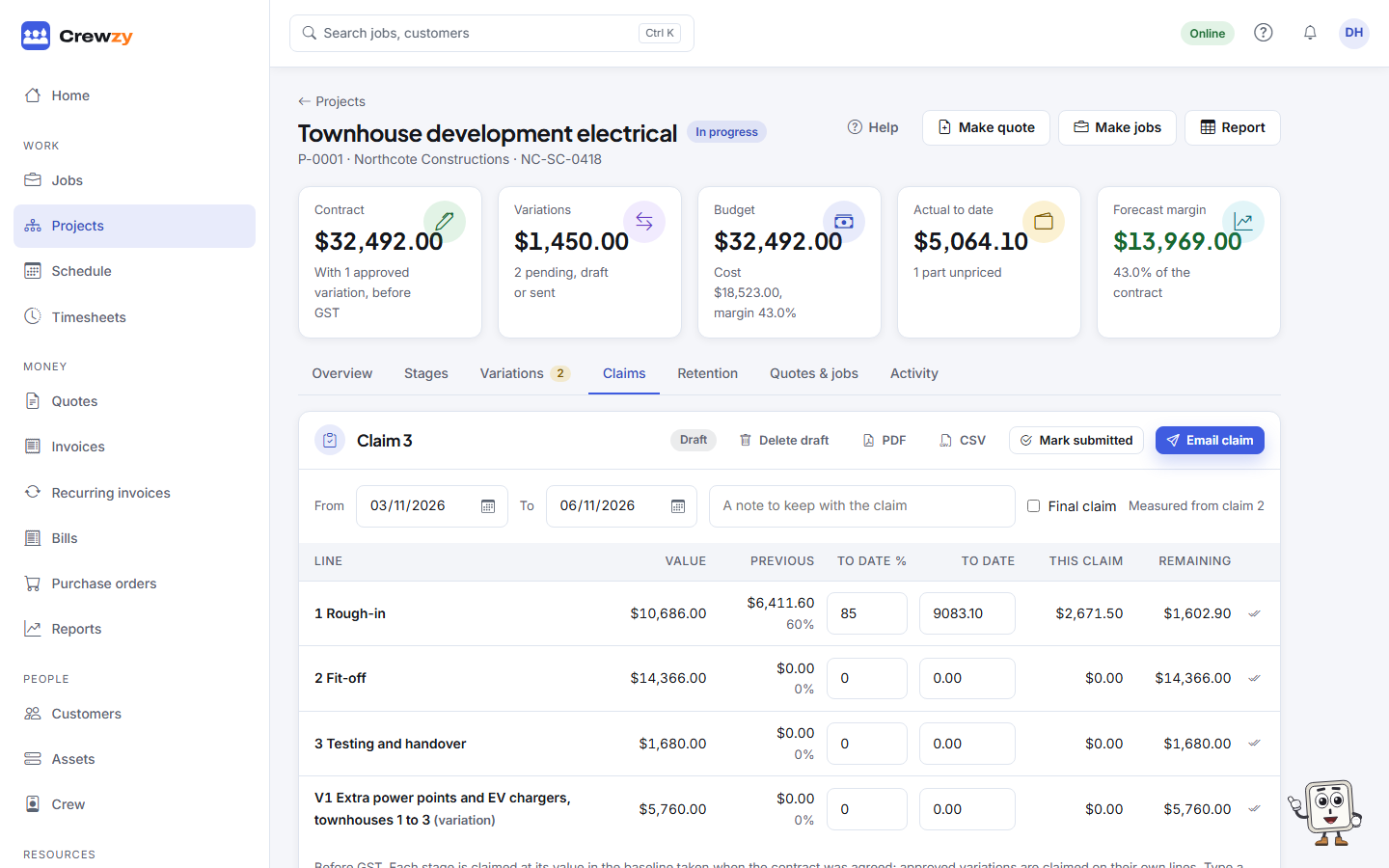
For each line, type how much is done to date, as a percent or an amount; the other is worked out. On a phone, tap a line to enter it. Claim in full sets a line to 100%.
The table shows the line's value, what earlier claims claimed, the total to date, This claim and what remains. A line you leave alone stays where the last claim left it.
Crewzy asks for a reason before it saves a line that goes:
- past 100%, such as materials on site your contract lets you claim, or
- below the last claim, such as when the builder certified less than you claimed and you are correcting it. This claim is then negative on that line.
Retention
Press Set retention on the Retention and invoicing box and enter what your contract says: the percent held from each claim, and the most that can be held, as a percent of the contract (with approved variations). Leave the cap empty for no cap.
Retention held to date is the rate on all the work claimed so far, never more than the cap. Each claim holds the difference from the last, so the claim that reaches the cap holds only what is left, and later claims hold nothing. A correction that lowers the work claimed gives back the retention on it.
Changing retention changes the draft claim only. Retention is off until you set it. The Retention tab keeps the ledger of what is held and released, and is where you claim it back: see Retention held and released.
The totals
The Totals box reads the way builders expect: work done to date (and how much of it is variations), less claimed before, this claim, less retention, the net amount, GST, and the amount claimed. Amounts are rounded to the cent once, line by line.
Security of payment wording
Most states' security of payment Acts expect a payment claim to say so on its face. The Security of payment box under the claim lines shows the statement that prints on this claim, chosen from the project's state (set on the project's details) and the rules in force today.
- New South Wales, Victoria, Western Australia, Tasmania and the ACT: the claim says it is made under that state's or territory's Act, naming it in full.
- Queensland: the claim asks for payment of the amount claimed and names the Act. Queensland does not need the Act named, but a claim must request payment.
- Western Australia also expects a claim to describe the items and quantities of work, so name each stage clearly.
- South Australia and the Northern Territory: a general statement that the claim is made under that state's Act, until each one's own wording has been checked.
The statement is on by default where the Act applies. It is off for residential work for an owner-occupier where the state's Act leaves that work out (in New South Wales and Tasmania it is covered, so it stays on; the ACT leaves out residential work for a resident owner on the home they live in or plan to). Untick Print the statement on the claim to leave it off, or type over the wording; Crewzy warns you when the wording is not the standard one, or is off where the Act needs it. Use the standard wording puts it back.
When the claim is submitted it keeps the statement it printed and the dated rules it went out under, so a later change in the law never rewrites a claim already sent.
This wording has not yet been reviewed by a lawyer, and the Acts change often. This is product guidance, not legal advice: check your contract.
Your claim is your tax invoice
When you are registered for GST, each claim you issue is your tax invoice for the net amount claimed: this claim less retention, with GST on that. The PDF is headed Tax Invoice with its invoice number, and Progress Claim and its number under it. When a claim is submitted it takes the next number in your invoice series, so it lines up with your books and with the payment details on your invoices. It shows your ABN, the date it was issued, each line (every line is taxable), the GST, and your customer's name and ABN.
The issued claim is also in Invoices and in your books under the same number, from the day it is issued: see Payment schedules, invoices and RCTIs.
Retention held back is not invoiced on the claim. It is invoiced when it is released, on a claim of its own: see Retention held and released.
If you are not registered for GST, the claim is headed Invoice and charges no GST.
When the builder issues RCTIs
Some builders raise a recipient-created tax invoice (RCTI) for each claim themselves. If yours does, press Set retention (or Change) on the Retention and invoicing box, tick The builder issues recipient-created tax invoices (RCTI), and enter the date of your written RCTI agreement. Your claims are then headed Payment Claim, take no invoice number, and say "This is not a tax invoice", naming the builder. When the builder's ABN is on the customer, Crewzy checks the Business Register and shows whether the builder is registered for GST.
When the builder's RCTI arrives, record it on the claim, and it becomes the claim's invoice in your books. File the signed agreement under RCTI agreement and project files. See Payment schedules, invoices and RCTIs.
Only tick it where your subcontract says the builder issues RCTIs. Both of you must be registered for GST, the agreement must be in writing before the first RCTI and kept for five years, and you must not issue your own tax invoice for the same work. A claim keeps how it was issued, so changing the setting later never changes a claim already sent. This is product guidance, not legal advice: check your contract.
PDF and CSV
PDF opens the claim as your customer will see it: each line's value, what was claimed before, the total to date and this claim, the statement, and the totals with retention and GST. A draft prints with DRAFT across it.
CSV downloads the claim's lines for a builder's portal such as Payapps: the line, its value, previous claimed, percent and value to date, this claim and what remains, with a total row.
Email the claim
Press Email claim to send it to the project's customer. Change the address, add a personal message, and choose whether the PDF is attached. Sending submits the claim today, so what went out is kept exactly as sent. The wording of the email is yours to change in Settings, under Emails ("Sending a progress claim").
A submitted claim can be emailed again with Email. Every attempt is listed under Email history, including any that did not go, and the project's activity notes who it went to.
When a claim is submitted, its PDF as it went out is filed under Claim files, where you can also add the builder's acknowledgement or other papers.
Mark it submitted
When the claim has been lodged on the builder's portal, or handed over another way, press Mark submitted instead. Enter the date and the portal or claim reference. From then on the claim is kept as it was: its lines and figures no longer change, and the next claim is measured from it.
A draft that is not needed can be deleted with Delete draft; the next claim takes its number, so numbers never skip.
Claim history lists every claim with its period, when it was submitted, who it was emailed to, this claim, retention and the amount claimed. Choose one to open it. Report opens the project's claim history report, with a CSV.
The final claim
Tick Final claim on the draft of your last claim for the work. It is headed Final Claim on the PDF and in your invoices, and the email says it is your final claim. After it goes, no more progress claims can be started on the project; retention still held is claimed back from the Retention tab. If your last claim went out without the tick, make the final claim for nil with Final claim for nil. See The final claim and closing a project.
Once a claim has gone, record the builder's payment schedule against it, and see when the schedule and payment are due: Payment schedules, invoices and RCTIs. This is product guidance, not legal advice: check your contract.