Void an invoice, and fixing mistakes
Void a draft or an unpaid sent invoice, and start a corrected copy.
A voided invoice is never deleted. It stays on the list marked void, with its number, so the numbering has no gaps. It drops out of what is owed, the reports and the home page.
Void a draft
Open the draft and press Void, then Void invoice. The draft is kept, marked void. Nothing has gone to the customer, so no reason is asked for.
Void a sent invoice
You can void a sent invoice as long as no payment and no credit note is against it.
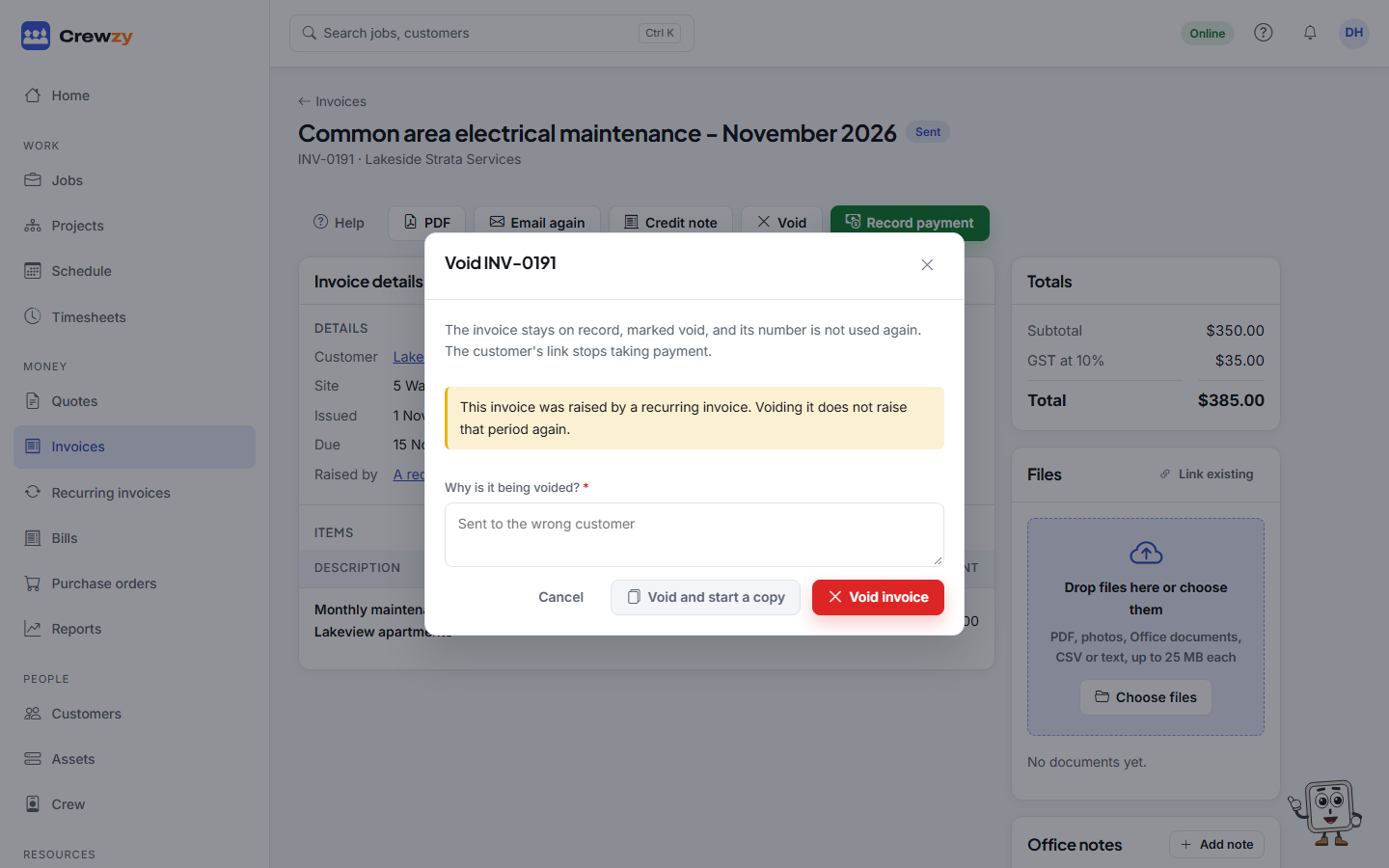
- Open the invoice and press Void.
- Type Why is it being voided?, such as "Sent to the wrong customer". The reason, the date and who voided it are kept on the invoice.
- Press Void invoice.
The customer's link now says the invoice has been withdrawn and takes no payment. If Xero is connected, the invoice is voided there too.
Correct a sent invoice
A sent invoice cannot be edited, because your customer already has it. To fix the wrong amount, lines or customer:
- Open the invoice and press Void.
- Say why, then press Void and start a copy.
- The copy opens as a new draft with the same customer, lines and notes. Fix it, then send it. It goes out under a new number.
When money has already come in
An invoice with a payment against it cannot be voided. Your books keep its history instead:
- The customer was charged too much: raise a credit note. See Credit an invoice.
- A payment was recorded by mistake: remove it from the Payments list in the invoice's Totals box, then void.
An invoice issued for a progress claim cannot be voided on its own: it is corrected on the next claim or with a credit note. See Payment schedules, invoices and RCTIs.