Payment schedules, invoices and RCTIs
Record the builder's payment schedule against a claim, see when a schedule and payment are due, and find the claim in your invoices and your books.
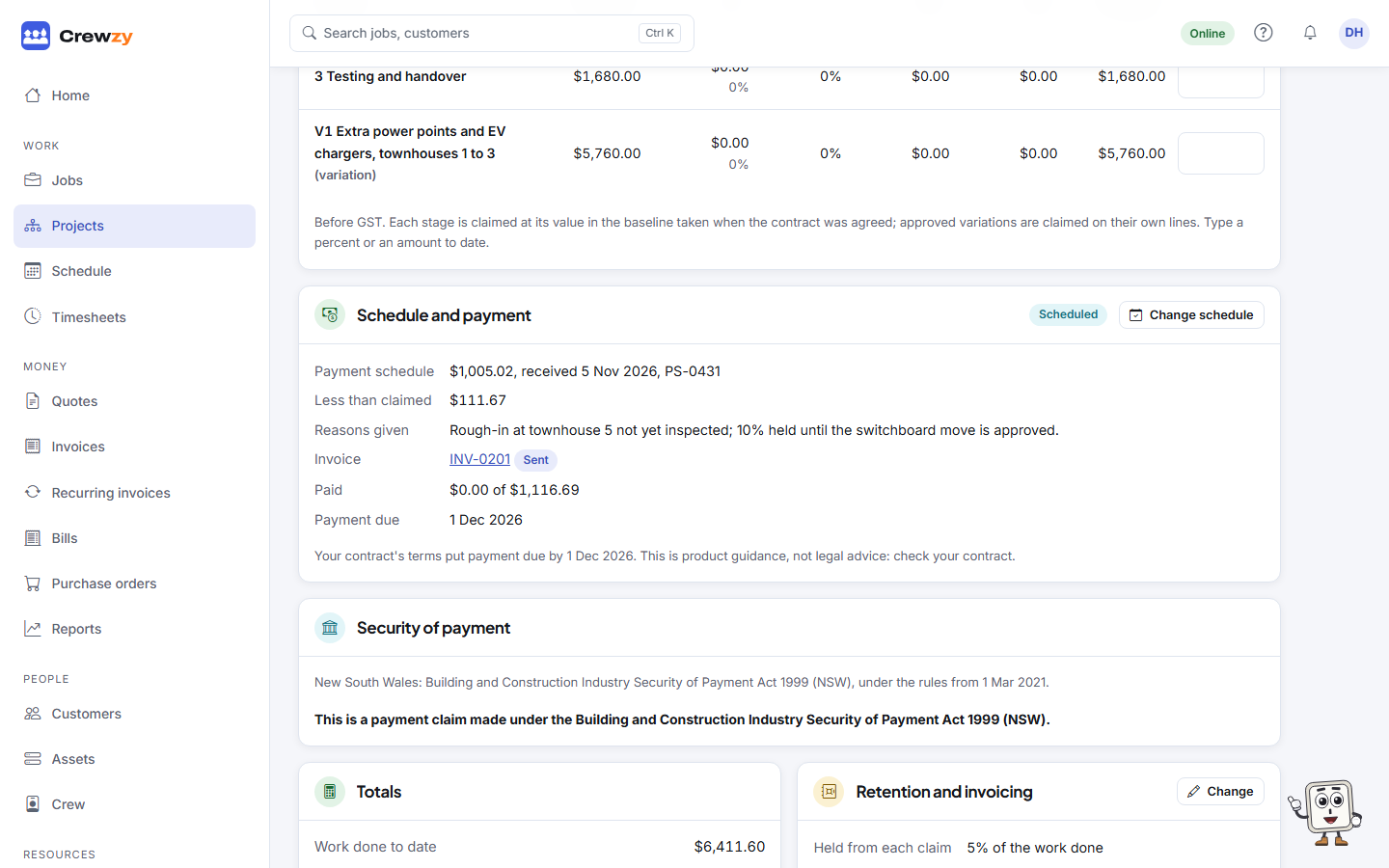
Once a progress claim has gone, the Schedule and payment box under the claim keeps track of what comes back: the builder's payment schedule, the invoice in your books, and when each was due.
Your claim is in your invoices
A claim you issue as your own tax invoice is also an invoice in Invoices from the day it is issued, under the same invoice number, for the net amount (this claim less retention) plus GST. It is the same document: opening its PDF from Invoices prints the claim. Anything you do with an invoice works on it:
- record payments, or take them by the pay link,
- reminders go out when it is overdue, as for any invoice,
- it is sent to Xero when your books are connected, and payments made there come back.
It cannot be edited, copied or voided apart from its claim, because the customer holds it as their tax invoice. Correct it on the next claim, or raise a credit note. A project with claims in your books cannot be deleted: mark it cancelled or closed instead.
If you are not registered for GST, the claim is a plain invoice with no GST, in the same way.
Claims issued before this was in place were given their invoices automatically.
When a schedule and payment are due
Under each state's security of payment Act the builder has a set time to answer your claim with a payment schedule, and a most it can take to pay. The box shows both dates as a guide:
- Payment schedule due: the earlier of your contract's period and the Act's (10 business days in New South Wales, Victoria, Tasmania and the ACT, 15 in Queensland and Western Australia).
- Payment due: your contract's terms, but never later than the most the Act allows (in New South Wales, 15 business days for a head contract and 20 for a subcontract; in Queensland, 15 and 25; in Western Australia, 20 and 25; in Victoria, 20; in the ACT, 15). Tasmania's Act sets no most. Where you have not entered terms, the default of 10 business days in Victoria, Queensland and Tasmania is used, and elsewhere the most the Act allows.
Some timeframes turn on facts Crewzy does not record, so the box uses the usual one and says so under the dates:
- Western Australia: payment for home building work is due on the contract's date or, if it sets none, 10 business days after the claim. The date shown is for other work.
- Tasmania: when you claim from a home owner who is not a building practitioner, for a home on their own land, the payment schedule is due in 20 business days, and so is payment if the contract says nothing. The dates shown use 10.
Enter your contract's terms with Set retention (or Change) on the Retention and invoicing box of the Claims tab: the business days for a payment schedule, and the days for payment, in business or ordinary days. The payment due date is the due date of the claim's invoice, and prints on the claim.
Business days leave out weekends and the public holidays every state keeps (New Year's Day, Australia Day, Good Friday, Easter Monday, Anzac Day, Christmas and Boxing Day). The Victorian, Queensland and Western Australian Acts also leave out 22 December to 10 January, and the New South Wales, Tasmanian and ACT Acts leave out 27 to 31 December. State public holidays are not counted yet, so a date can come out a day early where your state has one of its own.
South Australia and the Northern Territory have no timeframes yet: enter your contract's terms to get dates there.
These dates are guides. This is product guidance, not legal advice: check your contract.
Record a payment schedule
When the builder's payment schedule arrives, press Record schedule and enter:
- the day it was received,
- the scheduled amount, including GST,
- its reference, if it has one,
- the reasons it gives for paying less than you claimed, as it states them. These are needed when it is for less.
The box then shows the amount scheduled, how far it falls short of the claim, and the reasons. Change schedule corrects it, and Remove takes it off. File the schedule itself under Claim files.
Line by line
Where the schedule gives an amount for each stage or variation, the claim's lines gain a Scheduled column once the schedule is recorded. Type what the schedule says for each line this claim, before retention and GST; a line scheduled for less than you claimed shows how much less. Leave a line blank if the schedule does not break it down. On a phone, tap a line to enter it. Recording the schedule again keeps the amounts by line.
Disputing a schedule
When the schedule is for less than you claimed and you do not accept it, tick We dispute this schedule. The claim shows Disputed in the box and in Claim history until it is paid. If you accept the lower amount, leave it unticked: the claim stays Scheduled.
Each state's Act sets out how a dispute over a payment schedule can go to adjudication, with strict time limits. Your state's building or fair trading regulator explains the process. This is product guidance, not legal advice: check your contract.
Warnings
The box, and the claim's line in Claim history, warn you when:
- no payment schedule is recorded and the day it was due has passed. Under most Acts a builder who does not answer a claim in time loses the right to dispute it, or becomes liable for the full amount. What you can do next depends on the Act and your contract: your state's regulator explains it, and a lawyer can advise.
- payment is past due: the claim's invoice is overdue, with what is still owing.
- under an RCTI, payment was due and no RCTI is recorded.
You are also told in the bell, once for each claim, when a schedule or payment becomes overdue or an RCTI has not arrived, and claims waiting on a schedule are listed on Home under Schedules waiting. See Claim reports, Home and the bell.
This is product guidance, not legal advice: check your contract.
When the builder issues RCTIs
On a project set to RCTI, the builder raises the tax invoice for each claim, not you. When it arrives, press Record RCTI and enter its number, its date, the amount excluding GST and the GST, as printed. The GST fills itself in from the amount; Crewzy checks it is 10% of the amount, to the cent.
The RCTI becomes the claim's invoice in your books, in place of one of yours:
- it is listed in Invoices by the builder's number (for example RCTI 4471), dated the day the builder issued it, with the builder's GST,
- it is sent to Xero as a sale carrying the builder's number as the invoice number, with a note that it is a recipient-created tax invoice,
- record payments against it as for any invoice. It has no pay link and no reminders, and it cannot be emailed or credited from here, because it is the builder's document.
Crewzy warns you when the RCTI does not come to the amount scheduled (or, with no schedule, the amount claimed), so you can ask the builder about the difference. An RCTI recorded wrongly can be voided from its invoice and recorded again.
File the signed RCTI agreement under RCTI agreement and project files on the Claims tab, and keep it for five years.
Both parties must stay registered for GST. Crewzy warns you on the Claims tab when your business is not registered in its tax settings, and, when the builder's ABN is on the customer, when the Business Register shows the builder is not registered, or was registered only after the agreement was dated. It checks each time you open the claims; it does not watch the Register in between.
This is product guidance, not legal advice: check your contract.