Connect Xero
Send invoices to your books by themselves, and see payments come back.
Connecting your accounting software means nobody types an invoice twice. Go to Settings, Connections.
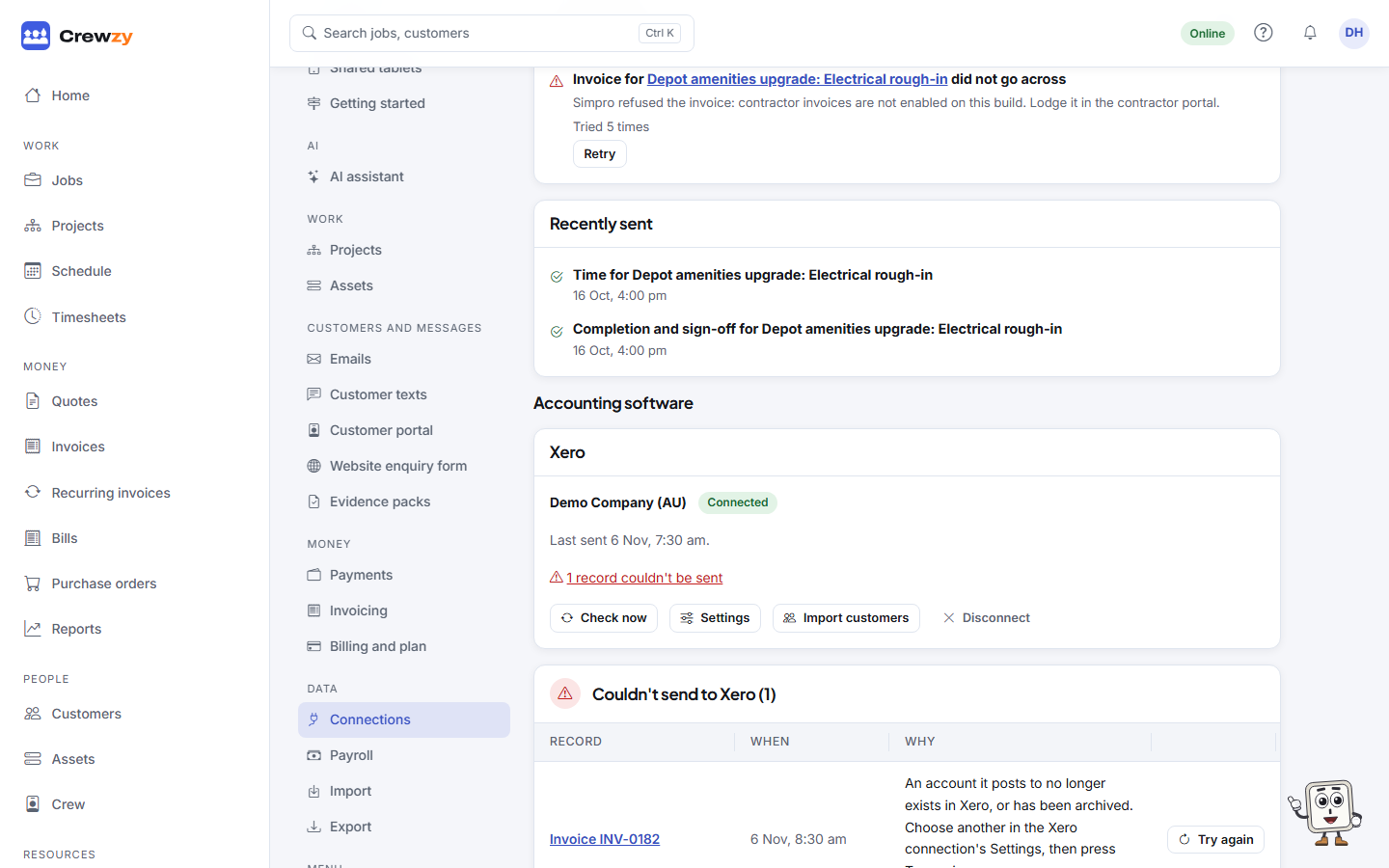
Connect
- Under Accounting software, press Connect Xero.
- Sign in to Xero and pick your organisation.
- You come back to the Connections screen. It reads your chart of accounts and tax rates, and picks the accounts and tax codes that fit your business. It shows what it picked.
If a pick is wrong, press Settings on the connection. In Where invoices post to, change:
- Sales post to: the income account invoices go to
- Tax on a taxable line and Tax on a line that carries none
- Payments land in: the bank account payments are recorded against
- Supplier bills post to: the expense account approved supplier bills go to
What moves, and when
| What | Which way | When |
|---|---|---|
| Customers | Out | Just before their first invoice goes. An existing contact is matched by tax number (ABN, or NZBN in New Zealand), then email, then name |
| Invoices | Out | When an invoice is sent. Drafts never go. A project's progress claim goes when it is issued |
| Voided invoices | Out | When voided here |
| Credit notes | Out | When raised here, applied to their invoice |
| Payments | Both ways | Recorded on either side, and shown on the other |
| Supplier bills | Out | When a bill is approved, with the supplier added to your books if they are new |
Quotes stay here. Your bookkeeper's contacts are never renamed or merged.
Bring your customers across
Press Import customers on the connection to copy the customers already in your books into the app. It is a one-off: run it again later if you add customers in your books.
If something does not go through
Each invoice, credit note and supplier bill says on its own page whether it is in Xero, waiting to send, or could not be sent and why. Anything that could not be sent is also listed under Couldn't send to Xero on the Connections screen. Fix the cause, then press Try again. See Sync problems.