Your jobs
What you see on your phone, how to get around, and how to find a job.
My Jobs is the first thing you see. It lists every job you are on that is not finished yet, with its status, when it is due and who else is going. Finished jobs sit underneath under Done.
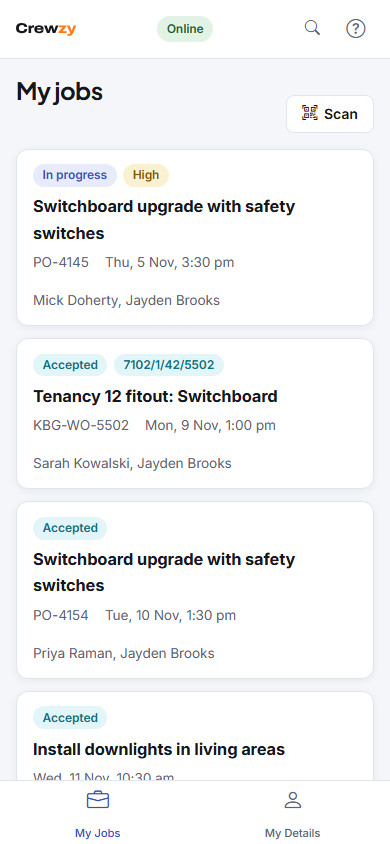
Getting around
The crew app has two places:
- My Jobs: the jobs you are booked on.
- My Details: your name and phone number, your licences and tickets, your calendar link and this phone's settings. See Put the app on your phone.
On a phone they are along the bottom of the screen. On a tablet or computer they are in the bar at the top. While you have a job open on a phone, the job's own buttons take their place; tap Jobs at the top left to come back.
Open a job
Tap a job to open it. You see:
- what needs doing, the customer and the site address
- the site's access notes, such as a key safe or gate code: at the top of the job until you clock on, then under the address, until the job is finished
- notes from the office and the crew, with pinned ones at the top (see Notes on a job)
- who else is on it, and any vehicle or equipment booked
- the job's forms, parts and materials, and job sheets
- the files on the job, such as plans and photos
- your time on it
What you can do on a job is in A job on your phone.
Find a job
Tap the search button at the top to search your jobs, and documents filed on them or on you. You only ever see the jobs you are booked on.
Online and offline
The badge at the top says Online or Offline. Your jobs are saved on the phone, so you can open them with no signal. See Working without signal.