Variations
Price changes to the work, send them for approval, and see them in the contract and budget.
A variation is a change to the work after the contract: something added, taken out or done differently, with a price. Each project numbers its variations V1, V2 and so on.
Raise a variation
- Open the project's Variations tab and press New variation.
- Give it a Title, say What changes (this prints for the customer) and the Reason.
- Fill in Directed by, Directed on and the Site instruction number if they gave one.
- Add an Extension of time (days) if the change needs more time.
- Tick Price later when the work goes ahead now and is priced afterwards from time and materials.
- Press Raise variation. The variation opens, ready to price.
Price it
Add a line for each thing priced in the Lines box. Each line goes on an existing stage, or choose A new stage... and name the stage the variation adds, with the stage it goes under. A negative quantity takes work out (an omission).
The Value box adds up the sell price, and for the office and the owner the cost and margin. Costs are only shown to them.
Send it for approval
Press Send (it needs at least one line). The variation goes out like a quote: a PDF and a link where the customer or builder approves it with their name and signature, rejects it, or asks a question. The PDF, the email and the link all say Variation, not Quote. Just mark it sent is for one uploaded to the builder's own portal.
A builder who approves in their own system: press Mark approved and record who approved it and their reference. Mark rejected works the same way.
To change a variation already sent, press Revise. It goes back to a draft and the link the customer has stops working; send it again when it is ready. Email again sends the same link again. Withdraw takes it off the table for good.
What approval does
- The contract value adds the variation (or takes it away, for an omission). Rejected and withdrawn variations never count.
- Its lines become budget lines on their stages, and any new stage is added to the tree, marked Variation. Make jobs from them like any stage.
- In Budget vs actual, the revised budget is the baseline plus approved variations, stage by stage.
Raised from site
A worker on a project job can tap Add, then Raise a variation, on the job on their phone (or Raise a variation on the job's Variations box on a bigger screen): what is changing, who asked, photos, and the customer's signature if they directed it on site. They never see prices. The variation lands in the office as a draft, flagged as from site, ready to price and send, and the office and owner hear about it on the bell.
Notice periods
Many subcontracts want written notice of a variation within a set number of days of the direction. Set the number in Settings, Projects, or for one project with Edit on the Details box of its Overview tab (Variation notice (days)). Variations raised after that, or still not sent by then, are flagged on the Variations tab. The days are calendar days; check your contract.
The register
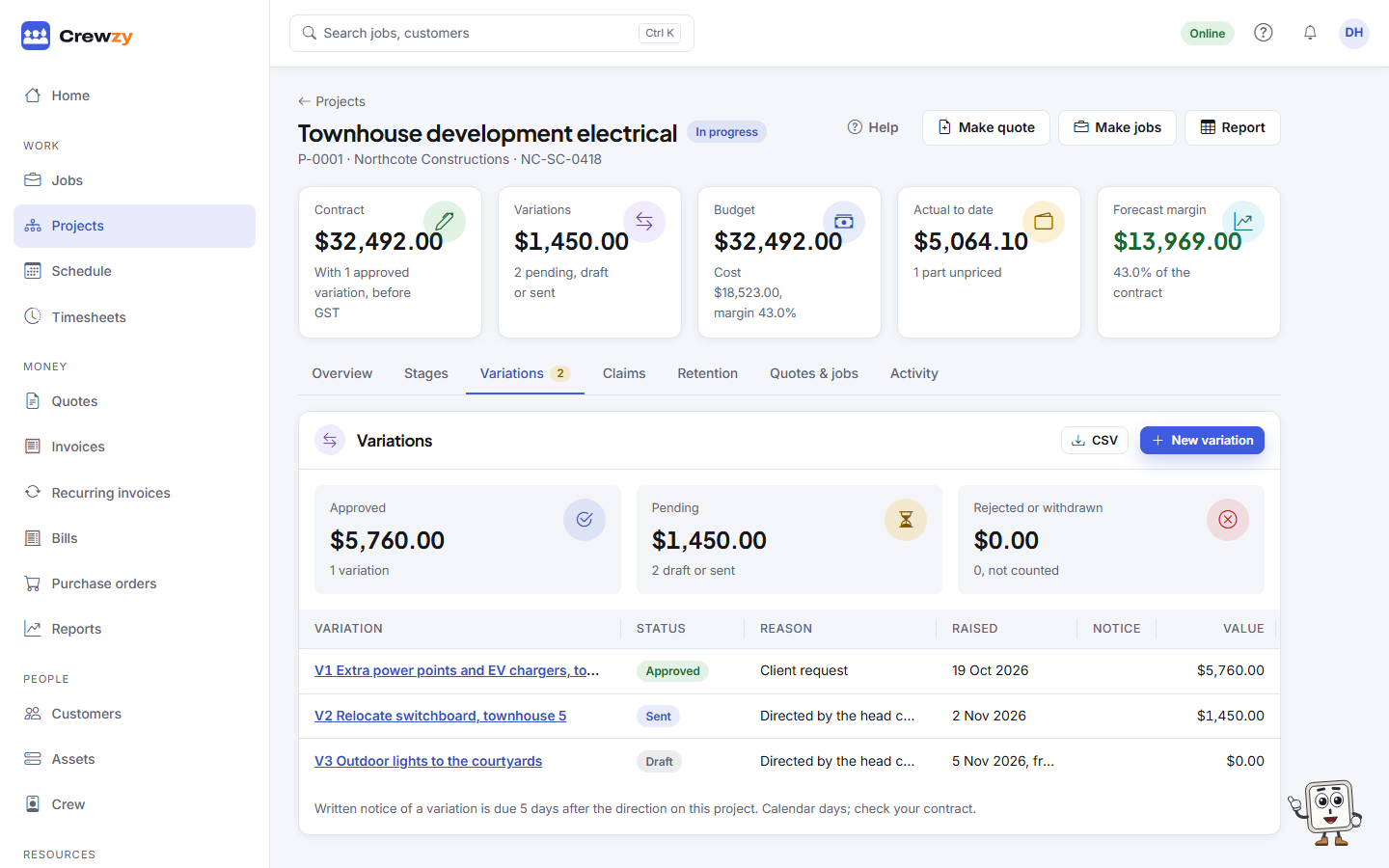
The Variations tab is the project's variation register. It lists every variation with its status, reason, notice and value, and adds up what is Approved, Pending (draft or sent) and Rejected or withdrawn. The tab's label shows how many are pending. Press CSV for a spreadsheet, or a row to open the variation.