The jobs board
See every job by where it is up to, assign crew and move jobs along.
Go to Work, Jobs, Board. The Jobs menu item opens whichever of Board or List you used last on this device.
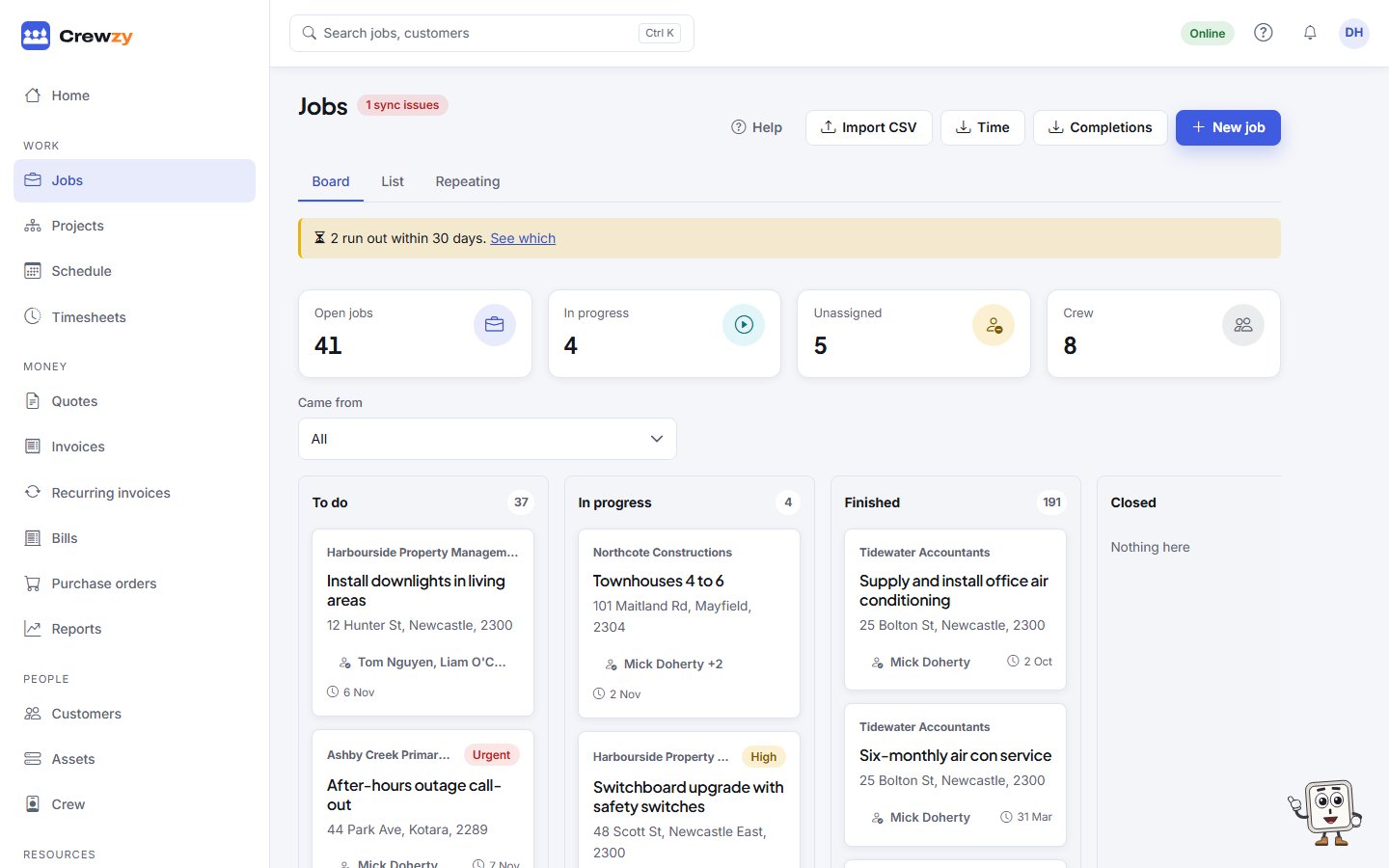
What is on it
Across the top are the counts: Open jobs, In progress, Unassigned and your crew. Below, every job sits in one of four columns:
| Column | Holds |
|---|---|
| To do | New jobs and jobs accepted but not started |
| In progress | Jobs someone has clocked on to |
| Finished | Jobs marked complete |
| Closed | Jobs a head contractor has approved or closed |
Each card shows the customer, the title, the site, who is on it and when it is due. Urgent and high priority jobs carry a coloured tag.
Assign the crew
Press Assign on a card (or the names already on it), tick the people who are going and press Save crew. A job can have more than one person. Each person gets a notification on their phone if they have turned them on.
Move a job along
Drag a card to another column to change its status. Most of the time you will not need to: a job moves to In progress when the worker clocks on, and to Finished when they mark it complete.
A job from a head contractor's system can only be moved where their rules allow. The Closed column is theirs to fill, so you cannot drop a card there.
Where jobs came from
Pick Came from to show only the jobs Added in Crewzy, from a Head contractor, or from your Website enquiry form. See Take enquiries from your website.
Show one status
Home's Jobs this week chart links to the board showing one status. Press Show all to see every job again.
Other buttons
- New job adds a job. See Create a job.
- Import CSV brings in jobs from a spreadsheet.
- Time and Completions download the time recorded and the jobs completed, as CSV files for your records or payroll.