Forms on a job
Add forms to a job, see where each one is up to, and get the PDF once it is done.
The Forms card, on the job's Sheets & forms tab, lists its forms and where each is up to: To do, In progress, Done, or Overdue once the job's due time has passed.
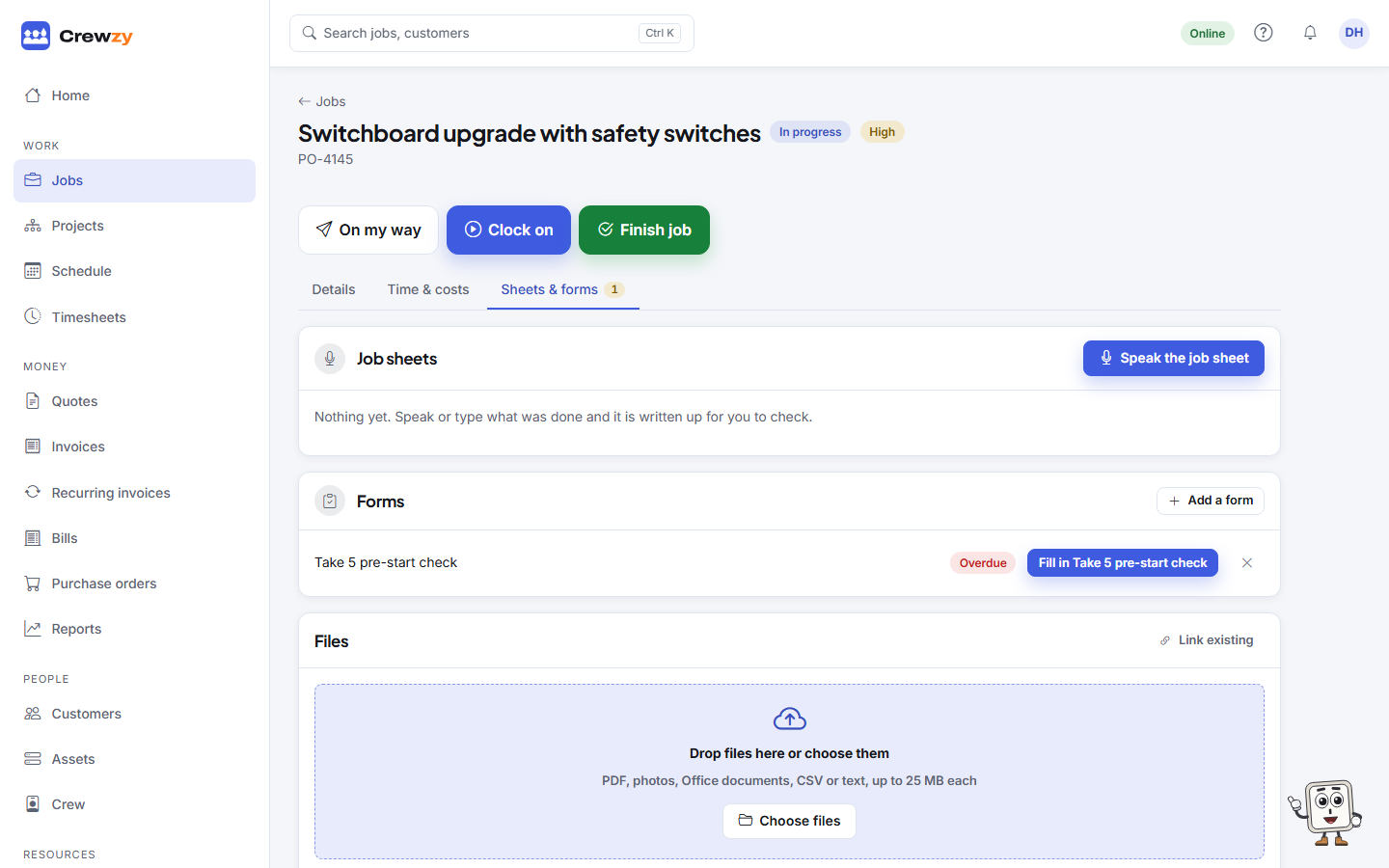
Add a form
Press Add a form on the card and choose one of your forms. Forms set to go on every new job are already there.
A form nobody has started can be taken off again with the cross beside it.
When it is done
Each finished form has a PDF button. The PDF is also filed under the job's Files, and its photos are filed there too.
The card's history shows who submitted each form, any amendments and why, and whether it was emailed to the customer.
Finishing a job without a form
If a form is needed to finish and is not done, finishing asks for a reason. The job is finished and the reason is kept in its history. Crew on site cannot do this; they are told to finish the form first.