Take card payments online
Connect Stripe so customers can pay an invoice by card from its link.
Every invoice you email has a pay link. Connect a payment account and customers can pay by card straight from it. The money goes to your own account, never through ours. Refunds and disputes are handled in that provider's own dashboard.
Go to Settings, Payments.
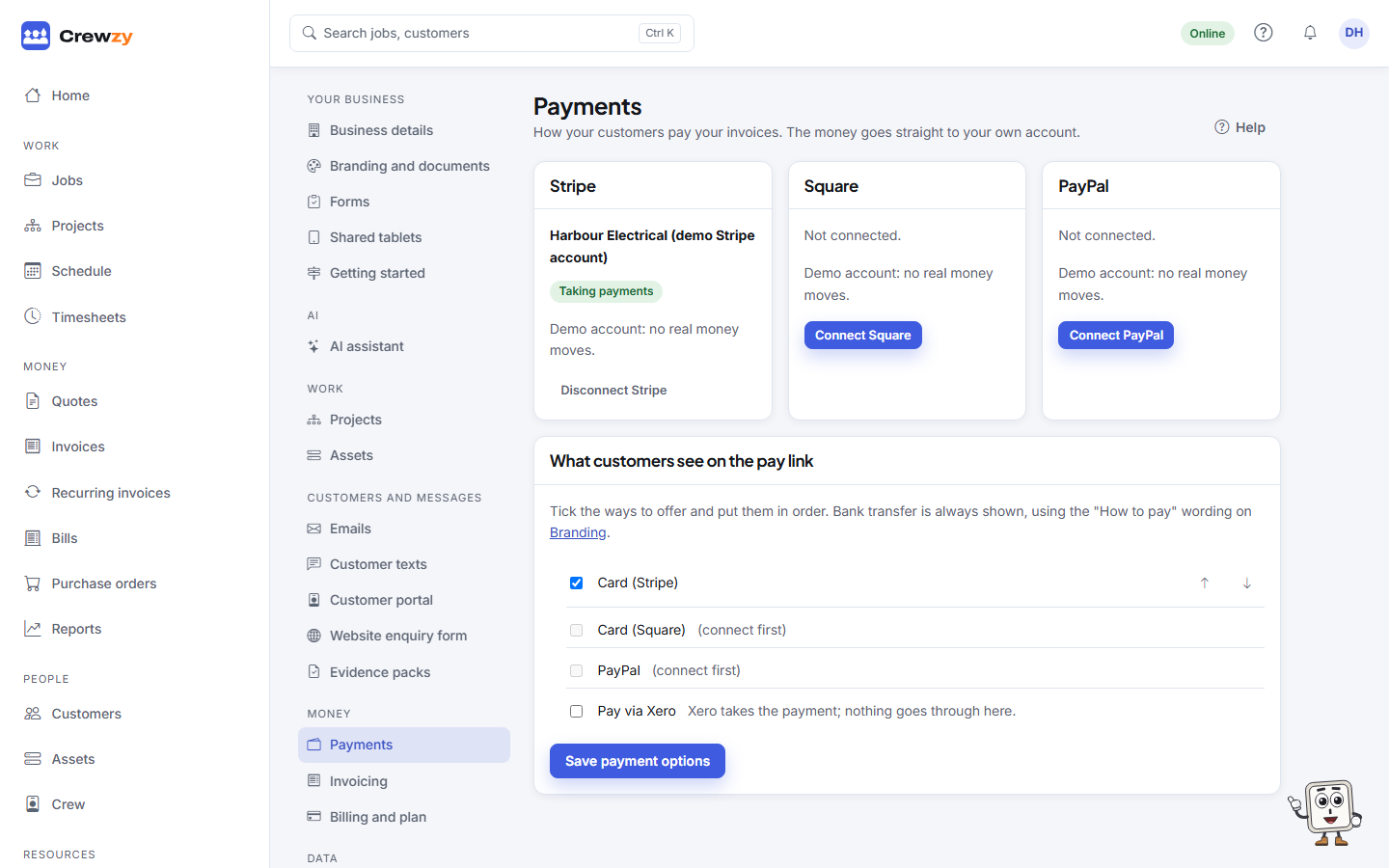
Connect an account
- Press Connect Stripe, or Connect on another provider if the screen shows one.
- Sign up or sign in with that provider and finish their steps.
- Back on the Payments screen, the account shows Taking payments once the provider is happy.
If it says Setup not finished, press Finish setting up and complete what the provider still needs. Needs attention means the provider has held the account; check their dashboard.
Choose what customers see
Under What customers see on the pay link, tick the ways you want to offer and put them in order with the arrows. Press Save payment options.
- Card (Stripe), and any other provider you have connected, takes the payment and marks the invoice paid by itself.
- Pay via Xero sends the customer to Xero's own invoice page, if you use Xero for payments. Nothing goes through here, and the payment comes back when Xero reports it.
- Bank transfer always shows, using the "How to pay" wording from Settings, Branding and documents.
Receipts
When a customer pays online, the invoice is marked paid, the payment goes to Xero if connected, and the customer is emailed a receipt.