Timesheets
Everyone's hours for the week, and adding or correcting time.
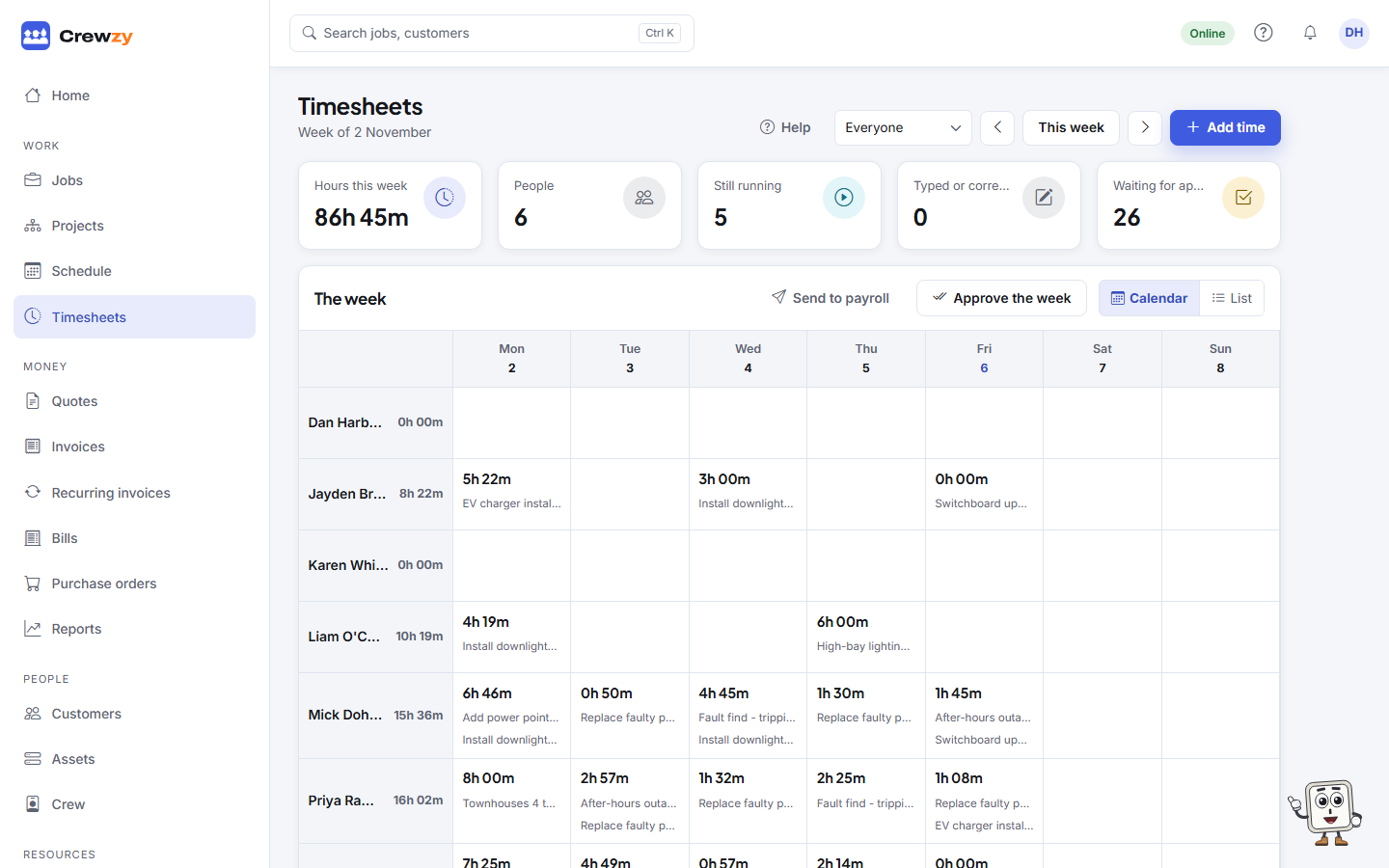
Go to Work, Timesheets. It shows the week's time, built from every clock on and clock off.
Reading the week
At the top: Hours this week, how many People recorded time, how many clocks are Still running, and how many entries were Typed or corrected by the office.
- Calendar shows a grid of people by day, with each person's hours.
- List shows every entry: who, the job, start and finish, breaks, and whether it was Clocked, Typed, Corrected or is Running.
Use the arrows to move a week at a time, This week to come back, and Whose time to show to see one person.
Add time
Press Add time at the top, + Add in a person's day, or Add time on a job's Time & costs tab, and fill in Who, Job, Day, Start, Finish, Break in minutes and any Notes. Typed time is marked Typed so it is clear it was not clocked.
Charge at sets the rate the customer is charged for this entry alone, such as an after-hours call-out. Leave it on Their usual rate otherwise. See Charge each person at their own rate.
Correct or remove time
Click an entry to change it. It is marked Corrected. Use Remove entry in the list to delete one made by mistake.
You can attach dockets, such as a signed paper timesheet, to an entry.
Take it to payroll
On Work, Jobs, the Time button downloads every time entry as a CSV file you can give to your bookkeeper or load into payroll.